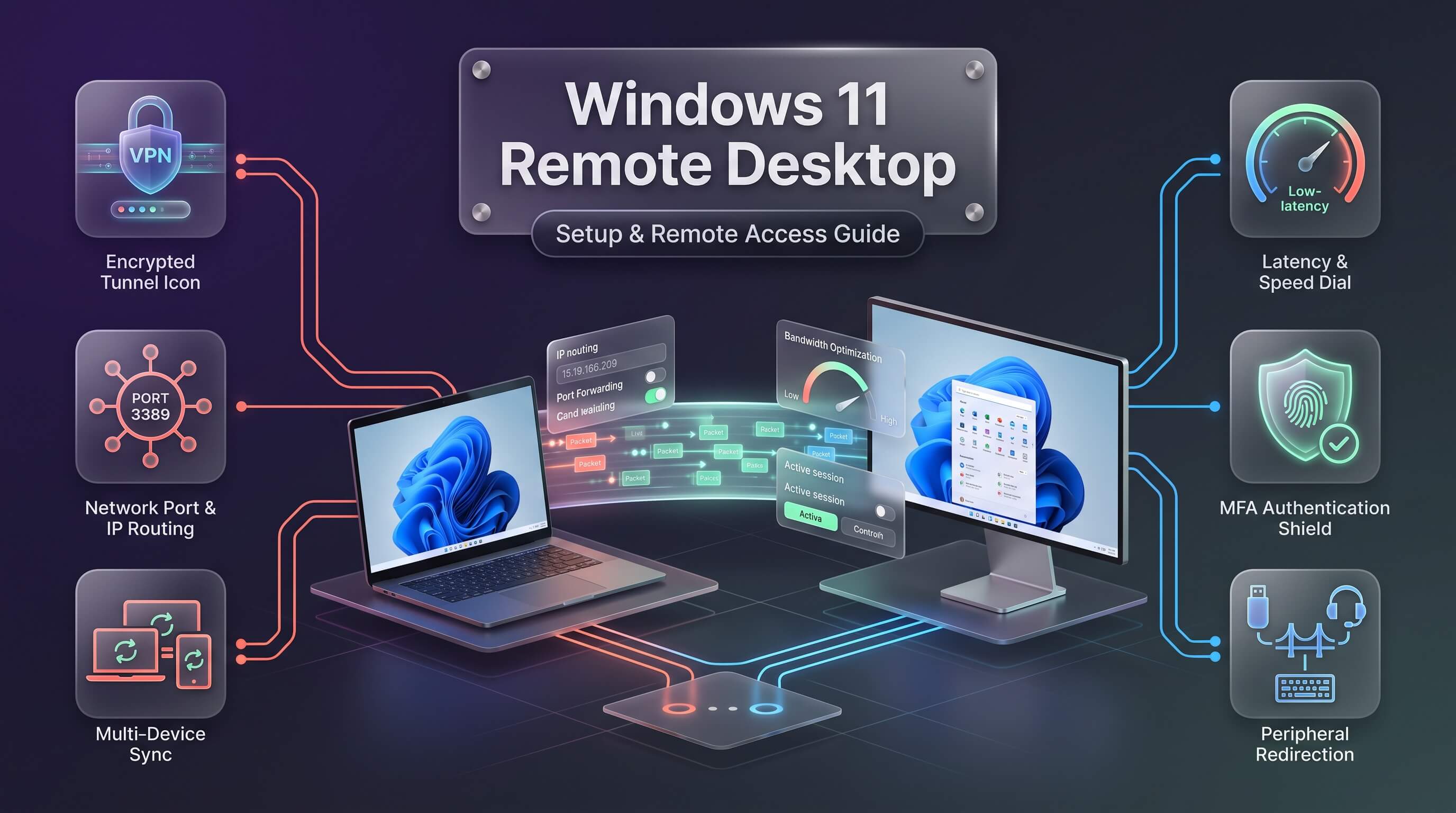
A forgotten file on the office computer, a client who needs help troubleshooting their laptop from three states away, or a home server that only needs checking on once a month, all of these situations share the same solution. Windows 11 remote desktop lets you reach into another PC’s screen, keyboard, and mouse as if you were sitting right in front of it, no matter where you physically are. This guide walks through every part of setting it up correctly, connecting reliably, and keeping the connection secure, including the changes Microsoft rolled out in 2026 that reshaped how remote access works on Windows entirely.
What Windows 11 Remote Desktop Actually Is
Remote Desktop Protocol, commonly shortened to RDP, is the technology Microsoft built directly into Windows that lets one computer display and control the screen of another over a network connection. Unlike screen-sharing tools that simply mirror a display, windows 11 rdp creates a genuine remote session: keystrokes, mouse movements, clipboard content, and even connected devices like printers or USB drives can pass between the two machines as though you were physically at the remote keyboard.
The technology has existed in Windows for more than two decades, originally aimed at IT administrators managing servers from a distance. Its role has broadened considerably since then. Remote workers now use windows 11 remote access to reach their office desktop from home, freelancers use it to support clients without traveling, and hobbyists use it to manage home lab servers or media PCs tucked away in a closet. The underlying protocol has matured alongside these use cases, adding better compression, smoother multi-monitor handling, and stronger encryption along the way.
It helps to separate two distinct roles before going further: the host, which is the computer being connected to and controlled, and the client, which is the device initiating the connection. Windows 11 can act as both, though with an important licensing restriction covered in the next section that catches many first-time users off guard.
Which Windows 11 Editions Support Remote Desktop Hosting
This is the detail that trips up more people than any other step in the setup process. Windows 11 Home cannot accept incoming Remote Desktop connections. The feature to host a session, meaning allowing another device to connect into that PC, is reserved for Windows 11 Pro, Enterprise, and Education editions. A Home edition machine can still initiate an outbound connection to reach another PC, but it cannot be the destination someone else connects into.
If you are running Home edition and specifically need to accept incoming connections, the practical paths forward are upgrading to Windows 11 Pro through Settings, which usually costs a modest license fee and takes only a few minutes to activate, or relying on a third-party remote access tool instead, several of which work identically across every Windows edition. The tool comparison later in this article covers exactly that alternative for anyone who would rather not upgrade their license just for this one feature.
It is worth double-checking your edition before troubleshooting a connection that refuses to work. Open Settings, go to System, then About, and look at the Windows specifications section. If it lists Home rather than Pro, Enterprise, or Education, that missing toggle in the Remote Desktop settings is expected behavior, not a bug.
How to Enable Remote Desktop on Windows 11
Assuming you are running a supported edition, the process to windows 11 enable remote desktop takes only a couple of minutes. Open Settings by pressing the Windows key and typing “Settings,” then navigate to System and select Remote Desktop from the list. Toggle the Remote Desktop switch to on, and Windows will display a confirmation dialog explaining that the PC will now be discoverable on private networks for remote connections. Confirm the change, and the feature activates immediately without requiring a restart.
Before attempting a connection from another device, take note of the PC name, since that is what you will type into the connecting client later. This name appears directly on the same Remote Desktop settings page, or you can find it under Settings, System, About, listed as the device name. Writing this down, along with the current local IP address, saves a step later when setting up the connection from a second computer.
It is also worth confirming that your Windows account has a password set before turning this feature on. Windows blocks Remote Desktop connections to accounts without a password by default, for the fairly obvious reason that an unprotected account defeats the purpose of a secured remote connection. If your account currently signs in without a password, add one through Settings, Accounts, Sign-in options, before continuing.
Understanding Windows 11 Remote Desktop Settings in Depth
The Remote Desktop settings page holds more configuration than the single on-off toggle most people notice first. Clicking “Advanced settings” reveals options that materially affect both security and reliability, and it is worth understanding each one rather than leaving everything on default values.
Network Level Authentication, often abbreviated NLA, requires a user to authenticate before a full remote session even begins loading. This shifts the authentication step earlier in the connection process, which meaningfully reduces the attack surface available to automated scanning tools that probe for open RDP ports across the internet. Leaving NLA enabled, which is the default in current windows 11 remote desktop settings, is strongly recommended for nearly every use case, and disabling it should only be considered for compatibility with very old client software that cannot support the newer authentication method.
The Remote Desktop port setting determines which network port the service listens on for incoming connections. By default, windows 11 remote desktop port is set to 3389, a number that has stayed consistent since RDP’s earliest versions and is now widely known, which is precisely why so many automated attacks specifically probe that port looking for exposed systems. Changing this to a non-standard port number, a topic covered further in the security section below, is one of the simplest ways to reduce unwanted scanning traffic against a machine that is reachable from outside your home network.
Further down the advanced settings, you will also find options to keep the PC awake for connections, which prevents sleep mode from silently blocking remote access attempts, and a toggle for making the PC discoverable on private networks specifically, keeping it hidden from public or untrusted networks the machine might occasionally join.
Connecting With Remote Desktop Connection
Once the host PC has Remote Desktop enabled, connecting from another Windows machine uses a built-in tool called Remote Desktop Connection, often referred to by its executable name, mstsc.exe. Press the Windows key, type “Remote Desktop Connection,” and open the app. Enter the PC name or IP address of the host machine in the Computer field, click Connect, and enter the username and password for an account on the remote PC when prompted.
The first time a windows 11 remote desktop connection is made to a new machine, Windows displays a certificate warning, since the connection has not yet been verified as trusted. On a home network where you personally control both machines, it is generally safe to accept this warning and continue, though it is worth confirming the PC name matches exactly what you expect before proceeding, just to rule out connecting to the wrong device on a shared network.
Clicking “Show Options” before connecting unlocks a more detailed configuration screen, including tabs for display resolution, local resources to share such as printers and clipboard, and performance settings that adjust visual effects based on connection speed. Saving these settings as an RDP file makes future connections to the same machine faster, since you can simply double-click the saved file rather than re-entering the same details every time.
The Shift From the Classic Remote Desktop App to Windows App
A significant change reshaped this entire topic during 2026, and anyone researching windows 11 remote desktop app options needs to understand it before following outdated instructions found elsewhere online. Microsoft’s separate Remote Desktop app, long available through the Microsoft Store and used mainly for saving multiple remote connections in one place, along with the standalone Remote Desktop client for Windows, officially reached end of support on March 27, 2026, for public cloud environments, with a delayed cutoff of September 28, 2026, for Azure Government and Azure operated by 21Vianet customers.
In its place, Microsoft has consolidated remote access into a single client simply called Windows App. Despite the somewhat confusing, generic name, it functions as a unified hub covering local PC connections, Azure Virtual Desktop, Windows 365 cloud PCs, Microsoft Dev Box, and Remote Desktop Services all in one interface. Earlier versions of Windows App initially lacked the ability to connect to a PC on the same local network without a work or school account, which frustrated home users who relied on the old app for exactly that purpose, but Microsoft addressed this gap in a 2026 update, restoring full local network connectivity and effectively making Windows App a complete replacement rather than a cloud-only tool.
Here is the detail that matters most for everyday users: the built-in Remote Desktop Connection tool, mstsc.exe, described in the previous section, is not affected by this retirement and remains part of Windows 11 without any changes. If your only goal is connecting from one Windows PC to another on your home network or over the internet, the classic mstsc tool continues working exactly as it always has. Windows App becomes relevant specifically for users who want a unified interface across multiple saved connections, need access to Windows 365 or Azure Virtual Desktop resources, or are connecting from a Mac, iPad, or Android device, where Windows App has fully replaced the old Microsoft Remote Desktop app on those platforms as well.
Accessing Windows 11 Remote Desktop From Outside Your Network
Everything covered so far works well when both computers sit on the same home or office network. Reaching a PC over windows 11 remote desktop from outside network boundaries, such as connecting to your home computer while traveling, requires additional setup, since RDP was never designed to be safely exposed directly to the open internet without extra precautions.
The most secure approach, and the one recommended by nearly every IT security professional, is connecting through a Virtual Private Network first. Setting up a VPN server on your home router or through a dedicated VPN service creates an encrypted tunnel between your remote device and your home network, after which Remote Desktop Connection behaves exactly as it would on a local network, since your device effectively becomes part of that network temporarily. This approach avoids exposing port 3389 to the internet at all, closing off the most common attack vector against home RDP setups.
Port forwarding is the more direct alternative, though it carries meaningfully more risk. This method involves configuring your router to forward external traffic on a chosen port through to the internal IP address of the host PC on port 3389. While functional, directly exposing RDP to the internet this way is a well-documented target for automated scanning bots that constantly probe for open port 3389 connections worldwide, attempting credential-stuffing attacks against any system they find. Anyone choosing this path should, at minimum, change the default port, enforce strong unique passwords, keep Network Level Authentication enabled, and consider adding a firewall rule that limits acceptable connections to specific known IP address ranges.
For business and enterprise environments, a Remote Desktop Gateway offers a more controlled middle ground between full VPN infrastructure and direct port forwarding. A windows 11 remote desktop gateway acts as a secure broker, encrypting RDP traffic over HTTPS on port 443, the same port used for standard secure web browsing, which means the connection blends in with ordinary web traffic rather than exposing the recognizable RDP port pattern to internet scanners. Setting up an RD Gateway typically requires Windows Server rather than Windows 11 itself, making this option best suited to organizations with existing server infrastructure and IT staff capable of managing certificates and gateway configuration, rather than a typical home setup.
Setting Up Multiple Monitor Support
Working on a single small remote window quickly becomes tedious for anyone doing real work rather than a quick check-in, which is why windows 11 remote desktop multiple monitors support matters for remote workers using two or more screens at their desk. Remote Desktop Connection supports spanning a session across multiple physical monitors connected to the client device, provided all monitors share the same resolution and are arranged in a single row.
To enable this, open Remote Desktop Connection, click “Show Options,” go to the Display tab, and check the box labeled “Use all my monitors for the remote session.” This setting only appears when more than one monitor is detected on the client machine, and it takes effect the next time a connection is established rather than on an already-open session. Windows App, the newer unified client discussed earlier, includes the same multi-monitor capability along with dynamic resolution adjustments that automatically adapt if you resize the window or reconnect from a device with different display dimensions.
One limitation worth knowing about ahead of time: multi-monitor spanning works most reliably when monitors are of matching resolution and orientation. Mismatched setups, such as one portrait and one landscape monitor, or displays with significantly different resolutions, can produce an oddly sized remote desktop or force the session onto only a single screen. Testing the configuration once during initial setup avoids frustration during an actual working session later.
Windows 11 Remote Desktop Security Best Practices
Every convenience that Remote Desktop offers comes with a corresponding responsibility to secure it properly, since a poorly configured RDP connection ranks among the most common entry points attackers use to compromise Windows systems. Solid windows 11 remote desktop security starts with the basics covered earlier: keeping Network Level Authentication enabled, using a strong and unique password rather than one reused across other accounts, and never leaving RDP directly exposed to the internet on its default port without additional protection layered on top.
Enabling two-factor authentication adds a meaningful additional barrier, either through Windows Hello for Business in managed environments or through a third-party multi-factor authentication tool that integrates with Windows sign-in. Even if an attacker somehow obtains a valid password through a data breach or phishing attempt elsewhere, a second authentication factor stops that stolen credential from translating into actual remote access.
Restricting which user accounts can even attempt a Remote Desktop connection closes another common gap. By default, all administrator accounts on a PC can use Remote Desktop, which is more permissive than most setups actually need. Opening the System Properties dialog, navigating to the Remote tab, and clicking “Select Users” lets you limit RDP access to specific named accounts only, reducing the number of potential entry points an attacker could target.
Keeping Windows fully updated matters more for Remote Desktop than for almost any other feature, since RDP-related vulnerabilities have historically been among the most actively exploited flaws in Windows once a patch becomes public knowledge. Enabling automatic updates, or at minimum checking for updates regularly if the PC is only used occasionally, closes vulnerability windows before they become a practical target. Finally, monitoring failed sign-in attempts through Windows Event Viewer, specifically under Security logs filtered for event ID 4625, gives visibility into whether a machine is being actively targeted by automated login attempts, which is often the earliest sign that a port or account needs tightening.
Alternative Remote Access Tools Worth Considering
Built-in Remote Desktop covers most needs well, but it is not always the right fit, particularly for Windows 11 Home users who cannot host a session natively, or for anyone connecting across different operating systems entirely. The following tools represent the most established third-party alternatives, each with a slightly different focus.
1. TeamViewer
TeamViewer remains one of the most recognized names in remote access, known for working reliably across virtually any combination of operating systems without requiring port forwarding or network configuration, since it routes connections through TeamViewer’s own relay servers. It offers a generous free tier for personal, non-commercial use, along with file transfer, remote printing, and session recording built in. Commercial pricing runs on a subscription model and can climb quickly for business plans with multiple simultaneous users, which is the main trade-off against its convenience and cross-platform reliability.
2. AnyDesk
AnyDesk built its reputation around low-latency performance, using a proprietary codec designed specifically to keep remote sessions responsive even over slower internet connections. It supports Windows, macOS, Linux, and mobile platforms, and its free tier covers personal use generously before licensing becomes necessary for business or high-volume use. The lightweight client installs quickly and does not require administrator rights for basic ad-hoc connections, which makes it a convenient option for one-off remote support sessions where installing full software on the remote end is not practical.
3. Chrome Remote Desktop
Chrome Remote Desktop is Google’s free browser-based remote access tool, and its biggest advantage is simplicity: setup happens entirely through a Chrome browser extension and a Google account, with no separate application to install on most platforms and no cost at any tier. It supports both unattended access to your own devices and one-time support sessions with a temporary access code, making it a solid choice for quick, informal remote help between family members or friends. Performance and feature depth are more limited compared to dedicated commercial tools, particularly around file transfer and multi-monitor handling, but for straightforward personal use it remains hard to beat on price and ease of setup.
4. Zoho Assist
Zoho Assist targets IT support teams and help desks specifically, offering unattended access, session recording, multi-monitor support, and file transfer within a cloud-based platform that requires no network configuration on the host or client side. It includes a genuinely usable free tier for a single technician managing a small number of unattended computers, with paid tiers scaling up for teams handling larger support volumes. Because it works independently of Microsoft’s own remote access ecosystem, it has also become a popular fallback for organizations navigating the transition away from the classic Remote Desktop app discussed earlier in this article.
Comparing Built-In RDP Against Third-Party Tools
The table below summarizes how native Windows Remote Desktop compares against the third-party tools covered above, across the factors that typically decide which option fits a given situation.
| Solution | Cost | Cross-Platform | Network Setup Needed |
|---|---|---|---|
| Windows Remote Desktop (RDP) | Included with Pro/Enterprise | Windows-focused, some cross-platform clients | Yes, for outside-network access |
| TeamViewer | Free personal use; paid business plans | Yes, all major platforms | No |
| AnyDesk | Free personal use; paid licenses | Yes, all major platforms | No |
| Chrome Remote Desktop | Free | Yes, browser-based | No |
| Zoho Assist | Free tier; paid team plans | Yes, all major platforms | No |
Troubleshooting Common Remote Desktop Problems
A connection that refuses to establish is almost always traceable to one of a handful of common causes. If Remote Desktop Connection reports that it cannot find the computer, double-check that the host PC is powered on and not asleep, that the PC name or IP address was typed correctly, and that both devices are actually on the same network if you are attempting a local connection rather than one routed through a VPN or gateway.
Windows Firewall occasionally blocks Remote Desktop traffic even after the feature has been enabled in Settings, particularly after a major Windows update resets certain firewall rules. Searching for “Allow an app through Windows Firewall” in the Start menu and confirming that Remote Desktop is checked for both private and public networks, as appropriate, resolves this in most cases.
Authentication errors, where the connection reaches the host but rejects the login, usually point to either an incorrect username format, since some setups require the format PCNAME\\username rather than just the username alone, or an account that has not been explicitly added to the allowed Remote Desktop Users group discussed in the security section above. Slow or choppy performance, meanwhile, is often a bandwidth issue rather than a configuration problem, and adjusting the display settings in Remote Desktop Connection to a lower color depth or resolution, or reducing visual effects like desktop background and font smoothing, typically restores a smoother experience on slower connections.
Frequently Asked Questions
Can I use windows 11 remote desktop on the Home edition?
Windows 11 Home can initiate a connection to another PC but cannot accept incoming connections as a host. To allow other devices to connect into a Home edition machine, you would need to upgrade to Windows 11 Pro or use a third-party remote access tool such as AnyDesk or Chrome Remote Desktop, both of which work regardless of Windows edition.
Is the classic Remote Desktop app still usable in 2026?
Microsoft retired the separate Remote Desktop app and standalone client for public cloud environments as of March 27, 2026, replacing it with the unified Windows App. However, the built-in Remote Desktop Connection tool, known as mstsc, remains part of Windows 11 and continues to work normally for standard PC-to-PC connections, so most home users are unaffected by the retirement.
Is it safe to open the windows 11 remote desktop port to the internet?
Exposing port 3389 directly to the internet without additional protection carries real risk, since it is a frequent target for automated scanning and credential attacks. A VPN or a Remote Desktop Gateway is a considerably safer way to achieve windows 11 remote desktop from outside network locations, and if port forwarding is used anyway, changing the default port and enforcing strong authentication is essential.
Does Remote Desktop support windows 11 remote desktop multiple monitors?
Yes, both Remote Desktop Connection and the newer Windows App support spanning a session across multiple monitors connected to the client device. This works best when the monitors share matching resolution and are arranged in a single row, and it is enabled by checking the relevant option under the Display tab before starting a connection.