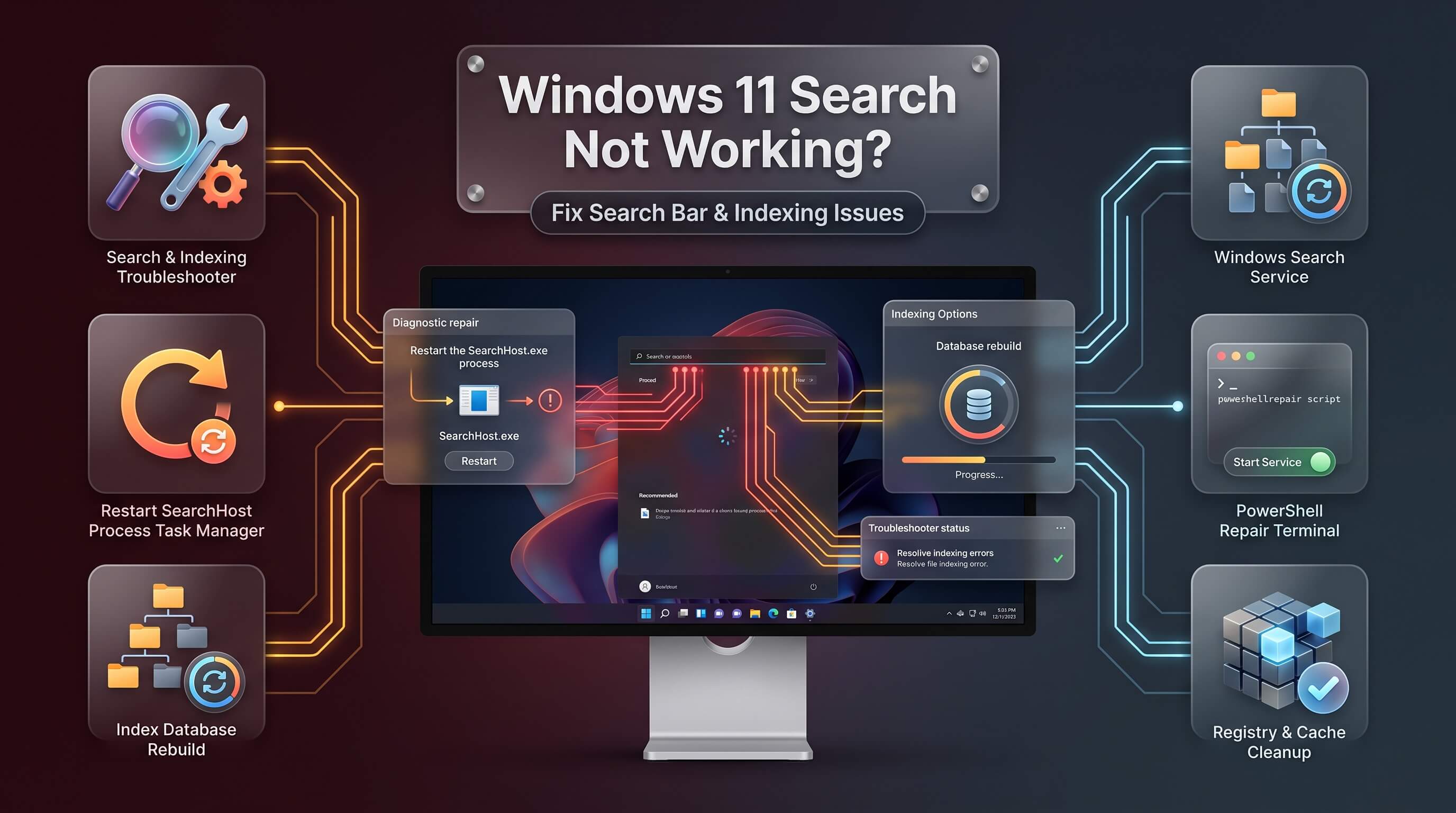
A clear, step-by-step troubleshooting guide for a search box that won’t open, won’t type, sits frozen, or simply returns nothing useful.
Search is one of the most frequently used features on any Windows PC, which is exactly why it’s so noticeable the moment it breaks. A blank panel, a box that refuses to accept keystrokes, or results that never quite match what you typed can bring an otherwise smooth workday to a halt. The good news is that nearly every version of this problem traces back to a small handful of causes, and most of them can be fixed in a few minutes without reinstalling anything.
Understanding How Windows 11 Search Actually Works
Before troubleshooting windows 11 search not working problems, it helps to understand what’s actually happening behind the scenes when you click the search box. Windows 11 search runs through several connected components rather than a single program. SearchHost.exe renders the visible panel and handles what you type. The Windows Search service, running quietly in the background, maintains the index — a searchable database of file names, contents, and metadata that lets results appear instantly instead of scanning the entire drive every time. Additional connectors handle cloud sources like OneDrive, Outlook, and organizational accounts, layering those results on top of local files.
Because so many pieces work together, search failures don’t all share the same root cause. A search box that opens but shows a blank panel points to a different problem than one that opens fine but returns stale or missing files. Search results that never include cloud content usually indicate an account or connectivity issue rather than anything wrong with local indexing. Recognizing which category a problem falls into saves considerable time, since it means jumping straight to the right fix instead of working through every possible solution in random order.
Microsoft has also been actively rebuilding parts of this system throughout 2026, improving typo tolerance, shortening the minimum character count needed to trigger results, and adding substring matching so a partial word anywhere in a file name can surface it. These improvements roll out gradually through cumulative updates, which means staying current with Windows Update isn’t just a security habit — it directly affects how reliably windows 11 search results behave from month to month.
Diagnosing the Type of Search Problem You’re Facing
Search failures generally fall into a few recognizable patterns, and identifying which one matches your situation is the fastest route to a fix. A windows 11 search bar missing entirely from the taskbar usually points to a display or taskbar settings issue rather than a search engine problem. A windows 11 search bar not typing situation, where the box opens but refuses to register keystrokes, often stems from a stuck SearchHost.exe process or a conflicting keyboard input method running in the background. A windows 11 search bar frozen state — where the panel opens but never responds to clicks or scrolling — frequently indicates the process has stopped responding without fully crashing, leaving a dead window on screen.
Separately, a windows 11 search bar not showing situation after clicking the icon, where nothing visibly opens at all, often points to a rendering or shell issue distinct from a typing problem. And when the search interface opens and accepts input normally but simply fails to locate files that clearly exist, the issue almost always lives in the index itself rather than the search interface, which calls for a completely different set of fixes than a frozen or missing search box.
| Symptom | Likely Cause | Where to Start |
|---|---|---|
| Search icon or box missing from taskbar | Taskbar item disabled | Taskbar settings |
| Panel opens but won’t accept typing | Stuck SearchHost process | Restart SearchHost.exe |
| Panel opens but is frozen or unresponsive | Crashed or hung shell process | Restart Windows Explorer |
| Nothing opens when clicking search | Corrupted search app package | Search and Indexing troubleshooter |
| Search opens fine but files are missing | Damaged or incomplete index | Rebuild the search index |
| Cloud files never appear in results | Account or connectivity issue | Search permissions and connected accounts |
Quick Fixes to Try First
Before moving into deeper repairs, a handful of simple steps resolve the majority of windows 11 search bar not working reports, and they’re worth trying in order because each one is progressively less disruptive to skip past. Start with the least invasive option: press Ctrl+Shift+Esc to open Task Manager, locate Windows Explorer under the Processes tab, right-click it, and choose Restart. This relaunches the shell component search depends on without closing any other open applications, and it’s frequently enough to resolve a frozen or unresponsive search panel on its own.
If restarting Explorer doesn’t help, locate SearchHost.exe specifically within Task Manager, right-click it, and select End Task. Windows automatically relaunches this process the next time the search box is opened, effectively giving the search interface a clean restart independent of the rest of the shell. This targeted approach is often faster and less disruptive than a full Explorer restart, particularly for cases involving a search bar that opens but won’t accept typed input.
A full system restart remains worth trying even after these targeted fixes, since it clears out any lingering memory issues or stuck background processes that a simple process restart might miss. Following that restart with a check for pending Windows updates matters too — Microsoft has shipped several cumulative updates throughout 2026 specifically addressing search reliability, and installing available updates resolves version-specific bugs that no amount of local troubleshooting can fix on its own.
Running the Built-In Search Troubleshooting Tools
Windows 11 includes a dedicated windows 11 search troubleshooting tool built specifically to diagnose and repair common indexing and service issues without requiring manual command-line work. Open Settings, go to System, select Troubleshoot, then Other troubleshooters, and locate Search and Indexing in the list. Running this tool scans for common problems — a stopped Windows Search service, misconfigured indexing locations, or permission issues on the search database folders — and applies fixes automatically wherever possible.
This troubleshooter has caught a specific and fairly common issue: incorrect permissions on the folders Windows Search relies on internally. When permissions on these system folders become misconfigured, often after a botched update or a third-party cleanup tool overstepping its bounds, the troubleshooter can detect and correct that misconfiguration directly, which manual troubleshooting steps frequently miss entirely.
It’s worth running this tool early in the troubleshooting process rather than as a last resort, since it’s specifically designed to catch issues that would otherwise require identifying and fixing manually through Services or the Registry. If the troubleshooter reports that no problems were found but the search bar clearly still isn’t working correctly, that result itself is useful information — it means the fix likely lies in the index itself or in a deeper system file issue rather than a straightforward service misconfiguration.
Reviewing Windows 11 Search Settings
A meaningful share of search complaints trace back to windows 11 search settings that don’t match what the user actually expects. Settings, Privacy & security, Searching Windows contains the primary controls governing how search behaves, including a toggle between Classic and Enhanced indexing modes under “Find my files.” Classic mode indexes only the user profile and Start menu locations, which is faster and less resource-intensive, while Enhanced mode indexes the entire PC, including every connected drive, at the cost of higher CPU and disk usage during the initial scan.
Choosing the wrong mode for your needs is a common, easily overlooked cause of frustration. Someone storing important files on a secondary drive but running Classic mode will find that search simply can’t locate anything outside the indexed default locations, which looks identical to a broken search feature but is actually just a scope limitation. Switching to Enhanced mode, or manually adding the specific folders needed under Advanced indexing options, resolves this without requiring any deeper repair.
Search permissions also deserve a look, particularly for anyone who wants to exclude certain categories of results. The same Searching Windows settings page includes toggles for cloud content, such as OneDrive files and Outlook messages, alongside web results from Bing. Disabling web results entirely produces a cleaner, faster local-only search experience for users who never intended to search the internet from the taskbar in the first place, and it eliminates a common point of confusion where local file results get buried beneath web suggestions.
| Setting | What It Does | Where to Find It |
|---|---|---|
| Find my files (Classic/Enhanced) | Controls how much of the PC is indexed | Privacy & security > Searching Windows |
| Advanced indexing options | Adds or removes specific folders and drives | Searching Windows > Advanced indexing options |
| Cloud content in search | Includes/excludes OneDrive and Outlook results | Searching Windows settings |
| Search highlights and web results | Shows or hides Bing web suggestions | Searching Windows settings |
Fixing a Broken or Incomplete Windows 11 Search Index
When the search interface opens normally and accepts typed input without any trouble, but files that clearly exist never show up in results, the problem almost always sits within the windows 11 search index itself rather than the visible interface. The index is essentially a background catalog Windows maintains continuously, and like any database, it can become corrupted, incomplete, or simply out of date if indexing was interrupted by a crash, an abrupt shutdown, or a failed update.
Rebuilding it from scratch resolves the vast majority of these cases. Open Settings, Privacy & security, Searching Windows, scroll to the bottom, and select Advanced indexing options. In the window that opens, click Advanced, then locate the Troubleshooting section and select Rebuild. Windows will confirm the action before proceeding, since rebuilding deletes the existing index entirely and starts the cataloging process fresh. This is a deliberate trade-off: search results may be temporarily incomplete or slow to appear while the new index builds, but the end result is a clean, accurate catalog free of whatever corruption was causing missing results.
Rebuild times vary considerably depending on how many files are being indexed and how fast the underlying storage is. A typical personal laptop with a modest number of files might finish within an hour, while a workstation with hundreds of thousands of documents, or a drive holding large media libraries, can take several hours to fully complete. It’s worth leaving the PC plugged in, connected to power, and reasonably idle during this process, since Windows deliberately throttles indexing speed while the CPU or disk is under heavy active use — running other demanding tasks during a rebuild only extends how long it takes to finish.
One mistake worth avoiding is repeatedly triggering new rebuilds out of impatience. Each rebuild restarts the entire indexing process from zero, so canceling partway through and starting over doesn’t speed anything up — it only resets progress and extends the total time before search becomes fully reliable again. Letting a single rebuild run to completion, even if it takes a few hours, produces a far better outcome than restarting the process multiple times.
Restoring a Missing Windows 11 Search Box
A windows 11 search bar missing entirely from the taskbar, rather than simply failing to respond, generally traces back to display settings rather than a deeper system fault. Right-click an empty area of the taskbar and select Taskbar settings, which opens directly to the Taskbar items section. Confirm that the Search toggle is switched on; if it’s been accidentally disabled, re-enabling it restores the search icon or box immediately without requiring a restart.
Display format matters too. Right-clicking that same Search toggle area, or accessing it through the Taskbar settings page, reveals options to show search as an icon only, a full search box, or a labeled icon combining both. Users sometimes assume search has disappeared entirely when it’s actually just been switched to the more compact icon-only display, which takes up considerably less taskbar space but is easy to overlook if you’re specifically expecting to see the full text box.
If the toggle is enabled and the display format looks correct, but the search element still doesn’t appear, a shell-level glitch is the more likely explanation, and the same Windows Explorer restart described earlier in this guide typically resolves it. For cases where the search box vanishes repeatedly after every restart despite being correctly enabled in settings, checking for pending Windows updates and running the Search and Indexing troubleshooter addresses most recurring instances.
Repairing the Windows Search Service and System Files
When quick fixes and settings adjustments don’t resolve the problem, the issue likely involves either the Windows Search service itself or underlying system file corruption. Press Windows+R, type services.msc, and press Enter to open the Services management console. Locate Windows Search in the list, right-click it, and confirm the Startup type is set to Automatic (Delayed Start) rather than Disabled or Manual, since a service that isn’t configured to start automatically won’t be running when search is needed. If the service shows as stopped, right-click and select Start to launch it manually as an immediate test.
Corrupted system files represent a deeper layer of potential problems, and Windows includes built-in tools specifically for repairing them. Open Command Prompt or PowerShell as an administrator and run sfc /scannow, which scans every protected system file and automatically repairs anything found to be damaged or missing. If System File Checker reports issues it couldn’t fix on its own, follow up with DISM /Online /Cleanup-Image /RestoreHealth, which repairs the underlying Windows image that SFC itself relies on, and often succeeds where SFC alone falls short.
For persistent cases that survive every previous step, resetting the Windows Search app package through PowerShell offers a more thorough repair than a standard index rebuild. Running an administrator PowerShell command that targets the search package — effectively re-registering it from scratch — can resolve deeper corruption that a simple index rebuild doesn’t touch, since it addresses the application package itself rather than just the data it searches through. This step is more technical than earlier fixes, so following documented steps carefully, and creating a system restore point beforehand, is a sensible precaution.
| Step | Action | Best For |
|---|---|---|
| 1 | Restart Windows Explorer / end SearchHost.exe | Frozen or non-typing search box |
| 2 | Run the Search and Indexing troubleshooter | Service or permission-related failures |
| 3 | Rebuild the search index | Search opens but results are missing or stale |
| 4 | Check Windows Search service in services.msc | Service stuck stopped or disabled |
| 5 | Run SFC and DISM scans | Suspected system file corruption |
| 6 | Reset the Search app package via PowerShell | Deep corruption surviving every earlier step |
When Third-Party Software Is the Real Culprit
Not every search problem originates inside Windows itself. Third-party antivirus tools, system-tuning utilities, and aggressive privacy software occasionally interfere with the Windows Search service, either by blocking it outright or by locking the files it needs to update the index. If search problems began shortly after installing a new security suite or optimization tool, temporarily disabling that software and testing search again is a quick way to confirm or rule out the connection.
Startup programs deserve a similar check. Opening Task Manager’s Startup apps tab and reviewing what launches automatically can reveal an overlooked utility competing for the same system resources search depends on. Disabling unnecessary startup items not only reduces boot time but occasionally resolves search sluggishness that looked, at first glance, like a corrupted index rather than simple resource contention from unrelated background software.
Preventing Search Problems From Returning
Once search is working reliably again, a few habits reduce the odds of running into the same problem repeatedly. Keeping Windows updated matters more than most people assume, since Microsoft has been shipping search reliability improvements through regular cumulative updates throughout 2026 rather than saving them for major annual releases. Skipping updates for extended periods means missing fixes for exactly the kind of bugs that cause search to misbehave in the first place.
Avoiding forced shutdowns during active file operations also helps preserve index integrity over time. Powering off a PC abruptly while it’s mid-way through copying, moving, or saving large numbers of files increases the odds of leaving the search index in an inconsistent state, since the indexer may have been interrupted before finishing its update. Using the standard shutdown or restart options, rather than holding down the power button, gives background processes like indexing a chance to close out cleanly.
Finally, reviewing indexed locations periodically prevents the kind of “search results” complaints that aren’t actually bugs at all. Adding newly created folders or drives to the indexed locations list as soon as they’re set up ensures search stays comprehensive from day one, rather than waiting until frustration builds up before realizing an entire drive was never included in the first place.
Frequently Asked Questions
Why is my Windows 11 search bar not working after a recent update?
Updates occasionally interrupt the Windows Search service mid-installation or leave the index in an incomplete state, which produces exactly the kind of missing or delayed results associated with windows 11 search not working reports. Restarting Windows Explorer, checking for any additional pending updates, and rebuilding the search index if problems persist typically resolves update-related search issues within a short time.
How long does rebuilding the Windows 11 search index take?
Rebuild time depends heavily on the number of files being indexed and the speed of the storage drive, ranging from under an hour on a lightly used laptop to several hours on a PC with large media libraries or hundreds of thousands of documents. Leaving the computer plugged in and relatively idle during the process, rather than triggering repeated rebuilds, produces the fastest and most reliable outcome.
Why does my search box open but won’t let me type anything?
A search bar that opens but doesn’t register keystrokes typically means the SearchHost.exe process has become stuck without fully crashing. Ending that specific task through Task Manager, rather than restarting the entire Windows Explorer shell, is usually enough to resolve a windows 11 search bar not typing problem within seconds.
Why can’t Windows 11 search find files I know exist on my PC?
This almost always points to an indexing scope or corruption issue rather than a broken search interface. Checking that the relevant folder or drive is included under Advanced indexing options, and rebuilding the index if the location is already selected, resolves the vast majority of these windows 11 search results complaints.
Is it safe to reset the Windows Search app package through PowerShell?
Yes, resetting the search package through an administrator PowerShell command is a supported, Microsoft-documented repair step that doesn’t delete personal files or installed applications. It’s best reserved for cases where restarting processes, running the built-in troubleshooter, and rebuilding the index have all failed to resolve the underlying windows 11 search box problem.