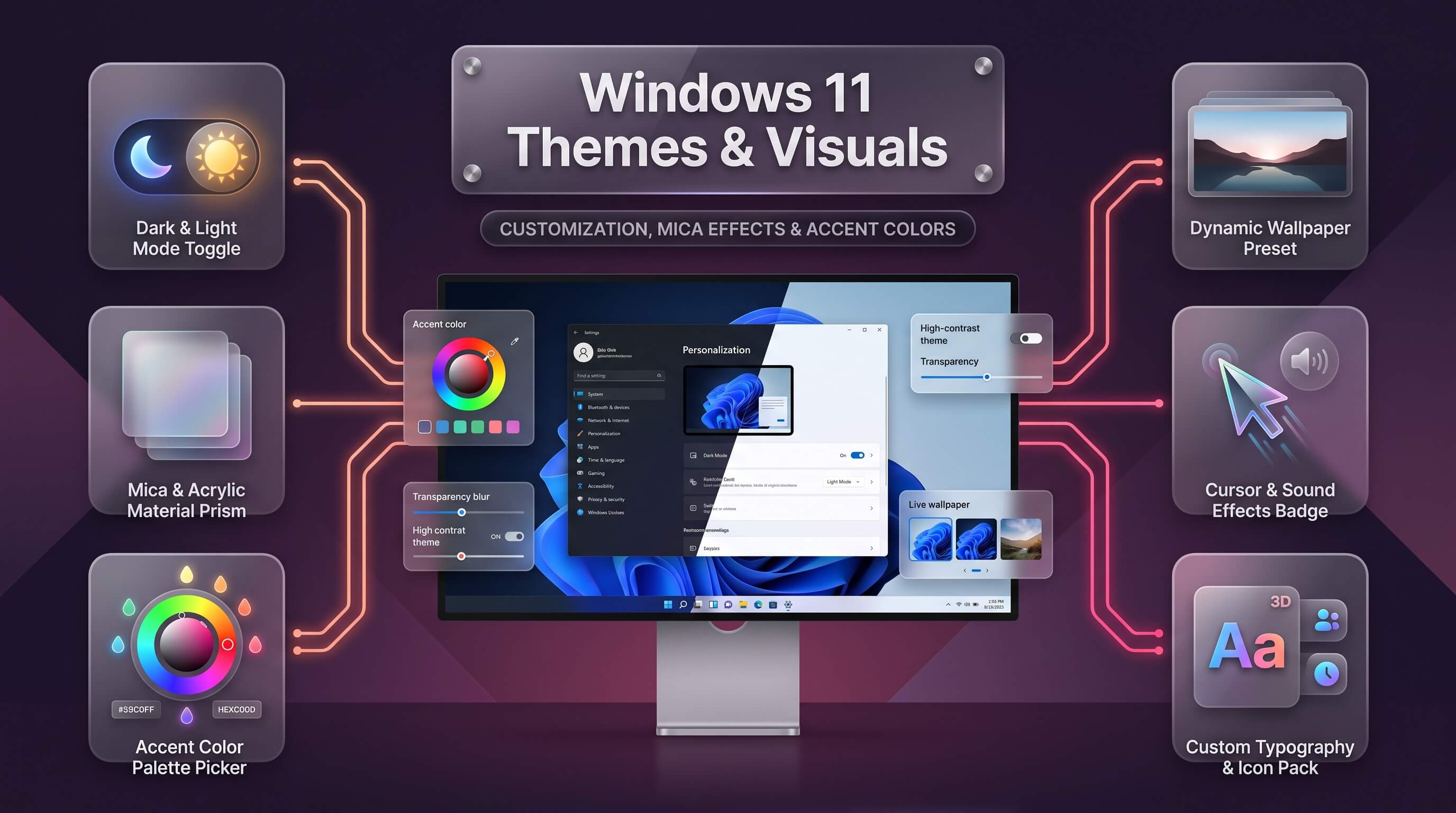
A desktop that reflects your own taste rather than Microsoft’s default settings makes a computer feel genuinely yours, and Windows 11 gives you far more control over that look than most people realize. Between built-in themes, color modes, transparency effects, cursors, fonts, and full wallpaper animation, the personalization options inside Windows 11 rival what used to require third-party skinning software altogether. This guide walks through every visual setting worth knowing, from a five-minute accent color swap to building a complete windows 11 theme pack you can save, export, and share with friends.
Quick answer: Windows 11 themes are managed through Settings > Personalization > Themes, where you can switch between light and dark mode, set an accent color, choose a desktop wallpaper, adjust icon and cursor styles, and save the whole combination as a custom theme file that can be exported or downloaded from the Microsoft Store.
Where Windows 11 Personalization Settings Live
Every visual setting in Windows 11 flows through one central location, and knowing this hub well saves considerable time. Right-click any empty area of the desktop and select Personalize, or press Windows key + I and click Personalization in the sidebar. From there, the menu splits into Background, Colors, Themes, Lock screen, Touch keyboard, Fonts, Text size, and Device usage, each controlling a distinct layer of the visual experience.
Unlike earlier versions of Windows, where personalization settings were scattered between Control Panel and the Settings app, Windows 11 has consolidated nearly everything into this single menu. That said, a handful of deeper visual controls, such as cursor size and pointer trails, still live inside the older Control Panel-style Mouse Properties dialog, accessible by searching “Mouse settings” from the Start menu. Knowing which panel handles which setting is the fastest way to avoid hunting through menus every time you want to make a change.
Windows 11 Themes
A windows 11 theme bundles together a wallpaper, a color mode, an accent color, a sound scheme, and a mouse cursor set into a single, reusable package. Rather than adjusting each element separately every time you want a different look, applying a theme changes everything at once. Windows 11 ships with several built-in options, including Windows (default light), Windows Dark, Glow, Captured Motion, Sunrise, and a handful of seasonal or curated themes that rotate depending on region and Windows edition.
To apply one, open Settings, Personalization, Themes, then scroll through the “Themes” gallery and click any thumbnail. The switch happens instantly, with no restart required, and you can preview how each theme looks on your actual desktop icons and taskbar before fully committing. This immediate feedback loop makes experimenting with different visual styles almost effortless compared to older Windows versions, where changing a theme sometimes required several confirmation dialogs.
Windows 11 Theme Download Options
Beyond the handful of pre-installed options, a windows 11 theme download from the Microsoft Store dramatically expands your choices. Open Settings, Personalization, Themes, and click “Browse themes” or “Get more themes in Microsoft Store,” which opens a dedicated storefront category filled with free and paid packs covering everything from minimalist wallpapers to elaborate nature photography collections and pop-culture-branded designs.
Most Store themes are free, though a small number of professionally curated photography packs carry a modest price, typically under a few dollars. Once downloaded, a new theme appears automatically under “My themes” in the Personalization menu and can be applied with a single click, exactly like the built-in options. It’s worth noting that some downloaded themes only include wallpapers and colors, while more complete packages also swap the sound scheme and cursor set, so checking the theme’s description before downloading helps set the right expectations.
| Theme Source | Cost | What’s Included |
|---|---|---|
| Built-in Windows themes | Free | Wallpaper, color mode, accent color, sounds |
| Microsoft Store themes | Mostly free, some paid | Wallpaper sets, occasionally sounds and cursors |
| Community .deskthemepack files | Usually free | Full package, quality varies by source |
| Third-party skinning tools | Free to paid | Deep visual style changes beyond native theming |
When downloading theme packs from outside the Microsoft Store, stick to well-known, reputable sources. A .deskthemepack file is essentially a compressed archive, and while legitimate ones are harmless, unofficial download sites occasionally bundle unwanted software alongside the theme itself. Scanning any downloaded file with Windows Security before opening it is a simple habit that avoids unnecessary risk.
Switching to Windows 11 Dark Theme
The windows 11 dark theme has become one of the most requested visual changes on any new PC, both for its reduced eye strain in low-light environments and its sleeker, more modern appearance. Activating it takes seconds: open Settings, Personalization, Colors, and under “Choose your mode,” select Dark. The entire interface, including File Explorer, the Start menu, Settings itself, and most first-party apps, switches to a dark gray and black palette immediately.
Dark mode in Windows 11 is genuinely system-wide rather than cosmetic-only, meaning it also passes a signal to compatible third-party applications through the operating system’s app theme API. Browsers such as Edge and Chrome, along with many modern apps built for Windows 11, automatically adopt a matching dark interface once system dark mode is enabled, creating a consistent visual experience across nearly the entire desktop rather than a jarring mix of light and dark windows.
For users who want dark mode only during certain hours, Windows 11 does not currently offer a fully native automatic day/night toggle tied to sunrise and sunset, though this remains one of the most requested features in Feedback Hub. In the meantime, third-party utilities such as Auto Dark Mode fill that gap reliably, switching between light and dark automatically based on a custom schedule or the system’s location-based sunset time.
Choosing the Windows 11 Light Theme
Not everyone prefers a dark interface, and the windows 11 light theme remains the default for new installations, favored by users working in brightly lit rooms or those who find dark interfaces harder to read for long documents and spreadsheets. Switching back follows the identical path: Settings, Personalization, Colors, “Choose your mode,” then Light. The change is instant and reversible with no downsides, so switching back and forth to test which suits your eyes better costs nothing but a few seconds.
A third option, labeled “Custom,” lets you mix modes deliberately, applying a dark theme to Windows elements like the taskbar and Start menu while keeping individual apps on their light interface, or the reverse combination. This hybrid approach appeals to users who like a dark taskbar for visual contrast but prefer bright, high-readability app windows for document-heavy work such as writing or spreadsheet analysis.
Enabling Windows 11 Transparency Effects
Windows 11 transparency effects give the interface a soft, layered depth that has become a signature part of the operating system’s Fluent Design language. This includes the frosted-glass “Mica” material used on window backgrounds and the more pronounced “Acrylic” blur seen on the Start menu, Quick Settings, and right-click context menus. To toggle this globally, go to Settings, Personalization, Colors, and switch on “Transparency effects.”
With transparency enabled, the taskbar and Start menu subtly blur whatever sits behind them on the desktop, creating a sense of depth rather than a flat, opaque panel. This effect is more than decorative; Microsoft’s Fluent Design guidelines use transparency intentionally to help users understand spatial layering, distinguishing foreground menus from the background desktop at a glance. On lower-powered laptops or older integrated graphics chips, however, transparency can add a small, measurable load to the GPU, so users chasing maximum battery life or smoother gaming performance sometimes choose to disable it.
Beyond the simple on/off toggle, Windows 11 doesn’t currently expose a granular transparency-intensity slider in Settings the way some third-party tools do. For users who want finer control, such as a completely see-through taskbar rather than a subtly frosted one, a dedicated utility like TranslucentTB extends the native effect with adjustable opacity levels, blur states, and even dynamic transparency that changes automatically based on whether a window is maximized.
Customizing the Windows 11 Accent Color
The windows 11 accent color controls the highlight color seen throughout the interface, including the Start button hover state, selected text fields, toggle switches, and title bar outlines. Adjusting it is one of the fastest ways to inject personality into an otherwise neutral system. Navigate to Settings, Personalization, Colors, scroll to “Accent color,” and either select “Automatic,” which pulls a dominant color directly from your current wallpaper, or choose “Manual” to pick from a curated palette or build a fully custom color using RGB or hex values.
The “Automatic” option deserves special mention because it creates a genuinely cohesive look with almost no effort. Every time you change your wallpaper, Windows re-analyzes the image and updates the accent color to complement it, so a warm sunset photo produces an orange-toned interface, while a cool mountain landscape shifts the accent toward blue or teal automatically. This dynamic pairing is part of what makes Windows 11’s default personalization feel more polished than earlier versions.
Two additional toggles sit just below the accent color picker: “Show accent color on Start and taskbar,” and “Show accent color on title bars and window borders.” Enabling both extends the chosen color beyond small UI elements into larger surfaces, giving the whole desktop a noticeably more colorful, cohesive identity rather than confining the accent to a handful of buttons and toggles.
Organizing and Styling Windows 11 Desktop Icons
Windows 11 desktop icons carry more customization potential than most users realize, covering everything from size and spacing to the actual icon graphics themselves. Right-click any empty desktop space, hover over “View,” and choose between Large, Medium, or Small icons to instantly adjust spacing and readability, particularly useful on high-resolution 4K monitors where default icon sizing can look disproportionately tiny.
For a deeper visual overhaul, right-click the desktop, select Personalize, scroll to “Themes,” and click “Desktop icon settings.” This opens a dialog where you can swap the icons used for This PC, Recycle Bin, Network, User’s Files, and Control Panel, either restoring older classic Windows icon designs or applying custom .ico files downloaded from icon pack creators. Selecting an icon and clicking “Change Icon” opens a browser to pick a replacement graphic, giving even the most basic system shortcuts a distinctive, personalized look.
Icon packs distributed as .ico or .dll files remain a popular way to apply cohesive icon sets across dozens of shortcuts and folders at once, particularly among users chasing a minimalist, flat, or retro aesthetic. Applying these broadly to individual folder icons additionally requires right-clicking each folder, selecting Properties, then Customize, and choosing “Change Icon,” which, while more tedious than a single global switch, allows fully granular control over exactly which folders receive the custom treatment.
Changing the Windows 11 Font
Typography plays a bigger role in how a desktop feels than most people give it credit for, and adjusting the windows 11 font is more accessible than in previous versions, though it still requires a slightly different approach depending on how deep a change you want. Segoe UI Variable remains the default system font across Windows 11’s modern interface elements, chosen specifically for its readability across different screen sizes and pixel densities.
To install additional fonts, go to Settings, Personalization, Fonts, and either drag a font file directly into the window or click “Get more fonts in Microsoft Store” to browse a curated, safe library. Once installed, a new font becomes available inside apps like Word, and Excel immediately, though changing the actual system-wide interface font, the one used on window titles, menus, and File Explorer, requires either registry editing or a dedicated third-party tool, since Microsoft has not exposed this as a simple Settings toggle for regular users.
Utilities built specifically for this purpose, such as the open-source tool “Segoe UI to X” or general system-tweaking apps, edit the registry safely on your behalf, swapping every reference to Segoe UI Variable with a font of your choosing. Anyone attempting this manually through regedit should back up the registry first, since incorrect font substitution entries can occasionally cause rendering glitches across the Start menu and Settings app until reversed.
Working With the Windows 11 Cursor
Adjusting the windows 11 cursor is one of the most overlooked personalization options, yet it affects visibility and comfort every single time you use the mouse. Open Settings, Bluetooth & devices, Mouse, then click “Additional mouse settings” to reach the classic Mouse Properties dialog, or search “Mouse pointer” directly from the Start menu. Under the Pointers tab, a dropdown offers several built-in schemes, including Windows Black, Windows Inverted, and several accessibility-focused large and extra-large variants.
Beyond scheme selection, Settings, Accessibility, Mouse pointer and touch offers a more modern slider for pointer size, along with a color picker that lets you set the cursor to any custom hue rather than sticking with plain white or black. This is particularly useful on very large or high-resolution monitors, where a standard-sized white cursor can become genuinely difficult to locate against a busy desktop background.
| Cursor Setting | Where to Find It | Best For |
|---|---|---|
| Cursor size slider | Settings > Accessibility > Mouse pointer and touch | Quick, tool-free resizing |
| Cursor color | Settings > Accessibility > Mouse pointer and touch | Improving visibility on busy backgrounds |
| Full pointer scheme | Control Panel > Mouse Properties > Pointers tab | Applying a coordinated cursor set |
| Custom .cur / .ani files | Mouse Properties > Browse | Fully custom or animated cursor designs |
Installing a Windows 11 Custom Cursor
Applying a windows 11 custom cursor beyond Microsoft’s built-in schemes involves downloading a cursor pack, typically distributed as .cur files for static designs or .ani files for animated ones, from a trusted cursor design community. Once downloaded and extracted, open Mouse Properties, select the Pointers tab, click on the specific pointer type you want to replace (Normal Select, Text Select, Busy, and so on), then click Browse and navigate to the downloaded file.
Replacing every pointer type individually gives full control over a coordinated custom look, from the everyday arrow to the loading spinner and text cursor. After configuring each type, clicking “Save As” at the top of the dialog lets you name and store the entire combination as a new scheme, which then appears in the dropdown for instant reapplication later, even after switching to a different scheme temporarily.
Popular custom cursor styles range from minimalist flat-design arrows to elaborate anime or gaming-themed sets, and dedicated cursor repositories host thousands of free, community-created options. When downloading from unfamiliar sites, extracting the archive with antivirus scanning enabled remains good practice, since cursor files themselves are safe but bundled installers on lower-quality sites occasionally are not.
Setting Up Windows 11 Animated Wallpaper
A windows 11 animated wallpaper transforms a static desktop into something that feels genuinely alive, using looping video clips, dynamic shaders, or even interactive scenes that respond to mouse movement. Windows 11 does not include native animated wallpaper support out of the box, which surprises some users coming from mobile operating systems that have offered live wallpapers for years, but the feature is easily added through free, well-established third-party software.
Lively Wallpaper stands out as the most widely recommended free option, distributed both through its official site and the Microsoft Store. It supports video files, GIFs, animated shaders, and even fully interactive webpages set as the desktop background, and critically, it automatically pauses the animation whenever a window is maximized over the desktop, preventing unnecessary battery drain or GPU load while you’re actively working. Wallpaper Engine, a paid alternative on Steam, offers an enormous marketplace of community-created animated scenes and slightly deeper customization for users willing to pay a one-time fee.
| Option | Cost | Best Feature |
|---|---|---|
| Lively Wallpaper | Free, open source | Auto-pauses on maximized windows to save resources |
| Wallpaper Engine | One-time paid purchase | Largest community wallpaper marketplace |
Running animated wallpapers on a laptop tends to be the biggest source of complaints, since even a lightweight video loop consumes more battery than a static image. Both major tools include an automatic pause-on-battery option, which is worth enabling immediately after installation for anyone using a laptop away from a charger for extended periods. On desktop PCs with dedicated graphics cards, resource usage is rarely noticeable enough to matter for everyday productivity work.
Building and Saving a Windows 11 Theme Pack
Once every individual setting, wallpaper, accent color, cursor, and sound scheme, matches your preference, saving the combination as a windows 11 theme pack means you never have to reconfigure it manually again. Open Settings, Personalization, Themes, and near the top of the page you’ll see the currently active, unsaved combination listed as “Custom.” Click “Save changes” or the small save icon, then give the theme a descriptive name.
Saved custom themes appear under “My themes,” ready to be reapplied instantly, and they can also be exported for use on a different PC. Right-click a saved theme, or use the theme file that Windows stores under C:\Users\[username]\AppData\Local\Microsoft\Windows\Themes, and copy the resulting .theme file to a USB drive or cloud folder. Importing it on another Windows 11 machine is as simple as double-clicking the file, which automatically opens Settings and applies it.
For users who want to package a wallpaper slideshow, cursor set, and sounds together into a shareable .deskthemepack archive, right-clicking the saved theme inside the Themes settings page and choosing to export bundles everything into a single portable file. This is the exact format used by most community-shared theme packs found online, meaning anything you build can be distributed just as easily as the packs you download from others.
Windows 11 Visual Style and Deeper UI Customization
Beyond themes and colors, the overall windows 11 visual style extends into the taskbar, Start menu layout, window corner rounding, and animation behavior, all of which shape how the desktop feels to use day to day. Settings, Personalization, Taskbar lets you toggle which icons appear, switch taskbar alignment between centered (the Windows 11 default) and left-aligned (the classic Windows 10 style), and control whether badges and labels display for running apps.
Window corner rounding, one of Windows 11’s most recognizable visual signatures compared to Windows 10’s sharp edges, is applied system-wide by default and cannot currently be disabled through native Settings, though registry tweaks and third-party tools exist for users who prefer the older squared-off look. Similarly, Settings, Accessibility, Visual effects includes toggles for animation effects and transparency that influence how snappy or smooth the overall interface feels, particularly noticeable when opening the Start menu or switching between virtual desktops.
Windows 11 UI Customization Through Widgets and Start Layout
Deeper windows 11 ui customization also includes the Widgets panel and Start menu layout, both of which received significant updates through 2025 and 2026 feature releases. Right-click the Start menu and choose “Start settings,” where a “Layout” option lets you shift the balance between pinned apps and recommended files, or switch to a “More pins” layout that prioritizes your own shortcuts over Microsoft’s suggested content entirely.
The Widgets board, accessible from the taskbar, can be personalized by clicking the settings gear inside the panel itself, adding or removing cards for weather, stocks, sports, and to-do lists based on genuine daily relevance rather than default clutter. Combined with taskbar alignment, accent colors, and a matching wallpaper, these smaller adjustments compound into a desktop that feels considerably more intentional than the out-of-box configuration most PCs ship with.
Top Tools for Deeper Windows 11 Visual Customization
Native Settings cover most everyday personalization needs, but a handful of trusted, well-maintained tools extend that customization considerably further, whether you want desktop widgets, a fully transparent taskbar, animated backgrounds, or a complete visual skin. Each of the following remains actively updated and widely used within the Windows customization community as of 2026.
Rainmeter
Rainmeter is free, open-source, and remains the cornerstone of desktop customization on Windows, letting you drop configurable skins onto the desktop for clocks, weather, system monitoring, launchers, and full information dashboards. Rather than replacing the Windows shell, it layers on top of it, so it pairs safely with almost every other tool on this list. The learning curve is steeper than a simple Settings toggle, since deeper customization involves editing text-based skin configuration files, but thousands of ready-made community skins mean most users never need to write a single line themselves.
Lively Wallpaper
Lively Wallpaper is the easiest way to add motion to a Windows 11 desktop without cost or complexity. It supports video files, GIFs, shaders, and interactive web-based scenes, and it intelligently pauses playback whenever a window is maximized to avoid wasting system resources. Being fully open source and available directly through the Microsoft Store adds an extra layer of trust for users cautious about installing customization software from third-party websites.
TranslucentTB
TranslucentTB focuses narrowly on one thing: taskbar appearance. It extends Windows 11’s native transparency effects with fine-grained control, offering clear, blurred, acrylic, opaque, and fully dynamic states that shift automatically depending on whether a window is maximized behind the taskbar. Because it doesn’t touch the Start menu or broader shell behavior, it’s considered one of the lowest-risk customization tools available, and it pairs well with Rainmeter or Lively Wallpaper for a complete visual overhaul.
WindowBlinds 11
WindowBlinds 11 from Stardock delivers the most comprehensive visual overhaul on this list, applying complete skins across window borders, title bars, buttons, and menus for a genuinely different visual style rather than a simple color and wallpaper swap. It is a paid tool and, because it modifies the shell more deeply than the others, benefits from creating a system restore point before installation. For users chasing a dramatic, cohesive redesign that goes beyond what native theming can achieve, it remains the most capable option available.
Microsoft PowerToys
PowerToys is Microsoft’s own free, open-source utility suite, and while it isn’t purely visual, several of its tools directly affect how the desktop looks and feels, including Color Picker, Image Resizer, and the “Light Switch” module, which brings native scheduled light and dark mode switching that Windows still lacks out of the box. Because it’s built and maintained by Microsoft directly, it carries lower compatibility risk than most community tools and is a sensible first install before layering on more specialized customization software.
| Tool | Primary Use | Price |
|---|---|---|
| Rainmeter | Desktop widgets and system monitors | Free |
| Lively Wallpaper | Animated wallpapers | Free |
| TranslucentTB | Transparent, dynamic taskbar | Free |
| WindowBlinds 11 | Full window and UI skinning | Paid |
| Microsoft PowerToys | Utility suite with visual add-ons | Free |
When combining several of these tools, install and test one at a time rather than layering everything at once. Two shell-modification tools competing for control of the same taskbar or Start menu element can produce duplicated controls or incorrect positioning, so establishing which tool “owns” a given area of the interface before adding the next one keeps troubleshooting far simpler if something looks wrong.
Troubleshooting Common Theme and Visual Glitches
Occasionally, a theme fails to apply correctly, usually showing a mismatched accent color, a wallpaper that reverts to default, or icons that refuse to update. The most reliable first fix is restarting File Explorer through Task Manager, since Explorer.exe controls the desktop rendering and periodically needs a fresh reload to reflect newly applied visual changes. Right-click the taskbar, open Task Manager, find Windows Explorer under Processes, and select Restart.
If a custom cursor stops displaying correctly after a Windows update, this typically happens because major feature updates occasionally reset pointer scheme settings to default. Reapplying the saved scheme from Mouse Properties, Pointers tab usually resolves it instantly, without needing to redownload the original cursor files. Similarly, if transparency effects stop working after an update, toggling the Settings switch off and back on, followed by a sign-out and sign-in, generally restores normal behavior.
For persistent theme corruption where nothing seems to apply correctly, running the System File Checker tool by opening Command Prompt as administrator and typing sfc /scannow checks for and repairs corrupted system files that may be interfering with the personalization engine. This is a safe, non-destructive process that resolves a surprising number of stubborn visual glitches without requiring a full system reset.
Frequently Asked Questions
Are third-party Windows 11 themes safe to install?
Themes downloaded through the Microsoft Store are reviewed and safe, while community-sourced windows 11 theme download files are generally safe as long as they come from established, reputable sites. Always scan downloaded .deskthemepack or cursor files with Windows Security before opening them, and avoid installers bundled with unfamiliar third-party software offers.
Can I schedule automatic switching between dark and light theme?
Windows 11 does not yet include a fully native scheduled toggle between windows 11 dark theme and windows 11 light theme, though Microsoft’s own PowerToys utility includes a “Light Switch” module that adds this exact functionality for free. It can switch based on a fixed schedule or automatically follow local sunrise and sunset times.
Does an animated wallpaper slow down my computer?
A well-configured windows 11 animated wallpaper has minimal impact on most modern PCs, particularly when using tools like Lively Wallpaper, which automatically pauses playback whenever a window is maximized over the desktop. Laptops running on battery power will still see a modest reduction in battery life, so enabling the built-in battery-saver pause option is recommended for portable devices.
How do I share a custom theme with another Windows 11 PC?
After saving your combination of wallpaper, accent color, and sounds under Settings, Personalization, Themes, export it as a .deskthemepack file, which bundles everything into one portable package. Copy that file to the second PC and double-click it; Windows will automatically open Settings and apply the full windows 11 theme pack without any additional configuration.
Why doesn’t the system-wide font change when I install a new one?
Installing a font through Settings, Personalization, Fonts makes it available inside apps like Word and Excel immediately, but changing the actual windows 11 font used for menus, window titles, and File Explorer requires either a registry edit or a dedicated third-party utility, since Microsoft has not exposed a direct system font switch in Settings. Back up the registry before attempting any manual change.