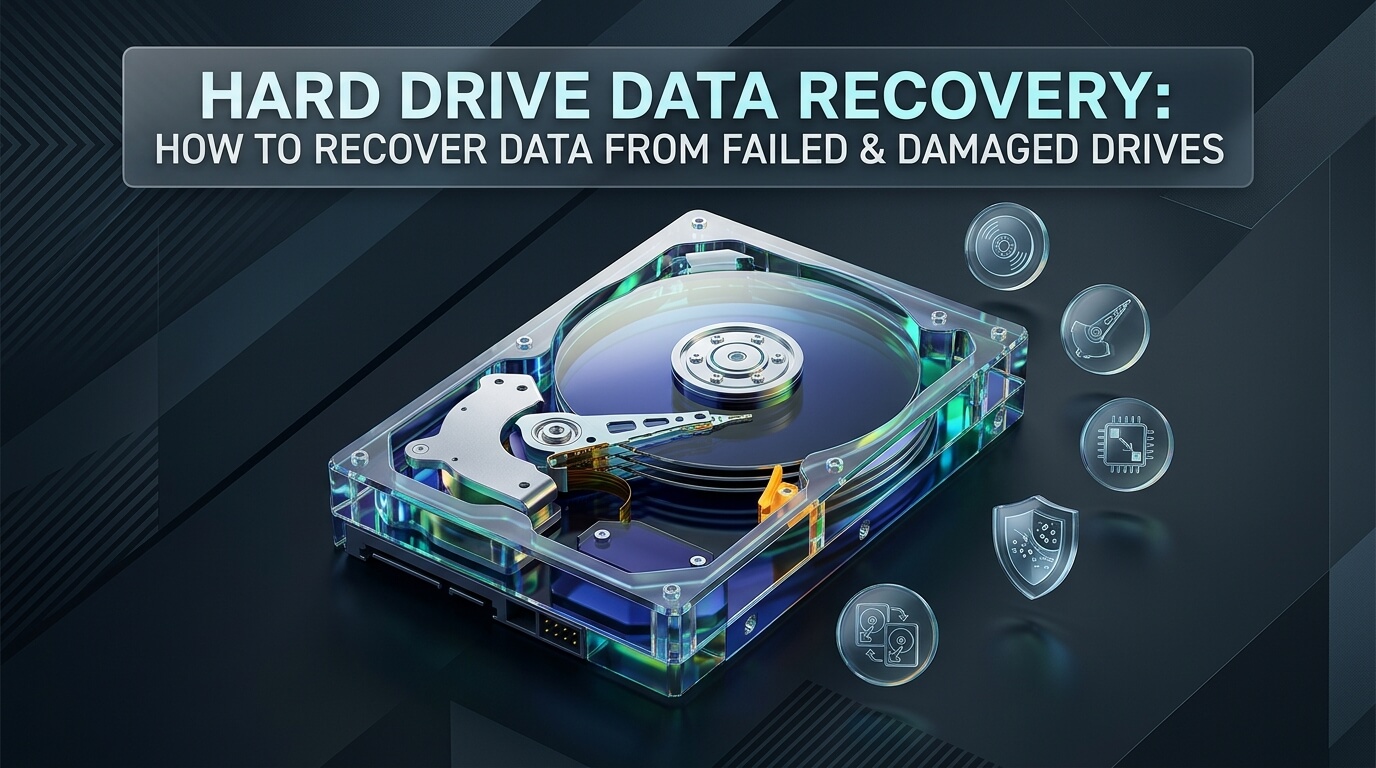
Losing access to critical files is stressful. A computer fails to boot, an external disk stops spinning, or an accidental reformat wipes years of family photos and work projects. When storage hardware malfunctions, knowing the right response makes the difference between complete restoration and permanent data loss.
Mechanical hard disk drives are complex electromechanical devices. They operate with magnetic platters spinning at thousands of revolutions per minute while read/write heads float microscopic distances above the surface. Understanding proper hard drive data recovery principles helps you determine whether a drive can be restored with software or requires specialized cleanroom repair.
Every failure requires a distinct approach. Performing data recovery hard drive scans on logical file errors is straightforward. However, performing data recovery from hard drive units with physical mechanical damage requires extreme caution. Whether you need data recovery from external hard drive devices, want to attempt data recovery hdd extraction at home, or need an urgent hard drive data recovery service, this comprehensive guide covers everything from DIY software tools to cleanroom laboratory repairs.
Key Takeaways for Hard Drive Data Recovery
- Turn off any hard drive making clicking, grinding, or buzzing noises immediately to prevent platter scratches.
- Logical hard disk drive data recovery handles deleted files, raw partitions, and accidental formatting using software.
- Physical damaged hard drive data recovery requires an ISO-certified Class 100 cleanroom environment.
- Attempting data recovery external hard drive mac requires tools compatible with APFS and HFS+ file systems.
- Specialized procedures exist for both wd external hard drive data recovery and seagate external hard drive data recovery.
- Evaluating the true hard drive data recovery cost depends on drive capacity, encryption, and mechanical damage levels.
- Never install recovery software directly onto the drive you are trying to recover.
Understanding Hard Drive Failures: Logical vs. Physical
Before attempting any data rescue, you must identify what type of failure your storage device has suffered. Applying software solutions to physical mechanical failures can destroy your platters within minutes.
Hard drive failures fall into two primary categories:
1. Logical Drive Failures
In a logical failure, the mechanical components of the disk work properly, but the operating system cannot read the file system. Common causes include accidental deletion, partition corruption, malware infections, and incomplete formatting cycles.
When performing logical data recovery hard disk operations, data recovery software reads the raw sectors of the drive. The software reconstructs directory trees and identifies lost files through signature carving. Because the drive spins smoothly without strange noises, you can safely scan it using trusted software tools.
2. Physical and Mechanical Failures
Physical failure occurs when the internal hardware components suffer mechanical or electrical breakdowns. Examples include seized spindle bearings, head crashes, burned printed circuit boards (PCBs), and surface platter degradation.
Executing hard drive failure data recovery on a physically broken disk with regular software is dangerous. If read/write heads contact spinning platters, they scrape away the magnetic coating, destroying stored data permanently. Physical damage requires professional laboratory technicians to replace head assemblies inside certified cleanrooms.
Warning Signs of a Failing or Damaged Hard Drive
Hard disk drives rarely fail without warning. Recognizing early symptoms gives you time to backup files before complete mechanical breakdown occurs.
Clicking or Grinding Sounds
Known as the Click of Death, repeated clicking indicates read/write heads are failing to calibrate on platter tracks. Disconnect the drive immediately.
System Freezes and Blue Screens
Frequent operating system freezes during basic file transfers point to growing clusters of unreadable bad sectors on the disk surface.
RAW File System Errors
Windows prompts you to format the disk before using it, displaying the file system as RAW. This indicates master file table corruption.
Drive Not Recognized or Spinning
The disk does not vibrate or spin up when connected. This typically signals a blown PCB diode, blown fuse, or seized motor spindle.
Recovering Data from Crashed and Dead Hard Drives
When faced with a sudden hardware failure, users frequently search for how to handle data recovery crashed hard drive situations. A crashed disk may still be salvageable if you follow proper safety protocols.
Handling a Crashed Drive
In a crashed hard drive data recovery scenario, the drive may have experienced an abrupt power outage or system crash during active writing. This often corrupts directory indexes without harming physical platters. When undertaking data recovery from a crashed hard drive, create a byte-by-byte sector image of the disk onto a healthy drive first. Always scan the clone image rather than stressing the fragile original drive.
Handling a Dead Drive
A data recovery dead hard drive scenario is more complex. A drive described as dead either fails to power on completely or produces faint beeping sounds. Performing dead hard drive data recovery requires testing the external enclosure power supply, checking the USB bridge board, or replacing the drive controller board with an exact donor PCB and swapped ROM chip.
External Hard Drive Data Recovery: Windows, Mac, WD & Seagate
External portable drives are vulnerable to physical drops, cable disconnects, and file system corruption. Millions of users search for data recovery external hard drive solutions when their backup units fail to appear on desktop screens.
Performing external hard drive data recovery requires understanding brand-specific architecture and operating system differences:
Western Digital External Drives
Carrying out wd external hard drive data recovery requires handling hardware encryption. Modern WD My Passport drives integrate hardware encryption directly into the USB controller bridge. If the USB connector breaks, you cannot simply remove the internal drive and plug it into a SATA dock without custom decryption hardware. That is why professional western digital hard drive data recovery often requires specialized firmware repair tools like PC-3000.
Seagate External Drives
Conducting seagate external hard drive data recovery often involves addressing firmware lockups or media cache corruption. Seagate drives frequently develop bad sector loops that cause the drive to report a busy state continuously. Professional recovery software with direct ATA command support can bypass these loops to extract critical user files.
Apple Mac External Drives
Executing data recovery external hard drive mac requires software capable of parsing Apple APFS and HFS+ file systems. When a Mac marks an external drive as unmountable in Disk Utility, specialized Mac recovery software can reconstruct the B-tree catalog files and restore directory structures cleanly.
Reviews of the Top 8 Hard Drive Data Recovery Tools & Services
We evaluated leading software platforms and professional recovery laboratories based on file recovery rates, deep scanning algorithms, cleanroom capabilities, and pricing transparency. Here are the top eight solutions for retrieving lost data.
1. EaseUS Data Recovery Wizard
EaseUS Data Recovery Wizard is one of the most popular and user-friendly software utilities for recovering lost files from mechanical hard drives. With support for over one thousand file types, it caters to everyday computer users and IT support professionals alike.
The software features a streamlined two-step workflow: select the target drive and click scan. EaseUS runs a quick scan to detect recently deleted files, followed automatically by a deep sector-by-sector scan to uncover formatted partitions and raw file fragments. Users can preview photos, office documents, and videos directly within the software before completing the recovery process.
EaseUS handles damaged FAT, exFAT, NTFS, and APFS partitions effectively. It also includes an unbootable media creator, allowing you to build a bootable USB drive to recover data from computers that fail to start. The free version recovers up to two gigabytes of data, providing a practical trial for evaluating file integrity.
Primary Advantage: Intuitive beginner-friendly interface with built-in file previewing and reliable partition reconstruction for Windows and Mac.
2. Stellar Data Recovery
Stellar Data Recovery is an industry-recognized software platform with over twenty-five years of data recovery engineering experience. It provides specialized editions for home users, professional technicians, and large enterprise environments.
Stellar excels at recovering data from corrupted, formatted, and unreadable hard drive partitions. Its advanced Deep Scan algorithm thoroughly parses heavily fragmented drives, rebuilding lost file structures with accurate folder names. The software also features specialized repair tools that automatically repair corrupted JPEG photos and MP4 video files damaged during storage failure.
The platform provides SMART health monitoring tools that track disk temperature, reallocated sector counts, and overall drive performance. Stellar allows users to create a complete disk image of a failing drive, ensuring all subsequent recovery scans run safely on the virtual copy rather than stressing fragile mechanical heads.
Primary Advantage: Robust deep scanning algorithms paired with integrated photo and video file repair capabilities for damaged multimedia.
3. Disk Drill
Disk Drill by CleverFiles is a modern, beautifully designed data recovery tool known for its powerful recovery algorithms and extensive supplementary disk management utilities. It is particularly popular among macOS and Windows power users.
Disk Drill combines multiple recovery algorithms, including Quick Scan, Deep Scan, and Universal Partition Search. It reconstructs hundreds of file signatures even when directory metadata has been completely erased. Disk Drill Recovery Vault feature continuously monitors designated folders, retaining invisible backup references that make future file recovery instantaneous.
The software includes byte-to-byte backup creation, duplicate file finders, and disk health monitoring. For Mac users, Disk Drill provides native support for Apple Silicon processors and can scan Time Machine backup disks and iOS devices. The Windows version provides 500 megabytes of free file recovery.
Primary Advantage: Modern visual user experience, cross-platform Apple Silicon optimization, and helpful proactive data protection utilities.
4. R-Studio
R-Studio is an enterprise-grade data recovery suite designed for experienced technicians, digital forensics investigators, and IT system administrators. While its interface is dense with technical parameters, its raw recovery capabilities are among the best in the industry.
R-Studio supports virtually every major file system in existence, including NTFS, ReFS, FAT/exFAT, HFS+, APFS, Ext2/Ext3/Ext4, and UFS. It features advanced RAID reconstruction modules that allow technicians to manually reassemble complex RAID 0, RAID 5, and RAID 6 arrays with broken disks or missing controller parameters.
The platform offers recovery over network connections, allowing IT teams to extract files from client computers across local networks. R-Studio also includes a powerful hex editor for inspecting raw drive sectors, analyzing partition headers, and editing file attributes manually.
Primary Advantage: Unrivaled technical control, complex RAID array reconstruction, and deep hex editing for forensic data recovery specialists.
5. Recuva
Recuva, developed by the makers of CCleaner, is a lightweight, classic Windows data recovery utility. For budget-conscious users looking for hard drive data recovery free solutions, Recuva offers a straightforward, completely free edition with no file recovery size limits.
Recuva features an intuitive startup wizard that guides users through selecting specific file categories, such as pictures, music, documents, or video files. This targeted scanning approach significantly speeds up recovery times on large hard drives. The software displays clear traffic-light health indicators showing the likelihood of recovering each deleted file without corruption.
In addition to basic recovery, Recuva includes a secure file overwriting tool that permanently shreds confidential files using industry-standard military deletion algorithms. While it lacks the deep partition carving capabilities of premium suites, Recuva remains an excellent first-line response for simple accidental deletions.
Primary Advantage: Completely free unlimited file recovery for Windows with an approachable step-by-step setup wizard.
6. Ontrack Data Recovery
Ontrack is one of the world oldest and most respected professional data recovery laboratories. When drives suffer catastrophic physical damage that software cannot fix, Ontrack provides enterprise cleanroom recovery services worldwide.
Ontrack maintains certified Class 100 cleanroom environments where micro-contamination is filtered out. In cleanrooms, technicians open drive casings to unseize motors, repair magnetic platters, and swap damaged read/write head assemblies with matching donor parts. Ontrack also specializes in complex server failures, proprietary SAN/NAS architectures, and encrypted corporate databases.
Ontrack offers a transparent evaluation process. Customers receive a comprehensive file list showing exactly which files can be recovered before committing to the full repair cost. With round-the-clock emergency services, Ontrack serves as the premier recovery provider for mission-critical corporate emergencies.
Primary Advantage: World-class ISO cleanroom facilities, proprietary donor hardware libraries, and high success rates on physically damaged hard drives.
7. DriveSavers
DriveSavers is a recognized leader in professional data recovery, operating state-of-the-art cleanroom laboratories certified to ISO 5 standards. They maintain direct engineering relationships with major storage manufacturers, including Western Digital, Seagate, and Toshiba.
Because DriveSavers is authorized by top drive makers, having your drive serviced by DriveSavers does not void original manufacturer hardware warranties. Their cleanroom facilities are fully equipped to handle dropped external drives, fire-damaged servers, flood-submerged storage devices, and complex hardware-level encryption locks.
DriveSavers operates on a strict No Data, No Charge guarantee. If their engineers cannot recover your critical files, you pay nothing for the recovery attempt. They provide prepaid shipping boxes, transparent tracking portals, and dedicated customer advisors throughout the service engagement.
Primary Advantage: Manufacturer-authorized cleanroom service that preserves hardware warranties, backed by a clear No Data, No Charge policy.
8. TestDisk & PhotoRec
TestDisk and PhotoRec are open-source, command-line data recovery tools developed by Christophe Grenier. Despite lacking a graphical user interface, they are revered among system administrators for their raw recovery power and zero-cost accessibility.
TestDisk specializes in recovering lost partition tables and repairing broken boot sectors. If an accidental repartitioning wiped your drive partition layout, TestDisk can locate the previous partition boundaries and rewrite the master boot record in seconds, restoring the entire drive without copying files. PhotoRec complements TestDisk by carving file data based on known headers across hundreds of file formats.
Being fully portable and cross-platform, TestDisk runs on Windows, macOS, Linux, and live bootable Linux disks. It works safely in read-only mode, preventing accidental data overwrites on delicate storage media.
Primary Advantage: 100% free open-source partition table restoration and cross-platform signature file carving for technical users.
Feature Comparison of Top Data Recovery Solutions
Choosing between DIY software and professional cleanroom recovery depends on whether your drive suffers from logical corruption or physical mechanical trauma. The table below compares these top eight solutions.
| Solution | Type | Primary Specialty | Supported OS | Free Option | Starting Cost |
|---|---|---|---|---|---|
| EaseUS Data Recovery | Software | Beginner-friendly file & partition recovery | Windows, macOS | Up to 2 GB free | $69.95/month |
| Stellar Data Recovery | Software | Corrupted file repair & deep partition scanning | Windows, macOS | Up to 1 GB free | $59.99/year |
| Disk Drill | Software | Modern UI & proactive data protection | macOS, Windows | 500 MB (Windows) | $89.00 lifetime |
| R-Studio | Software | RAID arrays, raw hex editing & forensics | Win, Mac, Linux | Demo preview only | $49.99 |
| Recuva | Software | Simple accidental deletion recovery | Windows | 100% Free version | Free ($24.95 Pro) |
| Ontrack | Cleanroom Lab | Severe mechanical head & platter crashes | All media & formats | Free consultation | $300 – $2,500+ |
| DriveSavers | Cleanroom Lab | Dropped drives & warranty preservation | All media & formats | Free evaluation | $300 – $2,500+ |
| TestDisk & PhotoRec | Software | Open-source partition table restoration | Win, Mac, Linux | 100% Free open source | $0 |
Cost Breakdown: How Much Does Hard Drive Data Recovery Cost?
One of the most common questions users ask is about hard drive data recovery cost. Recovery pricing varies widely depending on whether you can solve the issue with software or require physical laboratory surgery.
Understanding these price tiers clarifies the true cost of hard drive data recovery:
1. Do-It-Yourself Software Costs ($0 to $99)
If your hard drive spins smoothly without unusual sounds, DIY software is the most economical solution. Commercial licenses for top tools like EaseUS, Stellar, or Disk Drill range between $50 and $99 for permanent or annual licenses. Open-source solutions like TestDisk cost nothing, providing a dependable path for users seeking budget-friendly recovery.
2. Minor Logical Lab Services ($150 to $350)
When software fails to detect a drive but the disk has no physical mechanical damage, local repair shops can perform deep sector imaging and file system repairs. A typical hard drive data recovery price for simple partition corruption or password-locked drives falls in this range.
3. Physical Cleanroom Mechanical Recovery ($500 to $2,500+)
When read/write heads crash, motor spindles seize, or platters suffer surface burns, the drive must be disassembled inside an ISO-certified cleanroom. The cost of hard drive data recovery for physical mechanical damage includes the price of matching donor hard drives, micro-soldering labor, and cleanroom technician time. Severe multi-drive RAID failures can exceed $3,000.
Finding a Reliable Recovery Service Near You
When physical hardware fails, many users search for a hard drive data recovery near me or an external hard drive data recovery near me. Finding a trustworthy local provider requires careful vetting.
Follow these essential tips when searching for a hard drive data recovery service near me or seeking data recovery from external hard drive near me:
- Verify On-Site Cleanroom Facilities: Many neighborhood computer shops advertise data recovery but merely ship your drive to third-party labs, adding hefty broker markups. Ask if they perform mechanical head replacements on-site.
- Insist on No Data, No Charge Guarantees: Reputable labs never charge full recovery fees if they fail to retrieve your specified critical files. Avoid shops that charge large non-refundable diagnostic fees.
- Check Cleanroom Air Quality Certification: Ensure the laboratory holds certified ISO 5 (Class 100) cleanroom accreditation. Opening a drive in standard room air exposes platters to dust particles that destroy data.
- Demand Upfront Price Quotes: Legitimate recovery firms provide clear price caps based on failure type, not the emotional value of your data.
Step-by-Step Guide: Hard Drive Data Recovery How To
If your hard drive is mechanically sound and spins quietly, follow this safe hard drive data recovery how to tutorial to retrieve your files without worsening the damage.
Step 1: Stop Using the Target Drive Immediately
The moment you suspect file loss, stop saving files, downloading updates, or browsing the web. Operating systems continuously write temporary cache files to storage, which can overwrite the very sectors where your deleted files reside.
Step 2: Connect the Drive as a Secondary Storage Unit
Never install data recovery software on the drive containing lost data. If recovering an internal boot drive, remove it and connect it to another computer using a USB-to-SATA adapter or external drive enclosure. If recovering an external disk, plug it into a reliable USB 3.0 port directly on your computer motherboard.
Step 3: Create a Byte-for-Byte Disk Image
Using disk imaging software, create a raw DD image of the target drive. A virtual disk clone captures every healthy and weak sector in one continuous pass. Once cloned, disconnect the fragile original hard drive and store it safely in an anti-static bag.
Step 4: Launch Recovery Software and Scan the Virtual Image
Open your chosen recovery software (such as EaseUS, Stellar, or Disk Drill) and mount the virtual disk image. Initiate a Deep Scan. The software will parse file signatures, reconstruct the directory tree, and list recoverable files by folder structure.
Step 5: Preview and Save Recovered Files to a Different Drive
Filter search results by file type (e.g., PDF, DOCX, JPG). Use the built-in preview tool to ensure file contents are intact and uncorrupted. Select your desired files and export them to a completely separate, healthy storage drive or cloud backup service.
Critical Warning: The Clicking Drive Rule
If your hard drive produces repeated clicking, scraping, or high-pitched grinding noises, disconnect it from power immediately. Those sounds indicate that the mechanical read/write heads have collapsed and are physically grinding into the spinning magnetic platters. Running software scans on a clicking drive will permanently strip the magnetic recording layer, making recovery impossible even for cleanroom laboratories. Power down the drive and consult a professional cleanroom facility.
Essential Hard Drive Maintenance and Backup Checklist
Prevent future data disasters by adopting this proactive storage health checklist:
Preventative Storage Management Checklist
- Follow the 3-2-1 backup rule: three copies of data, on two different media types, with one copy offsite.
- Enable automated cloud backups for critical documents, photos, and project repositories.
- Monitor hard drive SMART health monthly using utilities like CrystalDiskInfo or DriveDx.
- Always use the Safely Remove Hardware command before unplugging external USB hard drives.
- Protect desktop computers and external drives with uninterruptible power supplies (UPS) against power surges.
- Replace mechanical hard disk drives every four to five years before mechanical fatigue causes failure.
- Keep portable external hard drives inside padded protective cases during travel to absorb accidental shocks.
Frequently Asked Questions
Can data be recovered from a hard drive that does not spin?
Yes. If a drive does not spin, the issue is typically electrical or mechanical rather than platter damage. Common causes include a blown transient voltage suppressor diode on the printed circuit board, a damaged USB bridge board, or a seized spindle motor. Professional technicians can replace the board, swap firmware chips, or transfer platters to a donor chassis to recover your data safely.
Does the freezer trick really work for crashed hard drives?
No. Placing a failing hard drive in a home freezer is a dangerous myth from decades ago. Cold temperatures cause moisture in the air to condense on the internal magnetic platters. When you power on the drive, the spinning read heads collide with microscopic ice droplets, causing catastrophic head crashes and permanent platter destruction. Never place hard drives in a freezer.
Why is professional cleanroom hard drive recovery so expensive?
Cleanroom recovery requires multi-million dollar ISO 5 filtered laboratories, expensive micro-soldering equipment, and proprietary firmware diagnostic tools like PC-3000. In addition, engineers must often purchase several identical donor hard drives from the same manufacturing batch to source compatible read/write head assemblies and spindle parts.
Can free data recovery software retrieve permanently deleted files?
Yes. When files are deleted in Windows or macOS, the operating system merely removes the pointer in the file directory and marks those storage sectors as available for new data. As long as those sectors have not been overwritten by new files, free tools like Recuva or TestDisk can carve and reconstruct the original data completely.
What should you do if an external hard drive asks to be formatted?
Never click format. When an external disk asks to be formatted, it means the partition table or file system header has become corrupted, causing the operating system to view it as RAW storage. The actual user files remain intact on the platters. Formatting the drive creates a new file system that overwrites critical data structures, making recovery significantly more difficult.
Conclusion: Act Quickly and Protect Your Critical Files
Experiencing hard drive failure is distressing, but it does not have to result in permanent data loss. Modern recovery techniques allow technicians and savvy users to restore data from seemingly hopeless situations.
The key to successful hard drive data recovery is accurate diagnosis. If your drive operates quietly, safe DIY software like EaseUS, Stellar, or Disk Drill can recover deleted files and reconstruct lost partitions in hours. However, if your drive clicks, beeps, or suffers physical impact, power it down immediately and contact an authorized cleanroom laboratory.
Take proactive steps today to safeguard your digital life. Adopt the 3-2-1 backup strategy, monitor disk SMART metrics regularly, and keep trusted recovery tools ready. With careful preparation and sound recovery practices, your critical data remains secure against unexpected hardware breakdowns.