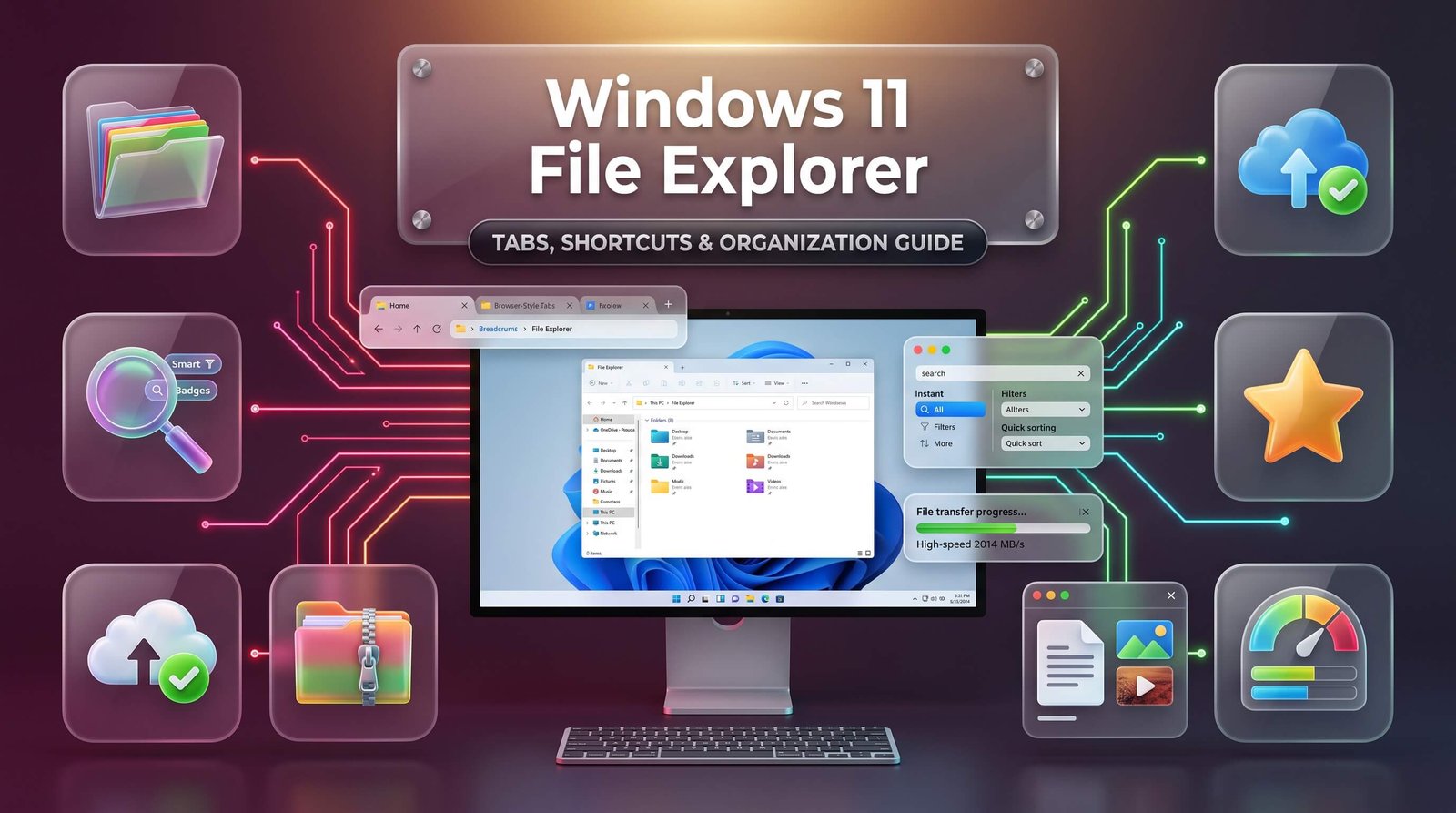
A practical, up-to-date guide to getting more out of the app you use every single day — tabs, search, shortcuts, dark mode, the context menu, and what to do when File Explorer stops responding.
Most people open Windows 11 File Explorer dozens of times a day without giving it a second thought, yet very few actually use it to its full potential. Tabs, quick-access customization, keyboard shortcuts, and a handful of hidden settings can turn a routine chore — finding a file, moving a folder, cleaning up downloads — into something that takes seconds instead of minutes. This guide walks through the features worth knowing, the settings worth adjusting, and the fixes worth remembering the next time the window freezes.
What Makes Windows 11 File Explorer Different
Windows 11 file explorer looks similar to its predecessor at first glance, but the changes underneath are more substantial than most users realize. The ribbon toolbar from Windows 10 was replaced with a slimmer command bar, icons were redesigned with rounded, Fluent-style visuals, and the whole interface was rebuilt to feel lighter and more consistent with the rest of the operating system. Microsoft has continued refining that foundation steadily rather than in one dramatic overhaul, which is why regular users often notice small improvements arriving quietly through monthly updates.
The most significant structural shift has been the gradual move toward a browser-like experience. Tabs, a redesigned Home page, and middle-click navigation all echo patterns that web browsers popularized years ago, and Microsoft has been explicit that this direction is intentional. Recent builds even allow middle-clicking a folder directly from the address bar or Home page to open it in a new tab, matching the muscle memory millions of people already have from Chrome, Edge, or Firefox. That kind of familiarity lowers the learning curve considerably, even for people who rarely think about File Explorer as a tool worth mastering.
Search has also become a genuine focus area rather than an afterthought. Microsoft has acknowledged that File Explorer’s built-in search lagged behind the improvements made to system-wide Windows Search, and it has been actively porting those gains — better typo tolerance, faster indexing, substring matching — into the file browsing experience itself. Combined with performance work aimed at reducing lag when opening the Home tab or mounting disk images, the direction is clear: File Explorer is being treated as a modern, actively maintained productivity surface rather than a legacy holdover.
Getting Comfortable with Windows 11 File Explorer Tabs
Tabbed browsing arrived in windows 11 file explorer as one of its most requested features, and it fundamentally changes how efficiently you can work across multiple folders. Instead of juggling several separate windows — each competing for taskbar space and screen real estate — you can keep a handful of locations open within a single window, switching between them with a click or a keyboard shortcut. Pressing Ctrl+T opens a new tab, Ctrl+W closes the active one, and Ctrl+Tab cycles through open tabs in order, all of which mirror browser conventions almost exactly.
Recent Insider builds have pushed this further by adding tab reordering through drag-and-drop, tab persistence across restarts, and the option to run certain tabs in isolated processes for added stability. That last point matters more than it might sound: if one tab becomes unresponsive because it’s pointed at a slow network share or a corrupted folder, isolating tabs prevents that single freeze from taking down the entire File Explorer window. Middle-click support for opening folders in new tabs, now available from both the address bar and the Home page, removes one more manual step from an already familiar workflow.
Practical use cases for tabs are everywhere once you start looking for them. Someone organizing a large project might keep one tab open on the source files, another on a reference folder, and a third on the destination directory, dragging files between tabs without losing track of any single location. Photographers and video editors often keep a tab dedicated to a working directory and another to an archive drive, since constant back-and-forth navigation is otherwise one of the most repetitive parts of file management.
| Action | Shortcut / Method |
|---|---|
| Open a new tab | Ctrl+T |
| Close the current tab | Ctrl+W |
| Switch between tabs | Ctrl+Tab |
| Open a folder in a new tab | Middle-click the folder |
| Reorder tabs | Drag and drop the tab |
Essential Windows 11 File Explorer Shortcuts
Keyboard shortcuts remain one of the fastest ways to move around the file system, and windows 11 file explorer shortcuts extend well beyond the handful most people already know. Pressing Windows+E opens a new File Explorer window from anywhere in the operating system, which is faster than searching for it through the Start menu or taskbar. Alt+Up navigates to the parent folder, while Alt+Left and Alt+Right move backward and forward through recent locations, functioning almost identically to browser back and forward buttons.
Selection and organization shortcuts save time during routine cleanup tasks. Ctrl+A selects everything in the current folder, Ctrl+click adds individual items to a selection, and Shift+click selects a contiguous range between two points. F2 renames the selected file instantly, without requiring a slower right-click menu detour, and pressing Delete sends an item to the Recycle Bin while Shift+Delete removes it permanently — a distinction worth remembering before clearing out a folder in a hurry.
A few less obvious shortcuts genuinely change how efficiently you work once they become habit. Ctrl+Shift+N creates a new folder instantly in the current directory. Alt+Enter opens the Properties dialog for a selected file, showing size, location, and permissions without extra clicks. Typing the first letter of a file name while the folder window is focused jumps directly to matching items, which is faster than scrolling through a long list manually.
| Shortcut | Function |
|---|---|
| Windows+E | Open a new File Explorer window |
| Alt+Up | Go to the parent folder |
| F2 | Rename the selected item |
| Ctrl+Shift+N | Create a new folder |
| Alt+Enter | Open Properties for the selected item |
| Shift+Delete | Permanently delete, bypassing the Recycle Bin |
Mastering Windows 11 File Explorer Search
Windows 11 file explorer search has historically trailed behind system-wide Windows Search in speed and accuracy, but Microsoft has been closing that gap deliberately. Recent updates lowered the minimum character threshold for file searches from three characters down to two, and added substring matching, so a document named “QuarterlyBudgetReview” now surfaces whether you type “budget” or “review,” rather than requiring the search term to start at the beginning of the file name. Typo tolerance has improved as well, catching dropped or extra letters instead of returning zero results for a small spelling slip.
Search filters remain one of the most underused features inside File Explorer. Typing a query and then selecting Search options from the command bar reveals filters for date modified, file type, size, and other properties, letting you narrow thousands of files down to a handful in seconds. Advanced users can type filter syntax directly into the search box — for example, entering “kind:document” or “size:>10MB” — to skip the menu entirely and get filtered results immediately.
Scope matters just as much as syntax. Searching from a specific subfolder limits results to that location and everything nested inside it, while searching from This PC casts a much wider net across every indexed drive, which naturally takes longer. For repeated searches in the same project folder, staying scoped to that directory produces faster, more relevant results and avoids sifting through unrelated files scattered across the rest of the system.
Windows 11 File Explorer Customization Options
Windows 11 file explorer customization goes well beyond changing wallpapers or icon sizes. The View menu in the command bar lets you switch between Extra large icons, Large icons, Medium icons, Small icons, List, Details, Tiles, and Content layouts, each suited to different tasks. Details view works best for sorting large folders by date or size, while Extra large icons make more sense for visually scanning a folder full of photos.
Column customization inside Details view deserves more attention than it typically gets. Right-clicking any column header brings up a list of additional properties — author, tags, dimensions, bit rate, and dozens of other fields depending on file type — that can be added or removed to match exactly what a given folder needs. Photographers might add a “Date taken” column instead of relying on “Date modified,” which can shift if files are copied or edited later, while anyone managing a media library benefits from adding “Length” or “Frame rate” columns for video files.
The Home page itself can also be tailored. Pinning frequently used folders keeps them one click away regardless of where they physically live on a drive, and the Recommended section, which surfaces recently accessed files, can be turned off entirely for anyone who prefers a cleaner, distraction-free starting screen. Combined with the ability to pin folders directly to Quick access in the navigation pane, these small adjustments compound into a noticeably faster daily workflow once configured to match personal habits.
Adjusting Windows 11 File Explorer Settings and Options
Reaching the deeper windows 11 file explorer settings requires navigating to Folder Options, accessible either through the three-dot menu in the command bar or by typing “control folders” into the Run dialog. This opens the windows 11 file explorer options panel, organized into General, View, and Search tabs, each covering a distinct category of behavior.
The General tab controls whether File Explorer opens to Home or This PC by default, how double-clicking behaves, and whether folders open in the same window or a new one. Anyone who prefers a minimal, no-frills starting point often switches the default location to This PC to skip the Recommended files section entirely. The View tab holds some of the most useful toggles in the entire settings panel: showing hidden files and folders, displaying file extensions, revealing full paths in the title bar, and adjusting how compressed or encrypted files are color-coded within listings.
Two settings buried in the View tab consistently trip up new users. File extensions are hidden by default, which means a file that appears to be named “invoice.pdf” might actually be “invoice.pdf.exe” — a common trick used in phishing attempts. Enabling “Show file name extensions” removes that ambiguity immediately and is one of the simplest security improvements available in the entire operating system. Likewise, enabling “Show hidden files, folders, and drives” is often necessary when troubleshooting software installations or manually managing configuration files that are intentionally kept out of casual view.
| Setting | Location | Why It’s Useful |
|---|---|---|
| Show file name extensions | Folder Options > View | Reveals disguised or misnamed files |
| Show hidden files and folders | Folder Options > View | Needed for troubleshooting and configuration edits |
| Open File Explorer to | Folder Options > General | Choose Home or This PC as the default view |
| Launch folder windows in a separate process | Folder Options > View | Adds stability if one window freezes |
Enabling Windows 11 File Explorer Dark Mode
Windows 11 file explorer dark mode is controlled through the system-wide appearance setting rather than a File Explorer-specific toggle. Navigating to Settings, then Personalization, then Colors, and selecting Dark from the “Choose your mode” dropdown applies a dark theme across File Explorer, the Start menu, and most built-in apps simultaneously. Choosing Custom instead allows the Windows mode and app mode to be set independently, which is useful for anyone who wants a light taskbar paired with a dark File Explorer window, or the reverse.
Beyond simple aesthetic preference, dark mode genuinely reduces eye strain during long sessions of file management, particularly in low-light environments or on OLED displays where darker pixels also translate to modest battery savings. It’s worth noting that dark mode support isn’t universal across every context menu extension or third-party shell add-on; some older utilities still render menus in their original light styling regardless of the system theme, which can create a visually inconsistent experience until the developer updates their software.
Understanding the Windows 11 File Explorer Context Menu
The windows 11 file explorer context menu was redesigned to be shorter and more visual than its Windows 10 predecessor, showing only the most common actions — copy, cut, rename, share, delete — directly, while tucking less frequent options behind a “Show more options” entry at the bottom. That extra click frustrated a lot of longtime users when Windows 11 first launched, since actions like “Send to” or certain third-party integrations were suddenly one step further away than before.
Fortunately, the classic full-length context menu can be restored without any third-party software. Opening Command Prompt and running a single registry command reinstates the older right-click behavior system-wide, showing every option immediately instead of requiring the extra “Show more options” step. Microsoft has also signaled that the upcoming 26H2 update includes a further redesigned context menu, suggesting this part of the interface will keep evolving rather than settling into a permanent final form.
Right-clicking while holding Shift reveals a slightly expanded menu even without registry changes, adding options like “Copy as path” and “Open PowerShell window here” that aren’t visible in the standard short menu. This shortcut is worth remembering for anyone who occasionally needs those extra actions but doesn’t want to permanently restore the full legacy menu for everyday use.
Quick reference: context menu behavior
- Standard right-click — shows core actions plus “Show more options” for everything else
- Shift + right-click — reveals extra actions like “Copy as path” without changing default settings
- Registry tweak — restores the full classic context menu everywhere, permanently
Fixing Windows 11 File Explorer Not Responding
Few things disrupt a workday faster than windows 11 file explorer not responding messages appearing mid-task. The good news is that most cases have a straightforward, low-risk fix, and it’s worth working through solutions in order of least to most disruptive rather than jumping straight to a full system reset. The first and simplest step is pressing Ctrl+Shift+Esc to open Task Manager, locating “Windows Explorer” in the Processes tab, right-clicking it, and selecting Restart. This relaunches the shell without affecting open documents in other applications and resolves a large share of temporary freezes almost instantly.
If restarting Explorer doesn’t help, or the freeze returns quickly, clearing File Explorer’s history and cache is the next reasonable step. Opening Folder Options, selecting the General tab, and clicking “Clear” next to File Explorer history removes cached search terms and recently visited locations that can occasionally become corrupted. Checking for and installing pending Windows updates matters here too, since Microsoft has repeatedly shipped cumulative updates specifically targeting explorer.exe reliability, thumbnail generation issues, and Home tab responsiveness.
When the problem persists, the cause is often something interacting with File Explorer rather than File Explorer itself. A misbehaving shell extension, a failing third-party context-menu add-on, a damaged folder, a slow network share, or a struggling hard drive can all masquerade as a generic freeze. Booting into Safe Mode isolates whether third-party software is responsible, since Safe Mode loads only essential drivers and services. If File Explorer runs smoothly in Safe Mode but freezes normally, a recently installed application or shell extension is the most likely culprit and should be uninstalled or disabled one at a time to identify the source.
For deeper corruption, running System File Checker and DISM from an elevated Command Prompt repairs damaged system files that File Explorer depends on to function correctly. Typing sfc /scannow followed by DISM /Online /Cleanup-Image /RestoreHealth addresses a meaningful share of persistent freezing issues tied to corrupted system components rather than third-party interference. If none of these steps resolve the problem, testing with a new local user account helps determine whether the issue is isolated to a corrupted user profile, which is a common but often overlooked cause of chronic instability.
| Step | Action | When to Use It |
|---|---|---|
| 1 | Restart Windows Explorer via Task Manager | First response to any freeze or crash |
| 2 | Clear File Explorer history and check for updates | Freezing returns shortly after restarting Explorer |
| 3 | Boot into Safe Mode to test | Suspecting a third-party extension or app conflict |
| 4 | Run SFC and DISM scans | Freezing persists after ruling out third-party software |
| 5 | Test with a new local user account | Problem persists across every other fix |
| 6 | Repair-install or reset Windows | Last resort after every other step fails |
Practical Windows 11 File Explorer Tips for Everyday Use
A handful of windows 11 file explorer tips consistently save time once they become part of a regular routine, even for people who don’t consider themselves particularly technical. Dragging a file while holding the right mouse button, rather than the left, opens a small menu when you drop it, letting you choose whether to copy, move, or create a shortcut instead of guessing which default action Windows would otherwise apply. This is especially useful when dragging between drives, where Windows normally defaults to copying rather than moving.
Pinning folders to Quick access, or to the Home page in more recent builds, keeps frequently used locations within a single click regardless of how deeply nested they are on the actual drive. Right-clicking any folder and selecting “Pin to Quick access” adds it instantly, and removing it later is just as simple through the same right-click menu. For anyone juggling multiple ongoing projects, this small habit alone eliminates a surprising amount of repetitive navigation throughout the week.
Renaming multiple files at once is another underused capability. Selecting several files, pressing F2, and typing a new name automatically appends a sequential number to each — “Vacation Photo (1),” “Vacation Photo (2),” and so on — which is far faster than renaming dozens of files individually after importing photos or scanned documents. Combined with sorting by “Date taken” or “Date modified” beforehand, this makes organizing large batches of files considerably less tedious than it initially appears.
Where File Explorer Is Headed Next
Microsoft’s stated direction for File Explorer suggests the browser-like comparison will only become more accurate over time. Upcoming updates are expected to bring deeper Copilot integration through a dockable side panel, giving users AI-assisted file search and organization without leaving the window they’re already working in. A modernized, WinUI-based Run window and a further redesigned context menu are also planned, continuing the visual consistency push that began with the original Windows 11 launch.
Performance remains an explicit priority alongside new features. Microsoft has publicly acknowledged that File Explorer’s sluggishness — particularly when loading the Home tab or handling searches across large drives — needed direct attention rather than surface-level fixes, and recent cumulative updates have targeted exactly those pain points. For everyday users, the practical takeaway is simple: keeping Windows updated isn’t just about security patches anymore, since a meaningful share of File Explorer’s reliability and speed improvements now arrive the same way.
Frequently Asked Questions
Why does Windows 11 File Explorer keep freezing or showing “Not Responding”?
Freezing is usually caused by a corrupted cache, a conflicting third-party shell extension, or a damaged system file, though a struggling hard drive or slow network location can produce similar symptoms. Restarting the Windows Explorer process through Task Manager solves most temporary cases, while persistent freezing typically requires clearing File Explorer history, running SFC and DISM scans, or testing in Safe Mode to isolate the cause.
How do I enable tabs in Windows 11 File Explorer?
Tabs are built into File Explorer by default on current versions of Windows 11, so no separate installation is needed. Press Ctrl+T to open a new tab, middle-click any folder to open it in its own tab, and use Ctrl+Tab to switch between open tabs within the same window.
Can I restore the classic right-click context menu in Windows 11?
Yes. A single Command Prompt registry command restores the full, classic-style context menu system-wide, removing the extra “Show more options” step introduced in Windows 11. Holding Shift while right-clicking also reveals additional actions temporarily without making any permanent change to the default menu behavior.
How do I turn on dark mode specifically for File Explorer?
Dark mode is applied through Settings, then Personalization, then Colors, where selecting Dark or Custom mode changes File Explorer’s appearance along with most other built-in Windows apps. There isn’t a File Explorer-only toggle separate from this system-wide appearance setting.
Why can’t File Explorer search find a file I know exists?
Search relies on Windows Indexing, and files stored outside indexed locations, or added very recently, may not appear immediately in results. Checking that the folder is included under Indexing Options, waiting for indexing to finish after adding many new files, and using simpler search terms or filters like file type and date modified usually resolves the issue.