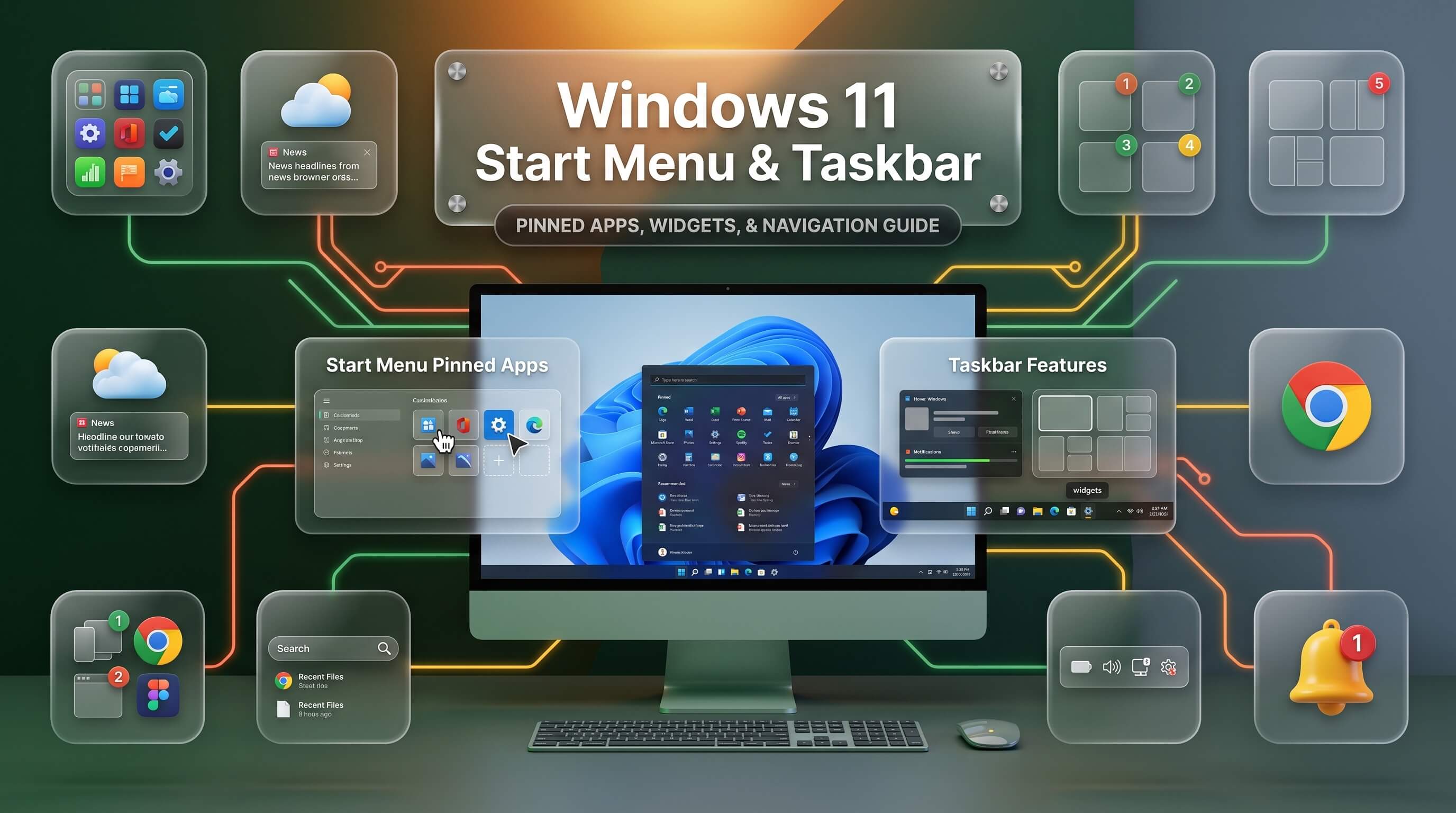
Everything you need to reposition, resize, and personalize the two interface elements you touch most — plus proven fixes for a taskbar that disappears or a Start menu that refuses to open.
The Start menu and taskbar sit at the center of nearly every action you take on a Windows 11 PC, yet most people never adjust them beyond the defaults Microsoft ships out of the box. Between alignment options, resizing controls, color settings, icon behavior, and the customization options Microsoft has been steadily restoring throughout 2026, there is far more flexibility available than the first-run experience suggests. This guide walks through every meaningful setting, along with the troubleshooting steps to fall back on when either element stops behaving the way it should.
How the Windows 11 Start Menu and Taskbar Have Evolved
When Windows 11 first launched, Microsoft made two deliberate design choices that reshaped the desktop experience: the windows 11 start menu moved from the bottom-left corner to a centered position, and the taskbar icons moved with it. Long-standing customization options disappeared along the way, including the ability to reposition the taskbar to the top, left, or right edge of the screen, resize it, or organize Start menu tiles into custom groups. For a large portion of longtime Windows users, that loss of control became one of the most persistent complaints about the new operating system.
Microsoft has spent much of 2026 correcting course. Recent builds have steadily reintroduced taskbar positioning, smaller size options, and deeper Start menu layout controls, culminating in the version 26H2 update expected in late September or October 2026. Rather than reinventing the desktop from scratch, Microsoft has focused on restoring flexibility while keeping the modern Fluent design language intact — icons, colors, and menus still look distinctly like Windows 11, but the underlying behavior finally bends to match how individual users actually work.
This shift matters for a simple reason: no single default layout works for everyone. Someone using an ultrawide monitor benefits from a vertical taskbar running along the side of the screen, while a touch-first tablet user wants larger, centered icons within easy reach of a thumb. Understanding every available option — not just the ones visible on first boot — makes it possible to build a desktop that actually fits the hardware and habits of the person using it.
Finding the Windows 11 Start Button and Opening the Start Menu
The windows 11 start button sits by default at the center of the taskbar, represented by the familiar four-pane Windows logo. Clicking it, pressing the Windows key on the keyboard, or tapping it on a touchscreen all open the same menu, which now blends pinned apps, recommended files, and a searchable app list into a single streamlined panel. Right-clicking the Start button, rather than left-clicking it, opens a completely different menu — the Quick Link menu — offering direct shortcuts to Device Manager, Disk Management, Task Manager, and other administrative tools that power users reach for frequently.
Positioning of the Start button follows whatever alignment setting is applied to the taskbar as a whole, which is where a lot of user confusion originates. Someone searching for how to move just the Start button is really asking about taskbar alignment, since the two are directly linked rather than independently configurable. Adjusting one moves the other automatically, and that relationship holds true across every supported taskbar position, whether it sits at the bottom, top, left, or right of the screen.
Moving the Windows 11 Start Menu to the Left
Setting windows 11 start menu left of center, alongside the rest of the taskbar icons, is one of the simplest and most requested changes new users make after upgrading from Windows 10. Open Settings, navigate to Personalization, select Taskbar, and expand Taskbar behaviors near the bottom of the page. A dropdown labeled Taskbar alignment offers two choices: Center and Left. Selecting Left immediately shifts the Start button, pinned app icons, and search box to the left edge of the taskbar, replicating the layout every version of Windows used prior to Windows 11.
This single toggle resolves the most common early frustration reported by long-term Windows users, since muscle memory built up over years of clicking the bottom-left corner doesn’t disappear overnight. Left alignment also tends to suit ultrawide and multi-monitor setups better than the centered default, since centered icons on a very wide display can end up a considerable distance from either edge, adding unnecessary mouse travel throughout the day.
With the version 26H2 update, alignment options expand further depending on taskbar position. When the taskbar is docked to the left or right edge of the screen rather than the bottom, icons can be aligned to the top or center of that vertical strip. When docked to the top edge, the same left-or-center choice applies horizontally, just as it does at the bottom. This layered flexibility means alignment is no longer a single global setting but a combination of taskbar position and icon alignment working together.
Complete Windows 11 Start Menu Customization
Windows 11 start menu customization has expanded considerably beyond the fairly rigid layout available at launch. Settings, Personalization, Start opens the primary customization hub, where a layout selector lets you choose how much space is dedicated to pinned apps versus recommended files. Options range from “More pins” — which prioritizes a larger grid of pinned applications and shrinks the recommendations section — to “More recommendations,” which flips that balance for anyone who relies heavily on recently opened files.
Pinning and unpinning apps works through simple right-click actions from anywhere in the operating system: right-click any app in the full app list, taskbar, or File Explorer, and select Pin to Start. Rearranging pinned icons is just as direct, using drag-and-drop to reorder them or group related apps together under a custom folder created by dragging one icon on top of another. Renaming those folders makes it possible to build organized categories — Work, Creative Tools, Games — rather than scrolling through a flat, unsorted grid.
The 2026 development cycle has pushed this further still. Newer builds allow toggling entire sections of the Start menu on or off individually, so someone who never uses the Recommended section can hide it completely and reclaim that vertical space for additional pinned apps. Preset size options — compact, default, and expanded — adjust how much of the screen the Start menu occupies when opened, addressing a long-standing complaint from users with high-resolution displays who felt the original fixed size wasted available space. Combined with the ability to disable specific recommendation types, such as recently installed apps or cloud-recommended files, users finally have granular control over what actually appears every time they press the Start key.
| Customization | Where to Find It |
|---|---|
| Pin/unpin apps | Right-click any app icon |
| Create app folders | Drag one pinned icon onto another |
| Adjust pins vs. recommendations balance | Settings > Personalization > Start > Layout |
| Hide the Recommended section | Settings > Personalization > Start (section toggles) |
| Choose Start menu size | Settings > Personalization > Start (size presets) |
| Show account-related folders (Documents, Downloads, etc.) | Settings > Personalization > Start > Folders |
Repositioning the Windows 11 Taskbar
For most of its lifecycle, windows 11 taskbar placement was locked to the bottom of the screen, a restriction that frustrated users who had grown accustomed to a vertical taskbar on the side of an ultrawide monitor or a top-docked bar in older Windows versions. That restriction is being lifted as part of the 2026 update cycle. Once the relevant update is installed, Settings, Personalization, Taskbar, Taskbar behaviors reveals a Taskbar position option supporting all four screen edges: top, bottom, left, or right.
Choosing windows 11 taskbar on top shifts the Start menu and search panel to open downward from the upper edge instead of upward from the bottom, and the interface adjusts every related element automatically to match. Selecting a side placement turns the taskbar into a vertical strip, which tends to suit widescreen monitors particularly well, since horizontal space is usually more valuable than vertical space on those displays. Microsoft includes a live preview within the Settings page itself, so it’s possible to see exactly how each position will look before committing to the change.
It’s worth noting that taskbar repositioning rolled out gradually throughout 2026 rather than arriving all at once, first appearing in Windows Insider preview builds before reaching the Beta and Release Preview channels, and finally general availability alongside version 26H2. PCs running slightly older builds of 24H2 or 25H2 may see the feature arrive through a standard monthly cumulative update before the full 26H2 release lands, since Microsoft has been distributing much of this groundwork silently in advance.
Adjusting Windows 11 Taskbar Size
Windows 11 taskbar size was another area locked into a single option for years, with the default height noticeably taller than earlier Windows versions — a decision Microsoft made intentionally to better accommodate touch input on tablets and convertible laptops. For users on traditional desktops and laptops relying purely on a mouse and keyboard, that extra height simply ate into usable screen space without adding any real benefit.
The updated Taskbar position settings now include a smaller taskbar mode alongside the standard size, reducing both the overall bar height and the icon dimensions within it. This adjustment particularly benefits smaller laptop screens, where every additional pixel of vertical space matters, and it also suits users who prefer a denser, more traditional desktop layout reminiscent of Windows 7 or Windows 10. The setting lives in the same Taskbar behaviors section used for repositioning, making it a natural next step for anyone already adjusting placement.
Managing Windows 11 Taskbar Icons
Controlling exactly which windows 11 taskbar icons appear, and how they behave, starts in Settings, Personalization, Taskbar. The Taskbar items section lets you toggle Search, Task View, Widgets, and Chat on or off individually, immediately reclaiming space for anyone who doesn’t use one or more of those built-in features. Pinning and unpinning app icons works the same way it does in the Start menu — right-click any running or installed app and choose Pin to taskbar or Unpin from taskbar — making it simple to keep only the applications used daily within immediate reach.
System tray icons deserve separate attention, since they’re managed through a different section labeled Other system tray icons, further down the same Taskbar settings page. This panel controls which background app icons show permanently versus which stay hidden behind the small upward-facing arrow, decluttering the tray without losing access to less frequently checked utilities like volume mixers or cloud storage sync indicators. Selecting “Always show all icons in the notification area” reverses that behavior entirely, displaying every tray icon at all times for users who prefer full visibility over a minimal footprint.
Grouping behavior for open windows can also be adjusted under Taskbar behaviors. The default setting combines multiple windows from the same app into a single icon, but switching to “Never combine” or “Combine when taskbar is full” changes that behavior, which particularly benefits users running several windows of the same browser or document editor who want to switch between them without opening a submenu first. This setting now applies consistently whether the taskbar sits at the bottom, top, or either side of the screen, a change introduced specifically to support the new positioning options.
| Setting | What It Controls |
|---|---|
| Taskbar items | Show/hide Search, Task View, Widgets, Chat |
| Other system tray icons | Choose which background icons stay visible |
| Combine taskbar buttons | Group or separate windows from the same app |
| Taskbar alignment | Center or left-align pinned icons |
| Taskbar position | Dock to top, bottom, left, or right edge |
Changing Windows 11 Taskbar Color and Transparency
Adjusting windows 11 taskbar color runs through Settings, Personalization, Colors, where selecting an accent color and enabling “Show accent color on Start and taskbar” applies that chosen hue directly to both surfaces. This is separate from the broader light-or-dark mode toggle, meaning it’s entirely possible to run a dark-themed desktop with a distinctly colored taskbar rather than the flat black or gray default most people leave in place.
Transparency effects add another layer of visual customization. Toggling “Transparency effects” within the Colors settings page gives the taskbar and Start menu a subtle frosted-glass appearance that lets some of the desktop background show through, which many users find visually softer than a fully opaque bar. Microsoft has continued refining this Mica and Acrylic material system throughout 2026, with reports suggesting per-edge transparency levels and more granular theming controls are being considered for future updates, extending customization beyond the single global toggle currently available.
For users who want more dramatic control than the built-in settings allow — custom taskbar images, animated backgrounds, or per-monitor color schemes — third-party tools remain the only route, since Microsoft has not exposed that level of granularity through Settings directly. It’s worth approaching such tools cautiously, since they typically modify system files or inject code into Explorer, and should only be sourced from well-established, actively maintained projects.
Fixing Windows 11 Taskbar Disappeared Issues
A windows 11 taskbar disappeared problem is one of the more disruptive issues a PC can develop, since it removes access to the Start menu, running apps, and system tray all at once. Before assuming something is seriously wrong, check the simplest possible cause first: auto-hide. Right-click an empty area of the desktop, select Personalize, then Taskbar, and confirm that “Automatically hide the taskbar” is switched off. This single setting accounts for a large share of reported disappearances, since moving the mouse away from the screen edge is all it takes to trigger the hidden state.
If auto-hide isn’t the cause, restarting the Windows Explorer process usually resolves the issue within seconds. Press Ctrl+Shift+Esc to open Task Manager, locate Windows Explorer under the Processes tab, right-click it, and select Restart. This relaunches the shell that renders the taskbar without requiring a full system reboot, and it’s the same fix that resolves most cases where the taskbar becomes visible but unresponsive rather than fully missing. If Explorer isn’t listed at all, selecting “Run new task” from the File menu and typing explorer.exe launches it fresh.
When the taskbar keeps disappearing after every restart, the problem often traces back to a recent Windows update that didn’t complete cleanly. Checking for and installing any pending updates through Settings, Windows Update, Check for updates frequently resolves recurring disappearances, since Microsoft regularly ships targeted fixes for shell stability issues through cumulative updates. For persistent cases that survive both an Explorer restart and a full Windows update check, running System File Checker and DISM from an elevated Command Prompt repairs the underlying system files the taskbar depends on: sfc /scannow followed by DISM /Online /Cleanup-Image /RestoreHealth addresses corruption that simpler fixes can’t reach.
| Step | Action | When to Try It |
|---|---|---|
| 1 | Disable “Automatically hide the taskbar” | Taskbar reappears when you move the mouse to the edge |
| 2 | Restart Windows Explorer via Task Manager | First response to any sudden disappearance |
| 3 | Check for and install Windows updates | Problem started right after an update |
| 4 | Run SFC and DISM scans | Issue returns after every restart |
| 5 | Create a new local user account to test | All other fixes fail |
Resolving Windows 11 Start Menu Not Working
A windows 11 start menu not working situation — where clicking the Start button or pressing the Windows key produces nothing at all — shares many of the same underlying causes as a missing taskbar, since both interface elements depend on the same core shell processes. The first troubleshooting step remains identical: restart Windows Explorer through Task Manager, since a stalled or crashed Explorer process is the single most common reason the Start menu fails to open.
If restarting Explorer doesn’t help, the issue may involve the Start menu’s own AppX package becoming corrupted or unregistered, which happens occasionally after an interrupted update or a botched software installation. Opening PowerShell as an administrator and running a re-registration command for the Start menu package can restore functionality without requiring a full system reset. This process re-registers all system app packages for the current user, effectively forcing Windows to rebuild the Start menu and related components from scratch.
Persistent cases that survive both an Explorer restart and package re-registration typically point to deeper system file corruption or a damaged user profile. Running sfc /scannow and DISM, in that order, catches file-level corruption that basic restarts can’t fix. If the Start menu works correctly under a newly created local user account but not the original profile, the corruption is isolated to that specific profile rather than the operating system as a whole, which narrows the fix considerably and avoids the need for a full Windows reset.
Windows 11 Taskbar Settings Worth Reviewing Regularly
Beyond the headline customization options, several smaller windows 11 taskbar settings are worth checking periodically, since they quietly affect day-to-day usability without being especially prominent within the Settings app. The “Show badges on taskbar apps” toggle controls whether notification counts appear as small numbers or dots over app icons — useful for messaging and email apps but easy to disable for anyone who finds the constant visual reminders distracting.
Multiple display behavior is another area worth reviewing for anyone running more than one monitor. Settings, Personalization, Taskbar includes options for showing the taskbar on all displays or restricting it to just the main screen, along with a separate control for how open windows are shown across multiple taskbars — either only on the taskbar where the window is open, or on every taskbar simultaneously. Getting this configuration right prevents a cluttered secondary display from competing for attention when the extra monitor is used mainly for reference material rather than active multitasking.
Quick reference: where core settings live
- Taskbar position, alignment, and size — Settings > Personalization > Taskbar > Taskbar behaviors
- Taskbar icons and system tray — Settings > Personalization > Taskbar
- Taskbar color and transparency — Settings > Personalization > Colors
- Start menu layout, size, and sections — Settings > Personalization > Start
Building a Desktop Layout That Actually Fits Your Workflow
The goal of adjusting any of these settings isn’t to chase a particular aesthetic; it’s to remove friction from tasks performed dozens of times every day. Someone who works primarily in a handful of pinned applications benefits most from a left-aligned taskbar with a compact Start menu, minimizing both visual clutter and the distance the mouse has to travel. Someone juggling many open windows across a wide monitor may prefer the taskbar docked to a side edge, freeing up vertical space while keeping every open app visible in a single glance.
It’s worth revisiting these settings occasionally rather than configuring them once and forgetting about them entirely. As Microsoft continues rolling out the broader 2026 customization push, new options are appearing gradually through monthly updates rather than arriving all at once, so a layout that felt complete a few months ago may now have additional refinements available. Checking Settings, Personalization periodically after major updates is a simple habit that keeps a desktop setup aligned with whatever new flexibility Microsoft has most recently restored.
Frequently Asked Questions
Can I move the Windows 11 taskbar to the top of the screen?
Yes, on current builds supporting the 2026 customization update. Go to Settings, Personalization, Taskbar, Taskbar behaviors, and select Taskbar position, then choose Top from the available options. The interface automatically adjusts so the Start menu and search panel open downward from the new position.
Why does my Windows 11 taskbar keep disappearing?
The most common cause is the “Automatically hide the taskbar” setting being enabled, which should be checked first under Settings, Personalization, Taskbar. If that isn’t the issue, restarting Windows Explorer through Task Manager usually restores it; recurring disappearances after updates may require an SFC and DISM scan to repair underlying system file corruption.
How do I move the Start menu back to the left side like Windows 10?
Open Settings, Personalization, Taskbar, expand Taskbar behaviors, and change Taskbar alignment from Center to Left. This shifts the Start button and all pinned taskbar icons to the left edge, matching the layout used in every Windows version before Windows 11.
What should I do if the Windows 11 Start menu won’t open at all?
Start by restarting the Windows Explorer process through Task Manager, since a stalled shell process is the most frequent cause. If that doesn’t help, re-registering the Start menu’s system package through an administrator PowerShell command, or running sfc /scannow and DISM, typically resolves cases involving corrupted files rather than a simple process freeze.
Can I change the taskbar color independently of the overall Windows theme?
Yes. Settings, Personalization, Colors lets you choose an accent color and separately enable “Show accent color on Start and taskbar,” applying that color specifically to those two elements regardless of whether the rest of the system is running in light or dark mode. Transparency effects can also be toggled independently within the same settings page.