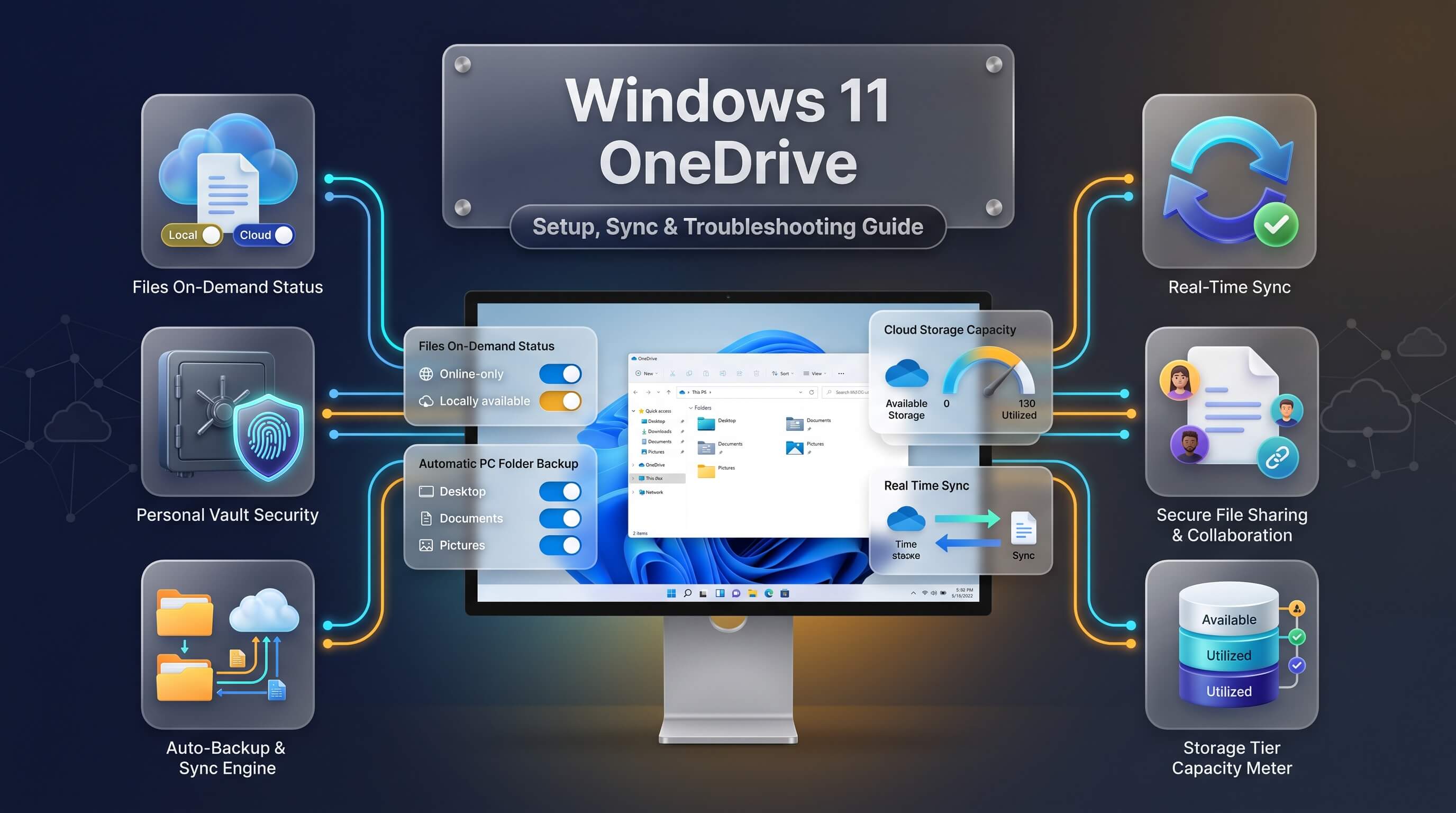
Windows 11 OneDrive is built directly into the operating system, which means most people are already using it, whether they realize it or not. From the first sign-in, OneDrive quietly takes over the job of protecting your Desktop, Documents, and Pictures folders, keeping a copy of your files in the cloud so a crashed hard drive or a stolen laptop doesn’t wipe out years of work. That convenience is genuinely useful, but it also comes with a learning curve: sync errors, confusing storage limits, mysterious icons on your files, and settings buried three menus deep.
This guide walks through everything a Windows 11 user needs to know about OneDrive, from the very first setup screen to advanced troubleshooting for stubborn sync failures. Whether the goal is to fully embrace cloud backup, fine-tune storage usage, or disable OneDrive entirely, the steps below are current, tested, and written in plain language.
What Is OneDrive in Windows 11?
OneDrive is Microsoft’s cloud storage service, and in Windows 11 it functions almost like an extension of File Explorer rather than a separate app bolted on afterward. Every copy of Windows 11 ships with the OneDrive client pre-installed, so there’s nothing to download for basic use. Sign in with a Microsoft account, and OneDrive creates a dedicated folder on your PC that mirrors a matching folder online, syncing changes in both directions automatically.
Unlike older versions of Windows, where cloud storage felt like an add-on, Windows 11 treats OneDrive as a core part of the file system experience. The Quick Access panel in File Explorer, the Photos app, and even the Start menu’s recent files list all pull data from OneDrive when it’s active. That deep integration is why disabling or removing it later requires a bit more than simply uninstalling an app, a point covered later in this guide.
For most home and small-business users, OneDrive strikes a reasonable balance between simplicity and functionality. It’s not the most feature-rich cloud storage platform on the market, but it doesn’t need to be installed separately, doesn’t require a third-party account, and works reliably across phones, tablets, and other Windows PCs signed into the same Microsoft account.
How to Sign In to OneDrive on Windows 11
Getting OneDrive running starts with a proper sign-in, and Windows 11 usually prompts for this during the out-of-box setup. If that step was skipped, or if a second Microsoft account needs to be added, signing in manually only takes a minute.
- Click the Start button, type “OneDrive,” and open the desktop app from the search results.
- Enter the email address tied to a Microsoft account, then select “Sign in.”
- Enter the password and complete two-factor verification if it’s enabled on the account.
- Choose the folder location for the local OneDrive folder, or accept the default path under the user profile.
- Walk through the setup screens covering Backup, Files On-Demand, and mobile app promotion, adjusting settings as needed.
Once signed in, a cloud icon appears in the system tray at the bottom-right of the screen. Clicking it opens a status panel showing recent activity, remaining storage, and any sync errors. If the sign-in screen never appears, it’s usually because OneDrive was previously disabled by a system administrator or a Group Policy setting, which is common on work or school-managed PCs.
A work or school account can also be added alongside a personal account. OneDrive supports syncing both simultaneously, displaying two separate cloud icons and two folder trees in File Explorer, one labeled with the personal account name and the other with the organization’s name.
Windows 11 OneDrive Settings: Configuring It the Right Way
The default OneDrive configuration works fine for casual use, but adjusting the settings makes a real difference for anyone who wants more control over bandwidth, storage, and what actually gets backed up. All the relevant controls live in one place.
Right-click the OneDrive cloud icon in the system tray, select “Help & Settings,” then choose “Settings” from the menu. This opens a window with several tabs worth reviewing:
- Account tab – Shows connected accounts, lets you add another account, and unlink the current one if needed.
- Backup tab – Controls which folders (Desktop, Documents, Pictures) are automatically protected.
- Settings tab – General preferences, including startup behavior, notifications, and Files On-Demand.
- Network tab – Upload and download speed limits, useful on slower or metered connections.
- Office tab – Options for collaborative editing when Microsoft 365 apps are installed.
The Network tab deserves special attention for anyone working from a location with limited bandwidth. Throttling upload speed to a fixed rate prevents OneDrive from consuming the entire connection during a large sync, which is a common complaint among remote workers uploading big files during video calls.
It’s also worth checking “Files related” settings so that only genuinely needed folders sync locally. Selective sync, covered in more detail below, keeps a laptop’s storage from filling up with files that rarely get opened.
Understanding the Windows 11 OneDrive Folder Structure
The windows 11 onedrive folder sits inside the user profile, typically at a path like C:\Users\YourName\OneDrive, and it behaves like any other folder in File Explorer, except that every file inside it carries a small status icon indicating whether it’s synced, syncing, or stored only in the cloud.
Three icons show up most often. A green checkmark means the file is fully synced and available offline. A blue cloud icon means the file exists online but hasn’t been downloaded to the device yet. A sync arrows icon indicates the file is actively uploading or downloading. Understanding these icons prevents a lot of confusion when a file appears to be “missing” but is actually just stored in the cloud rather than on the local drive.
Renaming, moving, or reorganizing folders inside the OneDrive directory works exactly like it would with local files, and changes propagate to the cloud automatically. The one caveat is file naming: characters like asterisks, question marks, or trailing periods aren’t supported by OneDrive’s syncing engine and will cause an error, so it helps to stick with straightforward file names.
Windows 11 OneDrive Sync: How It Actually Works
Windows 11 OneDrive sync operates continuously in the background rather than on a fixed schedule. The moment a file is created, edited, or deleted inside the OneDrive folder, the client detects the change and queues it for upload. On the receiving end, any other device signed into the same account downloads the change within seconds, assuming a stable internet connection.
Sync direction runs both ways. Editing a file on a phone through the OneDrive mobile app updates the same file on a desktop PC, and vice versa. This bidirectional model is what makes OneDrive genuinely useful for people who switch between devices throughout the day, since there’s no need to manually transfer files or email documents to yourself.
Large batches of files, especially during the very first sync after signing in, can take a while to process. OneDrive prioritizes recently modified files and smaller items first, which sometimes makes the sync feel uneven. Checking the status panel gives a clearer picture of progress than guessing based on the tray icon alone.
Conflicts occasionally happen when the same file is edited on two devices while offline. Rather than overwriting anything, OneDrive creates a second copy with the device name appended to the file name, so nothing is silently lost. It’s then up to the user to compare the two versions and decide which one to keep.
Files On-Demand: Saving Local Storage Space
The windows 11 onedrive files on demand feature solves a real problem: syncing terabytes of cloud storage onto a laptop with a 256GB solid-state drive simply isn’t possible. Files On-Demand lets every file in OneDrive appear in File Explorer without actually consuming local disk space until it’s opened.
When Files On-Demand is enabled, three states apply to each file or folder:
- Online-only – Visible in File Explorer with a blue cloud icon, but not stored on the device until opened.
- Locally available – Downloaded temporarily after being opened, marked with a green checkmark.
- Always keep on this device – Permanently stored locally, useful for files needed offline, such as during a flight.
To turn Files On-Demand on or off, open OneDrive settings, go to the Settings tab, and toggle “Save space and download files as you use them.” Right-clicking any individual file or folder also reveals options to mark it as “Always keep on this device” or “Free up space,” giving granular control over what stays local.
This feature is particularly valuable for anyone managing shared team folders or large photo libraries. Rather than choosing between full local storage or no access at all, Files On-Demand allows quick browsing of everything while only downloading what’s actually needed at a given moment.
Windows 11 OneDrive Backup: Protecting Desktop, Documents, and Pictures
The windows 11 onedrive backup feature, officially called PC folder backup, redirects the Desktop, Documents, and Pictures folders so they live inside OneDrive rather than directly on the local drive. Anything saved to those three folders is automatically uploaded and protected, even though the folders still appear in their usual locations in File Explorer.
To set this up or review its status, open OneDrive settings and select the Backup tab, then click “Manage backup.” A screen appears showing each of the three folders with a toggle to enable or disable backup individually. It’s entirely possible to back up Documents while leaving Desktop unprotected, which is helpful for people who keep large temporary files or shortcuts cluttering their desktop.
Backup differs from a full system backup in one important way: it only covers those three specific folders, not the entire C: drive, installed applications, or system settings. For broader protection, Windows 11’s built-in File History or a dedicated backup tool remains necessary. OneDrive backup is best understood as a safety net for everyday working files rather than a complete disaster-recovery solution.
One practical benefit worth highlighting: if a Windows 11 PC needs to be reset or replaced, signing into OneDrive on the new machine restores the Desktop, Documents, and Pictures folders automatically, without needing an external drive or manual file transfer.
OneDrive Personal Vault: Extra Security for Sensitive Files
The windows 11 onedrive personal vault is a protected area inside OneDrive designed for documents that need an extra layer of security beyond normal cloud storage, things like scanned passports, tax records, or banking details. Files placed in the Personal Vault require a second authentication step to access, separate from simply being signed into Windows.
Setting it up takes only a few steps. Open the OneDrive folder in File Explorer, locate the Personal Vault entry, and follow the prompts to verify identity through a method already linked to the Microsoft account, such as a text message code, email verification, or the Microsoft Authenticator app.
Once unlocked, Personal Vault behaves like a normal folder for as long as the session stays active. After a short period of inactivity, typically around twenty minutes, it automatically relocks, hiding the contents until re-verified. This automatic timeout is a deliberate design choice, since leaving a laptop unattended shouldn’t leave sensitive documents exposed.
Free OneDrive accounts can store a limited number of files in Personal Vault, while paid Microsoft 365 subscriptions raise that limit substantially. For anyone digitizing important paperwork, scanning documents directly into Personal Vault using the OneDrive mobile app is one of the more underused but genuinely useful features Microsoft has added in recent years.
Windows 11 OneDrive Storage: Plans, Limits, and Upgrades
Every Microsoft account starts with 5GB of free windows 11 onedrive storage, which fills up faster than expected once photo backup and Desktop backup are both switched on. Understanding the available upgrade paths helps avoid running into the frustrating “storage full, sync paused” notification.
| Plan | Storage | Approx. Price | Best For |
|---|---|---|---|
| OneDrive Free | 5 GB | $0 | Light document backup, basic file sharing |
| 100 GB Standalone | 100 GB | Around $1.99/month | Users who only need storage, not Office apps |
| Microsoft 365 Personal | 1 TB | Around $9.99/month or $99.99/year | One user needing storage plus Word, Excel, and PowerPoint |
| Microsoft 365 Family | 6 TB (1 TB per person) | Around $12.99/month or $129.99/year | Households sharing storage across up to six accounts |
| OneDrive for Business | 1 TB or more, per user | Bundled with Microsoft 365 Business plans | Small businesses and teams needing shared, managed storage |
Pricing varies by region and is subject to change; always confirm current rates on Microsoft’s official OneDrive pricing page before purchasing.
Checking current usage is straightforward: click the OneDrive tray icon, select “Help & Settings,” then “View online,” which opens the OneDrive web interface showing a breakdown of storage used by files, backup, and recycle bin contents. Emptying the OneDrive recycle bin, which is separate from the Windows Recycle Bin, often reclaims more space than people expect.
Fixing Windows 11 OneDrive Not Syncing
Few things are more frustrating than watching that sync icon spin endlessly without any files actually updating. Windows 11 onedrive not syncing problems usually trace back to one of a handful of common causes, and working through them systematically resolves the vast majority of cases.
| Symptom | Likely Cause | Fix |
|---|---|---|
| Perpetual “processing changes” message | Large number of small files or a stuck sync queue | Pause and resume sync from the tray icon, then restart OneDrive |
| Red X icon on files | File in use, unsupported characters, or path too long | Close the file, rename it, or shorten the folder path |
| Sync paused automatically | Storage quota exceeded | Free up space or upgrade the storage plan |
| No cloud icon in system tray | OneDrive process not running | Search “OneDrive” in Start and relaunch the app |
| Files sync on one device but not another | Outdated app version or corrupted sync cache | Reset OneDrive using the command below, then re-sign in |
When basic troubleshooting doesn’t resolve the issue, a full reset often does. Press Windows + R to open the Run dialog, then paste the following command and press Enter:
%localappdata%\Microsoft\OneDrive\onedrive.exe /reset
The OneDrive icon disappears briefly and then reappears within a few minutes, at which point signing back in usually clears whatever glitch was blocking synchronization. If that still doesn’t work, running the built-in Windows Troubleshooter, accessible through Settings > System > Troubleshoot > Other troubleshooters, can catch issues related to firewall rules or network permissions that block OneDrive’s connection.
It’s also worth checking whether antivirus software or a company firewall is interfering. Some third-party security tools flag OneDrive’s background sync process as suspicious activity, particularly right after installation, and temporarily whitelisting the OneDrive executable resolves the conflict.
How to Disable OneDrive in Windows 11
Not everyone wants OneDrive running constantly in the background, especially on PCs with limited storage or metered internet connections. Choosing to windows 11 disable onedrive doesn’t require uninstalling anything; it simply pauses the sync process while leaving the app available for later use.
- Right-click the OneDrive cloud icon in the system tray.
- Select “Help & Settings,” then choose “Pause syncing,” and pick a duration of 2, 8, or 24 hours for a temporary pause.
- For a more permanent disable, open Settings from the same menu, go to the Settings tab, and uncheck “Start OneDrive automatically when I sign in to Windows.”
- Under the Account tab, click “Unlink this PC” to fully disconnect the account without deleting any files from the cloud.
Unlinking is often the better option for users who want to stop syncing indefinitely without going through a full uninstall. Files that were already synced remain on the local drive exactly as they were, but no further changes upload or download until the account is signed back in.
Administrators managing multiple PCs can also disable OneDrive through Group Policy Editor by navigating to Computer Configuration > Administrative Templates > Windows Components > OneDrive, then enabling “Prevent the usage of OneDrive for file storage.” This approach is common in business environments where IT wants to standardize on a different cloud platform.
How to Remove OneDrive from Windows 11 Completely
For users who prefer a different cloud service entirely, or simply don’t want cloud storage at all, it’s possible to windows 11 remove onedrive from the system rather than just disabling it. This process uninstalls the application itself.
- Before uninstalling, make sure any files needed only exist in the cloud are downloaded locally, since removing the app can affect access to online-only files through File Explorer.
- Open Settings, go to Apps, then “Installed apps.”
- Search for “Microsoft OneDrive” in the list.
- Click the three-dot menu next to it and select “Uninstall,” confirming when prompted.
- Restart the PC to ensure background processes and file system integrations fully unload.
After uninstalling, the OneDrive folder and its shortcut disappear from File Explorer’s navigation pane, though any files that were already downloaded locally before uninstalling typically remain on the drive in their last known folder location, just no longer synced to the cloud.
It’s worth noting that Windows Update sometimes reinstalls OneDrive automatically during a major feature update, since Microsoft treats it as a core system component rather than an optional app. If OneDrive keeps reappearing after removal, using Group Policy or the Registry Editor to block it permanently is more reliable than repeated uninstalls, though editing the registry should only be attempted by users comfortable making system-level changes, ideally after creating a restore point first.
OneDrive vs. Other Cloud Storage Options on Windows 11
OneDrive isn’t the only cloud storage option available to Windows 11 users, and comparing it against the competition helps clarify whether sticking with the built-in default makes sense or whether a switch is worth considering.
| Service | Free Storage | Windows 11 Integration | Notable Feature |
|---|---|---|---|
| Microsoft OneDrive | 5 GB | Native, built into File Explorer | Personal Vault and Files On-Demand |
| Google Drive | 15 GB (shared across Gmail, Photos) | Requires separate desktop app | Deep integration with Google Workspace |
| Dropbox | 2 GB | Requires separate desktop app | Strong third-party app ecosystem |
For most Windows 11 users, especially those already invested in Microsoft 365 for Word, Excel, and Outlook, OneDrive remains the path of least resistance simply because it’s already installed and tightly woven into the operating system. Users prioritizing maximum free storage or cross-platform flexibility outside the Microsoft ecosystem may still find value in exploring alternatives.
Best Practices for a Smooth OneDrive Experience
A handful of habits go a long way toward preventing most of the common headaches associated with cloud sync. Keeping the OneDrive app updated automatically through Windows Update ensures bug fixes and security patches apply without manual effort. Reviewing the Backup tab periodically confirms that the right folders remain protected, especially after a system reset or a new PC setup.
Avoiding extremely long file paths, deeply nested folder structures, and special characters in file names prevents a surprising number of sync errors before they ever happen. For anyone managing large media libraries, enabling Files On-Demand rather than forcing everything to stay local strikes the best balance between accessibility and available disk space.
Finally, treating OneDrive backup as a complement to, not a replacement for, a proper backup strategy is wise. Pairing it with periodic use of Windows 11’s File History feature or an external drive backup adds a genuine safety net beyond what cloud sync alone can guarantee.
Frequently Asked Questions
Does Windows 11 require OneDrive to function properly?
No, Windows 11 operates normally without OneDrive signed in or even installed. It’s deeply integrated for convenience, powering features like Desktop backup and cross-device file access, but a Windows 11 PC runs fine using only local storage if OneDrive is disabled or removed.
Why does my Windows 11 OneDrive keep saying it’s not syncing?
Sync failures usually stem from a full storage quota, a file with unsupported characters, an outdated app version, or a background conflict with antivirus software. Running the OneDrive reset command, checking available storage, and confirming a stable internet connection resolve most sync interruptions.
How much free storage does Windows 11 OneDrive provide?
Every free Microsoft account includes 5 GB of OneDrive storage. Upgrading to a Microsoft 365 Personal or Family subscription increases that to 1 TB per user, along with access to Office apps and the expanded Personal Vault file limit.
Is it safe to disable or remove OneDrive from Windows 11?
Yes, disabling or removing OneDrive is safe and doesn’t harm the operating system. Files that were already synced remain on the local drive after unlinking the account, and uninstalling the app simply stops future cloud backup and sync activity without affecting other Windows 11 features.
What is the difference between OneDrive backup and Files On-Demand?
Backup automatically uploads the Desktop, Documents, and Pictures folders to protect their contents in the cloud, while Files On-Demand controls how much of that cloud content is actually stored locally at any given time. The two features work together: backup decides what gets protected, and Files On-Demand decides how much local disk space that protection consumes.