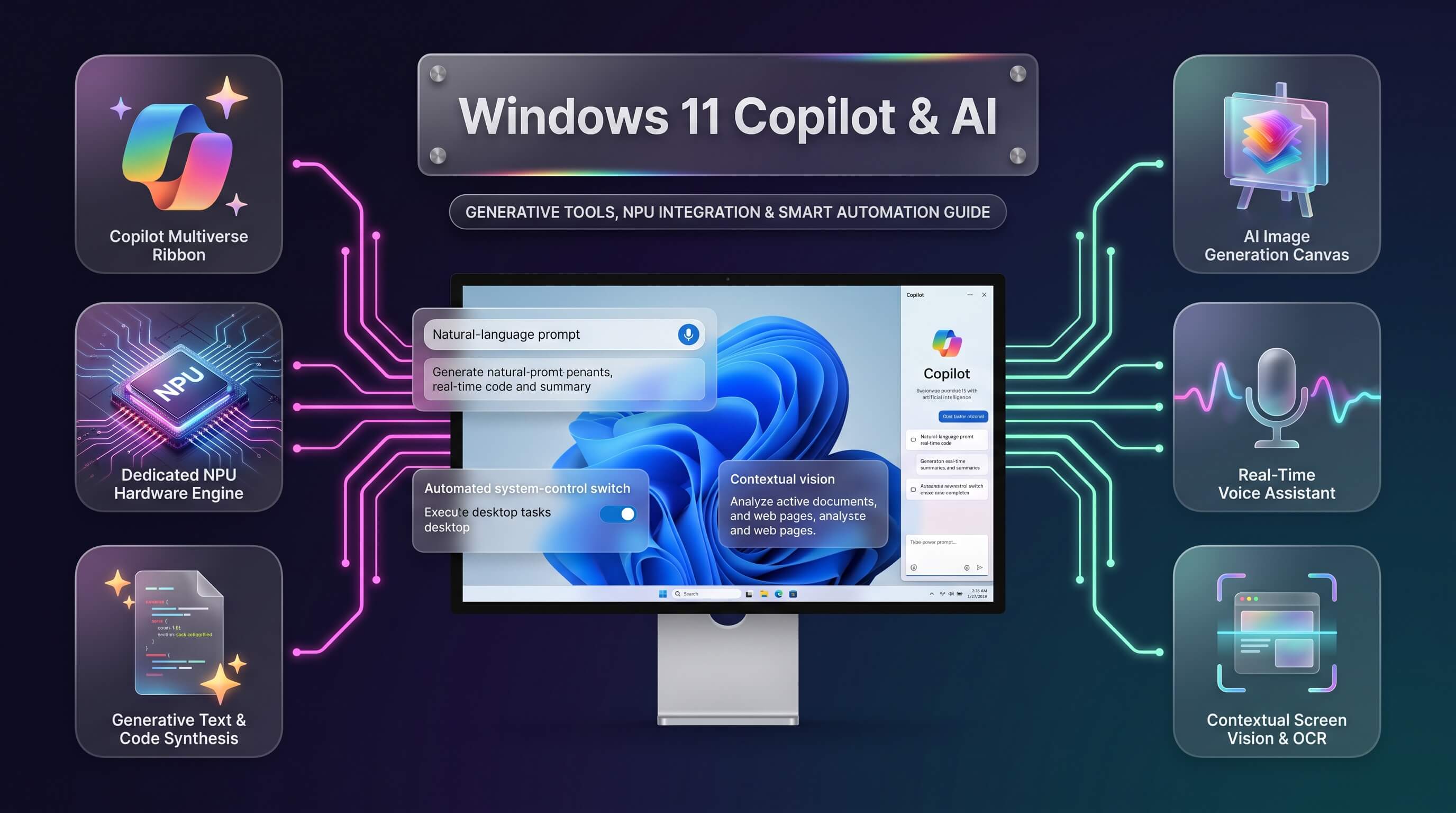
Everything a Windows 11 user needs to know about Copilot: what it does, how to set it up, how to control it, and how to fix it when it stops responding.
Windows 11 Copilot has quietly become one of the most talked-about additions to Microsoft’s operating system in years, and opinions about it are sharply divided. Some users rely on it daily for quick answers, document summaries, and image edits without ever opening a browser. Others find it intrusive and want it gone the moment they finish setting up a new PC. Both reactions make sense once you understand what windows 11 copilot actually is, how deeply it’s woven into the system, and how much control Microsoft actually gives you over it.
This guide breaks down windows 11 ai from the ground up: the core features, the hardware requirements for the more advanced tools, step-by-step setup and settings instructions, common troubleshooting fixes, and a clear walkthrough for anyone who wants to disable it entirely. By the end, you’ll know exactly how to shape Copilot around your own workflow rather than the other way around.
What Is Windows 11 Copilot?
Copilot is Microsoft’s built-in AI assistant for Windows 11, powered by large language models and accessible directly from the taskbar. Rather than being a separate application you have to install, it’s stitched into the operating system itself, appearing as an icon that opens a chat-style sidebar capable of answering questions, drafting text, summarizing documents, and adjusting system settings on request.
What makes windows 11 copilot different from a typical chatbot is its awareness of the operating system around it. Ask it to turn on dark mode, mute notifications, or take a screenshot, and it can trigger the actual Windows setting rather than just explaining how to do it manually. That system-level access is what separates Copilot from a browser-based AI tool bookmarked on the desktop.
Microsoft has repositioned Copilot several times since its 2023 debut, moving from a fixed sidebar to a floating, resizable window, and most recently toward what the company calls the “One Copilot” vision, unifying the assistant’s behavior across Windows, Edge, and Microsoft 365. Throughout 2026, Microsoft has also been recalibrating how aggressively Copilot appears throughout the interface, scaling back automatic prompts in apps like Notepad, Paint, and Snipping Tool after user feedback that the AI felt forced rather than helpful.
Windows 11 Copilot Features Worth Knowing
The feature set behind windows 11 copilot features has grown well beyond simple text chat, and understanding what’s actually available helps separate genuinely useful tools from novelty additions.
- Conversational chat – Ask questions, get explanations, draft emails, or brainstorm ideas directly from the sidebar without switching to a browser.
- Ask Copilot in search – A newer taskbar search experience that understands natural language, so typing “increase brightness” surfaces the actual control instead of a list of unrelated results.
- Click to Do – A contextual tool on supported hardware that analyzes whatever is on screen and offers relevant actions, such as summarizing a document or rewriting selected text, without opening a separate app.
- Copilot Vision – Allows the assistant to “see” what’s open in a supported app and offer guidance based on that content, useful for troubleshooting software or getting context-aware suggestions.
- Image creation and editing – Generates images from text prompts and offers quick edits like background removal, integrated into apps such as Paint and Photos.
- File Explorer summaries – Lets you ask Copilot to summarize the contents of a document directly from File Explorer without opening it first.
- Narrator image descriptions – Generates detailed, spoken descriptions of on-screen images and charts, a genuinely valuable accessibility feature for blind and low-vision users.
Not every feature is available to every device. Some, like Click to Do and Copilot Vision, require Copilot+ hardware, a distinction covered in detail further down. Others, like the chat sidebar and Ask Copilot search, work on any Windows 11 PC with an internet connection, regardless of the processor inside it.
Quick distinction: “AI PC” is a loose marketing term used across the industry, while “Copilot+ PC” is Microsoft’s own certification tier requiring specific NPU performance. A laptop can have AI branding without qualifying as a true Copilot+ device.
Windows 11 Copilot Requirements: What Your PC Needs
Understanding windows 11 copilot requirements starts with separating two tiers of functionality. Basic, cloud-based Copilot features run on essentially any Windows 11 PC with an active internet connection and enough memory to run the OS comfortably. The more advanced, on-device AI features, however, are locked behind a specific hardware certification called Copilot+ PC.
| Requirement | Standard Copilot | Copilot+ PC |
|---|---|---|
| Operating System | Windows 11, any supported version | Windows 11, version 24H2 or later |
| Processor / NPU | No NPU required | NPU capable of 40+ TOPS (AMD Ryzen AI 300 series, Intel Core Ultra 200V series, or Qualcomm Snapdragon X series) |
| RAM | 4 GB minimum (8 GB recommended) | 16 GB DDR5 or LPDDR5 minimum |
| Storage | 64 GB minimum (standard Windows 11 requirement) | 256 GB SSD or UFS minimum |
| Internet Connection | Required for chat and most features | Optional for on-device features; required for cloud-based ones |
| Exclusive Features | Chat, Ask Copilot search, image generation (cloud) | Click to Do, Copilot Vision, on-device image generation, Recall, Live Captions translation |
The practical takeaway is straightforward: an older laptop can still chat with Copilot as long as it runs Windows 11 and has an internet connection, but features branded as Copilot+ exclusives simply won’t appear as options, no matter how the settings menu is configured. Checking whether a device carries an official Copilot+ badge, either on its spec sheet or in Settings under System > About, is the fastest way to confirm eligibility before assuming a missing feature is a bug.
Windows 11 Copilot Integration Across the System
What sets windows 11 copilot integration apart from a standalone AI app is how far it reaches into everyday tools. Rather than living in one isolated window, Copilot touches File Explorer, the taskbar, Settings, and several first-party apps, with the depth of that integration shifting noticeably throughout 2026 as Microsoft rebalances how visible AI prompts should be.
In File Explorer, right-clicking a supported document surfaces an option to ask Copilot for a summary without opening the file first, which saves time when sorting through a folder full of reports or contracts. In Settings, Copilot can interpret plain-language requests like “why is my battery draining fast” and jump directly to the relevant diagnostic panel instead of making you search for it manually.
Edge browser integration remains one of the more mature parts of the ecosystem, allowing Copilot to summarize a webpage, compare products across open tabs, or draft a reply to content on screen. Meanwhile, Notepad, Paint, and the Snipping Tool each gained lightweight Copilot touches, such as text rewriting suggestions or one-click image generation, though Microsoft scaled back how proactively these prompts appear after user feedback described them as cluttering rather than helping.
This selective integration approach reflects a broader shift in Microsoft’s strategy: rather than pushing Copilot everywhere by default, later 2026 updates favor placing it where it’s contextually useful and letting users opt into deeper AI involvement rather than having it thrust upon them.
Windows 11 AI Features Beyond Copilot Chat
Copilot chat gets most of the attention, but windows 11 ai features extend into several other tools that don’t always carry the Copilot name directly, even though they run on the same underlying AI infrastructure.
- Windows Studio Effects – Real-time camera and microphone enhancements like background blur, eye contact correction, and voice focus during video calls, processed locally on supported NPU hardware.
- Live Captions with translation – Automatically captions any audio playing on the PC and can translate it into another language in real time.
- Recall – A searchable, AI-indexed timeline of on-screen activity, available exclusively on Copilot+ hardware with user-controlled privacy settings, including the ability to pause or exclude specific apps.
- Super Resolution – Uses on-device AI to upscale lower-resolution video content in supported games and media players.
- Auto image descriptions in Narrator – Rolled out beyond Copilot+ exclusivity in 2026, giving more users access to AI-generated descriptions of images and charts for accessibility purposes.
Together, these tools illustrate that Windows 11’s AI ambitions go well past a chat window. Some run entirely on-device using the NPU, which matters for privacy since the data never leaves the machine, while others rely on cloud processing and therefore require an active internet connection to function.
How to Access Copilot: The Windows 11 Copilot Shortcut
Launching Copilot quickly matters for anyone who uses it regularly throughout the day, and Microsoft provides several ways to open it beyond hunting for the taskbar icon. The windows 11 copilot shortcut most people rely on is a simple keyboard combination.
- Press Windows key + C to open the Copilot sidebar instantly from anywhere in the operating system.
- Click the Copilot icon directly in the taskbar, typically positioned near the search box or Start button.
- Type “Copilot” into Windows Search and press Enter to launch the app.
- On select Copilot+ PCs, a dedicated physical Copilot key replaces one of the traditional keyboard keys, offering a one-press launch.
The dedicated Copilot key, first introduced on new laptop keyboards, has become a defining hardware marker of newer Windows 11 devices, similar to how the Windows key itself became standard decades ago. Not every keyboard has one, particularly on desktop PCs and older laptops, which makes the Windows key + C shortcut the more universally reliable option.
Windows 11 Copilot Settings: Customizing the Experience
Adjusting windows 11 copilot settings gives you meaningful control over how and when the assistant appears, rather than accepting Microsoft’s defaults as fixed. Most of these controls live in two places: the Settings app and Copilot’s own in-app preferences.
- Open Settings by pressing Windows key + I, then navigate to “Privacy & security” to review what data Copilot can access, including location, activity history, and app permissions.
- Go to “Personalization” then “Taskbar” to toggle whether the Copilot icon appears in the taskbar at all.
- Open the Copilot app itself, click the account or settings icon, and review options for response style, memory of past conversations, and connected apps.
- For Copilot+ PCs, check “Windows AI settings” under System to manage Recall snapshots, Click to Do behavior, and on-device model permissions individually.
One setting worth reviewing carefully is Copilot’s memory feature, which allows the assistant to reference earlier conversations for more personalized responses over time. Users who prefer each session to start fresh, without any retained context, can disable this from within the app’s privacy preferences, and Microsoft resets stored memory data if the feature is turned off.
Enterprise and school-managed devices often have Copilot settings locked down entirely by IT administrators through Microsoft Intune or Group Policy, which explains why some users see far fewer customization options than described here. If a setting appears grayed out, that’s almost always the reason.
Fixing Windows 11 Copilot Not Working
When windows 11 copilot not working becomes the issue of the day, the cause is almost always one of a short list of familiar culprits rather than a deep system fault. Working through them in order resolves the overwhelming majority of cases.
| Symptom | Likely Cause | Fix |
|---|---|---|
| Copilot icon missing from taskbar | Disabled in taskbar settings or Group Policy | Re-enable from Settings > Personalization > Taskbar |
| Sidebar opens but shows a blank screen | Outdated app cache or connectivity glitch | Close and reopen the app, or restart the PC |
| “Copilot is unable to respond” error | Server-side outage or regional service restriction | Check Microsoft 365 service status page and retry later |
| Copilot+ features grayed out | Hardware doesn’t meet the 40 TOPS NPU requirement | Confirm Copilot+ eligibility under Settings > System > About |
| Copilot won’t launch at all | Corrupted app installation | Reinstall via Microsoft Store or reset the app under Installed Apps |
A quick reset through the Microsoft Store often resolves stubborn issues without a full reinstall. Open the Microsoft Store, search for Copilot, click the three-dot menu next to it, and select “Advanced options” from the app’s page in Settings, then choose “Reset.” This clears cached data without removing your account connection, and it’s usually the fastest fix for a sidebar that loads but refuses to respond to input.
If the problem persists across multiple restarts, checking for pending Windows updates is worth doing next, since windows 11 copilot update packages frequently include stability fixes alongside new features. Running Windows Update from Settings and installing anything listed under optional or recommended updates often resolves compatibility issues introduced by a recent Windows build.
Staying Current with Windows 11 Copilot Updates
Microsoft ships windows 11 copilot update improvements far more frequently than traditional Windows feature updates, often through the Microsoft Store rather than the full Windows Update cycle. This means Copilot’s interface and capabilities can shift noticeably between one week and the next without requiring a system-wide update.
Throughout 2026, Microsoft has been unusually transparent about its Copilot roadmap, publishing blog posts detailing planned changes months in advance. Major shifts this year include a reduction in unsolicited Copilot prompts across built-in apps, the rollout of Ask Copilot as an enhanced search experience in the taskbar, and continued expansion of Copilot Vision, which lets the assistant interpret on-screen content inside supported applications for more contextual help.
Enterprise environments typically receive these updates on a delayed schedule compared to consumer PCs, since IT administrators often prefer to test new AI behavior before rolling it out organization-wide. Checking the Windows release health dashboard or the official Windows Insider blog remains the most reliable way to see what’s coming before it reaches a general audience.
How to Disable Copilot in Windows 11
Plenty of users simply want less AI in their daily workflow, and choosing to windows 11 disable copilot doesn’t require removing anything from the system. It just quiets the assistant down.
- Open Settings, go to “Personalization,” then “Taskbar,” and toggle off the Copilot entry to remove its icon from view.
- Within individual apps like Notepad or Paint, look for a settings gear icon offering an option to hide inline AI suggestions specific to that app.
- For a system-wide block, open the Local Group Policy Editor by typing gpedit.msc into the Run dialog, then navigate to Computer Configuration > Administrative Templates > Windows Components > Windows Copilot, and enable “Turn off Windows Copilot.”
- On Windows 11 Home, which lacks the Group Policy Editor by default, the same restriction can be applied through a Registry Editor value under HKEY_LOCAL_MACHINE\SOFTWARE\Policies\Microsoft\Windows\WindowsCopilot, creating a DWORD named TurnOffWindowsCopilot set to 1.
Disabling Copilot through Group Policy or the registry is the more permanent approach, since it survives restarts and most feature updates, unlike simply hiding the taskbar icon, which some users find reappears after a major Windows update. Editing the registry carries some risk if done incorrectly, so creating a system restore point beforehand is a sensible precaution.
It’s worth setting expectations here: disabling the taskbar icon and blocking the app through policy stops Copilot from appearing, but it doesn’t remove every AI-adjacent feature from Windows 11. Tools like Windows Search suggestions and certain Edge browser features may still reference AI capabilities independently, since they’re technically separate components from the Copilot app itself.
Copilot Pro and Copilot for Microsoft 365
Beyond the free version built into Windows 11, Microsoft offers paid tiers for users who want expanded capability. Copilot Pro, priced at around $20 per user per month, adds priority access to the latest AI models during peak usage, faster image generation, and deeper integration with Word, Excel, PowerPoint, and Outlook for subscribers who also hold a Microsoft 365 Personal or Family plan.
| Tier | Approx. Price | Best For |
|---|---|---|
| Copilot (free, built into Windows 11) | $0 | Everyday chat, quick questions, casual use |
| Copilot Pro | Around $20/month | Power users wanting faster responses and Office app integration |
| Microsoft 365 Copilot (business) | Custom enterprise pricing | Organizations needing AI across Teams, SharePoint, and internal data |
For most casual users, the free tier built into Windows 11 covers everyday needs comfortably. The paid tiers make more sense for professionals who spend significant time drafting documents, analyzing spreadsheets, or managing email inboxes where Copilot’s Office integration genuinely saves time rather than being a novelty.
Privacy Considerations Worth Understanding
Any AI assistant with system-level access raises legitimate privacy questions, and Windows 11 Copilot is no exception. Microsoft states that standard chat conversations are processed according to its published privacy policy, with enterprise accounts receiving additional data protection commitments under commercial licensing terms.
Recall, the most privacy-sensitive Copilot+ feature, stores periodic snapshots of on-screen activity in an encrypted, locally stored database that Microsoft says never leaves the device unless explicitly exported by the user. Windows 11 gives users the ability to pause Recall entirely, exclude specific apps or private browsing sessions from being captured, and delete the snapshot history at any time through Settings.
For anyone particularly cautious about data collection, reviewing the permissions granted to Copilot under Settings > Privacy & security is a worthwhile five-minute exercise. Location access, browsing history integration, and diagnostic data sharing can each be toggled independently, allowing a middle ground between full functionality and minimal data exposure.
Practical Tips for Getting the Most Out of Copilot
Treating Copilot as a conversational partner rather than a search engine tends to produce better results. Instead of typing short keyword fragments, describing the actual goal, such as “summarize this report in three bullet points for a non-technical manager,” gives the assistant enough context to respond usefully on the first try.
Pinning frequently used prompts, when the feature is available, saves time for repetitive tasks like drafting weekly status updates or converting rough notes into formatted text. For anyone on a Copilot+ PC, exploring Click to Do on a highlighted block of text or an open image often surfaces relevant actions faster than manually opening the Copilot sidebar and typing out a request.
Finally, treating Copilot’s answers with the same healthy skepticism applied to any AI tool remains good practice. It’s genuinely useful for drafting, summarizing, and quick lookups, but verifying anything factually important, particularly numbers, dates, or technical instructions, against a primary source is still the responsible approach.
Frequently Asked Questions
Do I need a Copilot+ PC to use Windows 11 Copilot?
No, standard Copilot chat and Ask Copilot search work on any Windows 11 PC with an internet connection. A Copilot+ PC is only required for advanced, on-device features like Recall, Click to Do, and Copilot Vision, which depend on an NPU capable of at least 40 TOPS.
Why is Windows 11 Copilot not working on my PC?
The most common causes are a temporary service outage, an outdated app cache, or missing Windows updates. Resetting the Copilot app through Settings, checking Microsoft’s service status page, and installing any pending Windows 11 copilot update packages resolve the majority of these issues.
Can I permanently disable Copilot in Windows 11?
Yes, Copilot can be disabled through the taskbar settings for a quick fix, or more permanently through Group Policy Editor or a registry edit on Windows 11 Home. Disabling it through policy or registry survives restarts and most feature updates, while hiding the taskbar icon alone may not.
Is Windows 11 Copilot free to use?
Basic Copilot functionality built into Windows 11 is free for every user. Paid tiers like Copilot Pro, priced around $20 per month, add faster response times and deeper integration with Microsoft 365 apps for users who need more than the free version offers.
Does Copilot collect and store my personal data?
Copilot processes conversations according to Microsoft’s privacy policy, and features like Recall store data locally on the device rather than uploading it to the cloud by default. Users can review and adjust exactly what Copilot has access to under Settings > Privacy & security, including the option to pause data collection features entirely.