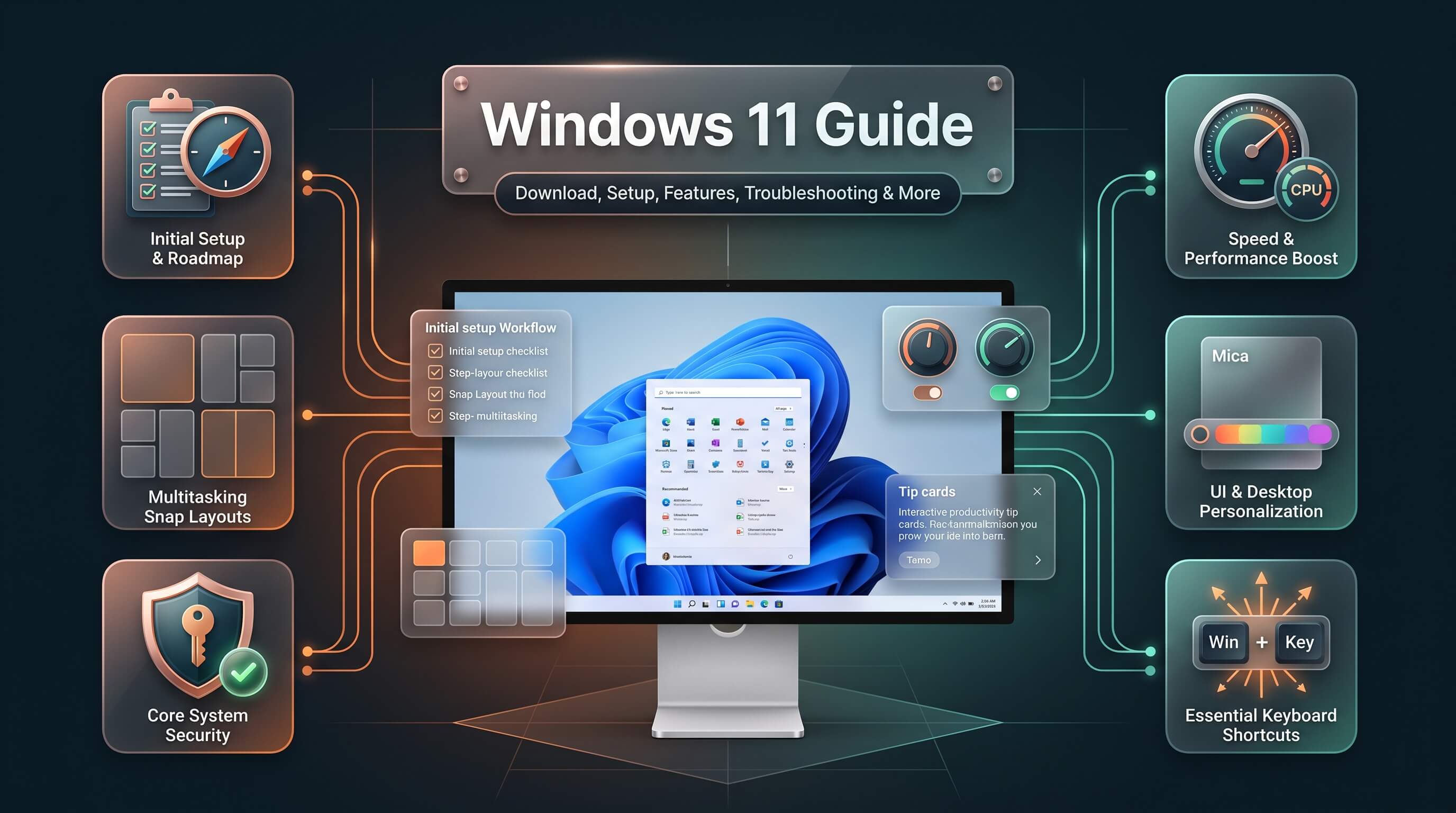
Every major Windows 11 topic in one place — installation, activation, performance, customization, troubleshooting, gaming, security, and the newest AI features, all explained in plain language.
Windows 11 has grown into a sprawling operating system, and most people only ever interact with a small slice of what it actually offers. Somewhere between downloading the ISO for a clean install and fine-tuning Copilot’s settings months later, there’s a huge amount of ground that rarely gets covered in one place. This guide exists to close that gap. It walks through every major corner of Windows 11 that people actually search for, organized into clear sections so you can jump straight to what you need or read through as a complete reference.
Whether you’re setting up a brand-new PC, troubleshooting a stubborn error code, deciding between Home and Pro, or trying to squeeze more performance out of aging hardware, the sections below are built to answer the question directly and then go a layer deeper, the way a knowledgeable friend would rather than a generic support page. Use the contents list to navigate straight to your topic.
Jump to a section
- 1. Download & Installation
- 2. System Requirements
- 3. Home vs Pro
- 4. Activation & Licensing
- 5. Update Guide (24H2–26H2)
- 6. Installation Errors
- 7. Safe Mode & Recovery
- 8. Performance Optimization
- 9. Customization
- 10. Troubleshooting
- 11. Networking & Wi-Fi
- 12. Keyboard Shortcuts
- 13. Gaming Performance
- 14. Windows 11 vs 10
- 15. Privacy & Security
- 16. Without a Microsoft Account
- 17. Unsupported Hardware
- 18. Boot from USB & BIOS
- 19. Virtualization & Emulation
- 20. LTSC & Enterprise
- 21. Audio & Sound Issues
- 22. Bluetooth Issues
- 23. Display & Monitor Issues
- 24. Storage & Disk Management
- 25. For Seniors & Beginners
- 26. ARM & ARM64
- 27. Custom & Lightweight Builds
- 28. Backup & Restore
- 29. Remote Desktop
- 30. Power & Battery
- 31. Apps & Software
- 32. File Explorer Tips
- 33. Start Menu & Taskbar
- 34. Search Issues
- 35. Drivers & Updates
- 36. Printer Issues
- 37. User Accounts & Profiles
- 38. Themes & Visual Customization
- 39. Memory & RAM Management
- 40. OneDrive Integration
- 41. Copilot & AI Features
- 42. Insider Program
- 43. Tutorials & Tips
- 44. Quick Tips & Hidden Features
- 45. Aesthetic & Visual Setup
- 46. Laptops, PCs & Accessories
1. Windows 11 Download & Installation
A windows 11 download starts in one of three places: an in-place upgrade through Windows Update, the Installation Assistant, or a full windows 11 iso for a clean install. The Installation Assistant is the simplest route for anyone already running a compatible Windows 10 or older Windows 11 build, since it checks compatibility and installs in the background with minimal input. Anyone who wants a fresh, clutter-free setup instead should reach for the windows 11 media creation tool, Microsoft’s official utility for building windows 11 installation media on a USB drive or generating an windows 11 iso download for burning to DVD or mounting in a virtual machine.
Building a windows 11 bootable usb takes only a few steps: download the windows 11 media creation tool, select “Create installation media,” choose USB flash drive, and let the tool handle the windows 11 usb installer process automatically. For a windows 11 clean install or windows 11 fresh install, boot from that USB drive, select “Custom install,” and format the target partition before proceeding, which removes leftover files and registry clutter from a previous installation entirely. A windows 11 download free of cost is available directly from Microsoft for anyone with a valid license, and no separate windows 11 installer purchase is required beyond the product key itself.
Occasionally the windows 11 installation has failed message appears mid-setup, usually tied to insufficient disk space, a corrupted windows 11 iso file, or an interrupted download. Re-downloading the windows 11 download assistant and verifying the file’s checksum before starting the windows 11 setup again resolves the vast majority of these failures. For anyone setting up without an existing account, the windows 11 setup without microsoft account path is covered in detail later in this guide.
2. Windows 11 System Requirements & Compatibility
Before running through a windows 11 requirements checklist, it helps to understand why Microsoft set the bar where it did. The windows 11 system requirements exist primarily to guarantee a baseline of hardware-level security, which is why windows 11 tpm 2.0 and Secure Boot sit at the center of the windows 11 minimum requirements rather than raw processing power. The windows 11 cpu requirements list specific supported processor families, and the windows 11 ram requirements sit at 4GB minimum, though 8GB or more is strongly recommended for a smooth day-to-day experience.
| Component | Minimum Requirement |
|---|---|
| Processor | 1 GHz or faster, 2+ cores, on a supported 64-bit processor list |
| RAM | 4 GB (8 GB+ recommended) |
| Storage | 64 GB or larger |
| Firmware | UEFI, Secure Boot capable |
| TPM | Trusted Platform Module 2.0 |
| Graphics | DirectX 12 compatible, WDDM 2.0 driver |
| Display | 9-inch or larger, 720p resolution |
The fastest way to confirm eligibility is running the official windows 11 compatibility checker, distributed as the PC Health Check app. Opening windows 11 pc health check and clicking “Check now” runs a full windows 11 compatibility test, flagging exactly which component, if any, falls short. For anyone still asking “can my pc run windows 11” or wondering whether their machine is on the list of windows 11 compatible processors, this tool gives a definitive answer in under a minute, and it doubles as a windows 11 system requirements checker for verifying compatibility before purchasing a windows 11 upgrade key.
3. Windows 11 Home vs Pro
Choosing between windows 11 home and windows 11 pro comes down to whether you need business-oriented features like BitLocker device encryption, Remote Desktop hosting, and domain or Azure AD join capability. The windows 11 home vs pro comparison is straightforward for casual users: Home covers everyday browsing, media, and office work perfectly well, while Pro adds the administrative and networking tools that IT professionals and small business owners rely on.
| Feature | Windows 11 Home | Windows 11 Pro |
|---|---|---|
| BitLocker encryption | Device Encryption only (limited) | Full BitLocker support |
| Remote Desktop (host) | Not available | Included |
| Domain / Azure AD join | Not available | Included |
| Hyper-V virtualization | Not available | Included |
| Group Policy Editor | Not available | Included |
| Gaming performance | Identical | Identical |
For the windows 11 pro vs home for gaming question specifically: the two editions perform identically on the same hardware, since gaming performance is governed by drivers and hardware rather than the Windows edition. A windows 11 home to pro upgrade doesn’t require reinstalling anything; entering a windows 11 pro key under Settings > System > Activation unlocks the additional windows 11 pro features instantly. Larger organizations comparing windows 11 enterprise vs pro should note that Enterprise adds advanced deployment, security, and management tools built for large-scale IT environments rather than individual users, and a windows 11 pro vs pro n distinction exists only for regions requiring media-feature-free editions under EU regulations.
4. Windows 11 Activation & Licensing
A windows 11 key falls into one of three categories: retail, OEM, or volume license. A windows 11 retail key can be transferred between PCs and is tied to a Microsoft account through a windows 11 digital license once activated. A windows 11 oem key, by contrast, is permanently bound to the motherboard it was first activated on, which is why it’s typically cheaper and included with pre-built PCs. Entering a windows 11 product key is done through Settings > System > Activation > Change product key, and the process for windows 11 pro activation is identical to a windows 11 home key entry, just unlocking a different edition.
Anyone hunting for a windows 11 key cheap should be cautious: heavily discounted keys sold through third-party marketplaces are sometimes volume license keys never intended for individual resale, which can result in the key being revoked later. Checking the windows 11 license cost directly through Microsoft’s store remains the safest way to guarantee a working, permanent windows 11 license key rather than gambling on an unofficial source, however tempting the search results on windows 11 key reddit threads might look.
It’s worth knowing that Windows 11 can be installed and used extensively without immediate windows 11 activation, though an unactivated copy carries a persistent watermark and restricts personalization options until a valid windows 11 activation code is entered. There is no legitimate windows 11 activation free method for permanent activation outside a genuine key or an eligible digital license carried over from a prior Windows 10 installation on the same hardware.
5. Windows 11 Update Guide: 24H2, 25H2 & 26H2
Keeping track of a windows 11 update version can be confusing, since Microsoft now ships annual feature updates as lightweight enablement packages rather than full reinstalls. Windows 11 24H2 introduced significant under-the-hood platform changes, while windows 11 25h2 arrived as a much smaller, low-risk update built on the same servicing branch, meaning most of its features had already quietly reached 24H2 devices through monthly cumulative updates beforehand.
| Version | Status (as of August 2026) | Notes |
|---|---|---|
| Windows 11 23H2 | Approaching end of support | Upgrade recommended for continued security updates |
| Windows 11 24H2 | Supported; Home/Pro reach end of updates Oct 13, 2026 | Introduced Copilot+ PC platform support |
| Windows 11 25H2 | Current general release; supported until Oct 12, 2027 | Small enablement package on top of 24H2 |
| Windows 11 26H1 | Preinstalled on select new devices only | Not offered as an update to existing 24H2/25H2 PCs; different Windows core |
| Windows 11 26H2 | In preview via Insider Experimental channel | Expected fall 2026 as another small enablement package for 24H2/25H2 devices |
Checking for a windows 11 latest update is done through Settings > Windows Update, and clicking “Check for updates” triggers the download of anything applicable, whether that’s a routine security patch or a full feature update. The windows 11 update assistant and windows 11 upgrade assistant tools exist specifically for devices that aren’t yet being offered the newest version automatically, letting users manually pull a windows 11 update download ahead of the standard staged rollout schedule.
When a windows 11 update failed message appears, or an update gets stuck partway through installation, the built-in Windows Update Troubleshooter, found under Settings > System > Troubleshoot, resolves most windows 11 update problems automatically. For a windows 11 update stuck at a specific percentage for an extended period, restarting the PC and letting it retry once more before intervening further is the safest first step, since forcibly powering off mid-installation risks corrupting system files. Reviewing windows 11 update history under the same Settings page helps identify exactly which update introduced a new windows 11 update issues report, which is often the fastest way to trace a problem back to its source.
6. Windows 11 Installation Errors & Fixes
A windows 11 installation failed error rarely means the hardware itself is at fault. More often, the cause traces back to insufficient free disk space, a damaged installation file, or a conflicting peripheral connected during setup. When Windows 11 windows 11 failed to install partway through, disconnecting all non-essential USB devices and retrying frequently clears the obstruction entirely.
| Error | Common Cause | Fix |
|---|---|---|
| windows 11 error 0x80070002 | Missing or corrupt update files | Run the Windows Update Troubleshooter, clear the SoftwareDistribution folder |
| windows 11 error 0x800f081f | Missing source files for a feature | Run DISM with the /RestoreHealth switch, then retry |
| windows 11 error 0xc1900101 | Driver incompatibility during upgrade | Disconnect peripherals, update drivers, retry the upgrade |
| windows 11 error 0x80070005 | Permissions or antivirus interference | Temporarily disable third-party antivirus, run setup as administrator |
| windows 11 setup stuck at 46 | Faulty USB media or slow storage | Recreate installation media on a different USB drive, retry |
A windows 11 automatic repair loop or windows 11 boot loop after a failed installation usually responds well to Windows’s built-in windows 11 repair tool, accessible by booting from installation media and selecting “Repair your computer.” From there, windows 11 startup repair attempts an automated fix, while the more targeted windows 11 recovery mode options let you run commands manually if the automatic tool doesn’t resolve the windows 11 installation error on its own. Keeping a windows 11 recovery usb prepared in advance turns what would otherwise be a stressful windows 11 installation workaround into a five-minute fix.
7. Windows 11 Safe Mode & Recovery
Booting into windows 11 safe mode strips the operating system down to only its essential drivers and services, making it the ideal environment for diagnosing a problem that prevents normal startup. There are two common paths to get there: windows 11 safe mode from bios by interrupting startup three times to trigger the Windows Recovery Environment, or windows 11 safe mode from boot by holding Shift while clicking Restart from the Start menu’s power options.
Once in windows 11 recovery mode, several options become available beyond just safe mode. A windows 11 reset, accessible as “Reset this PC,” lets you choose between keeping personal files or performing a windows 11 factory reset that wipes everything back to a clean state. For less drastic situations, rolling back to a windows 11 restore point through windows 11 system restore reverts recent system changes without touching personal files at all, provided restore points were being created beforehand.
Preparing a dedicated windows 11 recovery drive on a USB stick before trouble strikes is one of the most underused precautions available. It provides windows 11 recovery options even when the PC can’t boot into Windows at all, giving access to the full windows 11 advanced startup menu, including System Restore, Startup Repair, Command Prompt, and image recovery, directly from external media.
8. Windows 11 Performance Optimization
General windows 11 optimization starts with identifying what’s actually causing a windows 11 slow experience rather than guessing. Opening Task Manager and sorting by CPU, memory, and disk usage usually reveals the culprit within seconds, whether that’s a runaway background process or simply too many windows 11 disable startup programs left enabled from previous software installations.
For users chasing more dramatic windows 11 speed up results, windows 11 debloater tools strip out preinstalled apps, background telemetry services, and unnecessary scheduled tasks that quietly consume resources. Popular windows 11 debloat scripts, run through PowerShell, automate this process safely as long as they come from a reputable, actively maintained source; running an unfamiliar windows 11 debloat script from an unverified repository carries real risk of breaking system components.
Gamers focused on windows 11 optimize for gaming specifically should prioritize Game Mode, updated graphics drivers, and disabling unnecessary visual effects under System > Advanced system settings > Performance. Broader windows 11 gaming optimization also benefits from a routine windows 11 disk cleanup, since a nearly full drive slows down virtual memory paging noticeably. Reviewing windows 11 performance settings periodically, freeing space with windows 11 free up disk space tools, and keeping an eye on windows 11 high memory usage through Task Manager together form a simple, repeatable maintenance routine that keeps windows 11 performance issues from creeping back in over time.
9. Windows 11 Customization & Personalization
Windows 11 themes offer the fastest way to change the entire look of a desktop in one click, bundling coordinated windows 11 wallpaper, accent colors, and sound schemes into a single downloadable package through the Microsoft Store. For a sharper look on high-resolution displays, windows 11 wallpaper 4k collections are widely available and noticeably improve visual clarity compared to lower-resolution windows 11 background images stretched to fit.
Beyond wallpaper, windows 11 dark mode remains one of the most requested tweaks, toggled under Settings > Personalization > Colors, and it applies consistently across File Explorer, Settings, and most modern first-party apps. The windows 11 taskbar itself supports meaningful windows 11 taskbar customization: options exist to windows 11 move taskbar to left align icons rather than center them, adjust windows 11 taskbar size between compact and large, or windows 11 hide taskbar entirely for a cleaner, distraction-free desktop.
The windows 11 start menu can be reorganized to prioritize pinned apps over recommendations, and windows 11 widgets can be resized, rearranged, or disabled outright depending on personal preference. For deeper windows 11 desktop customization, third-party icon pack tools let users replace the default windows 11 icon packs entirely, though it’s worth confirming compatibility with the current build before installing any system-level customization tool.
10. Windows 11 Troubleshooting & Common Problems
General windows 11 troubleshooting starts with isolating whether a problem is software or hardware related, and Windows 11’s built-in diagnostic tools under Settings > System > Troubleshoot cover the majority of common windows 11 problems without needing third-party software. Persistent windows 11 issues that survive a restart typically point toward a driver conflict, a corrupted system file, or a failing hardware component worth investigating individually.
| Symptom | Typical Cause | First Fix to Try |
|---|---|---|
| windows 11 blue screen / windows 11 bsod | Driver conflict or failing RAM | Check the stop code, update drivers, run Windows Memory Diagnostic |
| windows 11 black screen | Graphics driver failure or explorer.exe crash | Press Ctrl+Shift+Esc, restart explorer.exe from Task Manager |
| windows 11 won’t boot | Corrupted boot sector or failed update | Boot into recovery, run Startup Repair |
| windows 11 keeps freezing / windows 11 keeps crashing | Overheating, driver issue, or malware | Check temperatures, update drivers, run a full malware scan |
| windows 11 won’t shut down | Fast Startup conflict or stuck background process | Disable Fast Startup, force shutdown, check Task Manager for hangs |
Specific stop-code errors deserve individual attention. A windows 11 critical process died error typically points to a corrupted system file, resolved by running “sfc /scannow” from an elevated Command Prompt. windows 11 system service exception and windows 11 kernel security check failure errors most often trace back to outdated or incompatible drivers, particularly graphics or storage controller drivers, and updating them through Device Manager is the standard windows 11 freeze fix and windows 11 crash fix starting point before escalating to a full system file check or clean boot.
11. Windows 11 Networking & Wi-Fi Issues
A windows 11 wifi not working problem is one of the most common post-update complaints, and it almost always traces back to an outdated or corrupted windows 11 wifi driver. Updating through Device Manager, or downloading the latest windows 11 wifi driver download directly from the laptop or adapter manufacturer’s website, resolves the majority of cases within minutes.
When windows 11 no wifi option appears entirely absent from the network menu, or the windows 11 wifi option disappeared after an update, the adapter itself may have been disabled during the update process. Checking Device Manager for a disabled network adapter, or running windows 11 network reset from Settings > Network & internet > Advanced network settings, reinstalls every network adapter on the system and frequently restores a windows 11 wifi not showing up situation to normal.
For wired connections, windows 11 ethernet not working issues usually point to either a faulty windows 11 ethernet driver or a physical cable and port issue that’s easy to overlook. If the PC shows windows 11 wifi connected but no internet, the problem is typically upstream, either a router issue, DNS misconfiguration, or an IP conflict, all addressable by running “ipconfig /release” followed by “ipconfig /renew” from an elevated Command Prompt, or by reviewing windows 11 network settings and windows 11 network adapter properties directly.
12. Windows 11 Keyboard Shortcuts & Productivity
Learning a core set of windows 11 keyboard shortcuts pays for itself within the first week of regular use. The most useful windows 11 shortcuts cover window management, quick settings access, and the windows 11 screenshot shortcut, which is triggered with Windows key + Shift + S to open the windows 11 snipping tool overlay for a selective windows 11 screen capture.
| Shortcut | Action |
|---|---|
| Windows key + Shift + S | Open Snipping Tool for a custom screenshot shortcut key |
| Windows key + PrtScn | Full-screen print screen, saved automatically to Pictures |
| Windows key + D | Show or hide the desktop |
| Windows key + Tab | Open Task View |
| Windows key + L | Lock the PC instantly |
| Windows key + E | Open File Explorer |
A full windows 11 keyboard shortcuts cheat sheet or windows 11 keyboard shortcuts pdf is worth keeping handy for reference, especially for a longer windows 11 keyboard shortcuts list covering window snapping, virtual desktops, and accessibility toggles. If a windows 11 print screen not working problem crops up, checking the “Use the Print Screen key to open screen snipping” toggle under Settings > Accessibility > Keyboard usually explains why the traditional windows 11 snipping tool shortcut stopped behaving as expected.
13. Windows 11 Gaming Performance & Features
Windows 11 gaming performance benefits from a handful of built-in tools most players never fully explore. windows 11 game mode, enabled by default on most systems, deprioritizes background processes and Windows Update activity while a full-screen game is running, and it’s worth confirming it’s toggled on under Settings > Gaming for anyone chasing extra frame-rate consistency.
Whether building a dedicated windows 11 gaming pc or optimizing a windows 11 gaming laptop, the windows 11 game bar, opened with Windows key + G, provides quick access to performance overlays, recording tools, and Xbox social features without leaving the game itself. For anyone deciding between platforms, the windows 11 gaming vs windows 10 debate has largely settled: modern titles perform equivalently or slightly better on Windows 11 thanks to DirectStorage and newer scheduling improvements, making it the more future-proof choice for a new windows 11 gaming laptop best suited to demanding titles.
Beyond Game Mode, deeper windows 11 gaming features worth reviewing include Auto HDR, which enhances color range in supported older titles, and graphics driver-level settings for windows 11 gaming settings, such as forcing a high-performance GPU for specific games through Settings > Display > Graphics. Combined with the earlier windows 11 optimize for gaming steps around driver updates and background process management, these built-in tools cover most of what a serious gamer needs without third-party software.
14. Windows 11 vs Windows 10 Comparison
The windows 11 vs windows 10 conversation has shifted considerably now that Windows 10 has reached the end of its support lifecycle for most editions. Security is the single biggest differentiator today: windows 10 vs windows 11 support timelines mean Windows 11 continues receiving regular security patches, while Windows 10 systems increasingly rely on Extended Security Update programs to stay protected.
On raw windows 11 vs windows 10 performance, differences are generally minor on comparable hardware, though Windows 11 includes scheduling and storage improvements, like DirectStorage, that specifically benefit windows 11 vs windows 10 gaming performance on modern SSDs and supported GPUs. Community sentiment on windows 11 vs windows 10 reddit threads tends to split along familiarity lines: longtime users sometimes resist the redesigned Start menu and centered taskbar, while newer users generally find windows 11 versus windows 10 to feel more modern and touch-friendly out of the box.
For anyone still asking windows 11 or 10 as a fresh purchase decision, Windows 11 is the clear recommendation given its active support status and continued feature development. The related windows 11 vs windows 11 pro and windows 11 vs windows 11 home questions matter more than the Windows 10 comparison for most new PC buyers today, since edition choice affects available features more than the underlying Windows 11 vs Windows 10 platform itself.
15. Windows 11 Privacy & Security Settings
Reviewing windows 11 privacy settings under Settings > Privacy & security is worth doing on any new installation, since default sharing permissions for location, camera, and microphone access are broader than many users expect. Beyond privacy toggles, core windows 11 security tools like windows 11 windows defender run continuously in the background, providing real-time protection without needing a separate windows 11 antivirus product for most home users.
For sensitive files, windows 11 bitlocker encryption, available on Pro and higher editions, protects an entire drive against unauthorized access if a device is lost or stolen. The built-in windows 11 firewall manages inbound and outbound network traffic automatically, and enabling windows 11 secure boot alongside windows 11 core isolation and windows 11 memory integrity under Windows Security > Device security adds meaningful protection against firmware-level and kernel-level attacks.
Microsoft’s windows 11 ransomware protection feature, called Controlled Folder Access, blocks unauthorized apps from modifying protected folders like Documents and Pictures, a worthwhile layer for anyone concerned about encryption-based malware. Combined with windows 11 account protection features like Windows Hello and regular windows 11 security updates through Windows Update, these built-in tools address most windows 11 privacy concerns without requiring third-party software, though privacy-focused users sometimes also choose to windows 11 disable telemetry through Group Policy for additional data minimization.
16. Installing Windows 11 Without a Microsoft Account
Setting up Windows 11 without microsoft account involvement is entirely possible, despite the setup wizard’s persistent push toward signing in. The most reliable windows 11 local account method during initial setup involves disconnecting from the internet before reaching the account screen; without a network connection, Windows 11 windows 11 setup without microsoft account automatically falls back to offering a windows 11 create local account option instead.
For users who prefer to stay connected during setup, a well-known windows 11 bypass microsoft account command exists: pressing Shift + F10 during the out-of-box experience opens a Command Prompt, where typing “windows 11 bypassnro” (technically the command “OOBE\BYPASSNRO”) forces the setup wizard to reveal a windows 11 skip microsoft account option that’s otherwise hidden. This is sometimes referred to as an windows 11 oobe bypass, and it’s a legitimate, Microsoft-acknowledged workaround rather than an exploit.
Choosing a windows 11 no internet setup path or manually selecting windows 11 local account setup produces a fully functional windows 11 offline account that skips cloud sync, OneDrive backup, and Microsoft account-linked features entirely. This appeals to privacy-conscious users who want windows 11 without sign in requirements, though it does mean manually managing app licenses and losing automatic settings sync across devices. The full windows 11 set up without microsoft account process, whether through the network-disconnect method or the bypassnro command, results in the same local account outcome either way.
17. Windows 11 on Unsupported Hardware
Running windows 11 on unsupported hardware is technically possible, though it comes with trade-offs worth understanding before committing. Microsoft provides an official registry-based workaround for installing windows 11 without tpm 2.0 on PCs that are otherwise close to meeting requirements but lack a compatible TPM chip, accessible by adding a specific “AllowUpgradesWithUnsupportedTPMOrCPU” registry key during setup.
For more significantly outdated systems, third-party tools allow a full windows 11 on unsupported cpu installation by modifying the setup files directly, effectively performing a windows 11 bypass requirements procedure that skips the TPM, Secure Boot, and CPU family checks entirely. Booting from modified installation media created this way allows a windows 11 install on unsupported pc scenario to proceed, though Microsoft explicitly states that windows 11 unsupported hardware installations may not receive all future updates and forfeit official support entirely.
Anyone considering windows 11 on old pc hardware or windows 11 on older computers should weigh performance realistically. Windows 11’s baseline resource demands mean older systems, even once successfully bypassed with a windows 11 without tpm iso or windows 11 bypass tpm method, often feel sluggish compared to how they ran on Windows 10. For genuinely aging hardware, exploring the lightweight custom builds covered later in this guide is frequently a more satisfying path than forcing a full standard installation onto unsupported components.
18. Windows 11 Boot from USB & BIOS Settings
Getting a PC to windows 11 boot from usb starts with accessing the firmware setup screen, and the windows 11 bios key that triggers this varies by manufacturer, typically F2, F10, F12, Delete, or Esc pressed immediately during the initial startup screen before Windows begins loading. Searching “windows 11 how to enter bios” alongside a specific PC or motherboard model is the fastest way to confirm the exact key for a given device.
Once inside windows 11 bios settings, navigating to the Boot menu allows reordering the windows 11 boot order so the USB drive takes priority over the internal drive, or selecting a one-time windows 11 boot menu for a single boot without permanently changing the default order. Modern systems use windows 11 uefi firmware rather than legacy BIOS, and confirming windows 11 uefi boot mode is active, alongside windows 11 secure boot support, avoids compatibility issues during installation.
For systems still running in compatibility mode, switching away from windows 11 legacy boot to full UEFI is sometimes necessary before Windows 11 will install at all, since Secure Boot requires UEFI specifically. Keeping firmware current through a windows 11 bios update from the manufacturer’s support page resolves many obscure boot compatibility issues, and reviewing the full windows 11 boot configuration periodically helps avoid confusion when troubleshooting startup problems down the line.
19. Windows 11 Virtualization & Emulation
Running a windows 11 virtual machine is a common way to test software, isolate risky downloads, or run a second Windows 11 environment without dedicated hardware. windows 11 hyper-v, Microsoft’s built-in hypervisor available on Pro and Enterprise editions, integrates directly with the operating system and is accessed through the windows 11 hyper-v manager console, requiring no third-party download at all.
For Home edition users or anyone wanting more portability, windows 11 virtualbox remains a popular free alternative that runs on nearly any edition of Windows. Setting up a windows 11 vm through either tool requires enabling windows 11 virtualization support in BIOS first, typically labeled Intel VT-x or AMD-V, since Windows won’t allow VM creation without it active at the firmware level.
Beyond full windows 11 emulator setups, lighter-weight options exist for specific use cases. windows 11 wsl, the Windows Subsystem for Linux, and its successor windows 11 wsl2 let developers run a genuine Linux environment alongside Windows without a full virtual machine. windows 11 sandbox provides a disposable, isolated desktop for testing untrusted software safely. For running Android apps, dedicated windows 11 android emulator tools fill the gap left after Microsoft’s own Windows Subsystem for Android was discontinued, and setting up any windows 11 virtual desktop or windows 11 virtual machine setup benefits from allocating generous RAM and CPU cores to avoid a sluggish guest OS experience.
20. Windows 11 LTSC & Enterprise Editions
Windows 11 ltsc, the Long-Term Servicing Channel, strips out most preinstalled apps, Copilot, and feature updates entirely in favor of a stable, security-patch-only release cycle designed for specialized industrial and embedded systems. Unlike standard consumer editions, a windows 11 enterprise ltsc installation receives only security fixes for years at a time, without the annual feature update churn that regular Windows 11 goes through.
| Edition | Best For | Key Trait |
|---|---|---|
| Windows 11 Enterprise | Large organizations | Advanced deployment, security, and management tools |
| Windows 11 Enterprise LTSC | Kiosks, industrial systems | No feature updates for years; security-only servicing |
| Windows 11 IoT Enterprise LTSC | Embedded and specialized devices | Extended support until 2034 for the current release |
| Windows 11 Education | Schools and universities | Enterprise-level features at academic licensing |
A windows 11 iot enterprise ltsc release specifically targets embedded devices like ATMs, medical equipment, and point-of-sale systems where consistency matters more than new features. Comparing windows 11 enterprise vs pro, Enterprise adds volume licensing, advanced BitLocker management, and application control features unavailable in Pro. For gaming specifically, a windows 11 ltsc gaming setup appeals to some enthusiasts precisely because LTSC strips out background services and telemetry that Enterprise and standard editions retain, though Microsoft doesn’t officially recommend LTSC for general consumer or gaming use given its intentionally narrow feature set and licensing restrictions.
21. Windows 11 Audio & Sound Issues
A windows 11 audio not working problem is most commonly resolved by updating the windows 11 audio driver, since audio subsystems are particularly sensitive to driver mismatches after a Windows update. Right-clicking the speaker icon in the system tray and selecting “Troubleshoot sound problems” runs an automated diagnostic that catches most windows 11 no sound and windows 11 sound not working cases without manual intervention.
Microphone issues follow a similar pattern. A windows 11 microphone not working or windows 11 microphone not detected error is frequently a permissions problem rather than a hardware fault, resolved by checking Settings > Privacy & security > Microphone and confirming the relevant app has access granted. For laptops with built-in mics, confirming the correct input device is selected as default under windows 11 sound settings prevents apps from listening to a disconnected or wrong device entirely.
Popular audio brands often require their own windows 11 realtek audio driver package rather than the generic Windows driver for full functionality, including built-in windows 11 equalizer and windows 11 audio enhancement features specific to that hardware. windows 11 bluetooth audio and windows 11 headphones not working issues are covered separately in the Bluetooth section below, while persistent windows 11 audio crackling during playback often points to a mismatched sample rate between the application and the windows 11 sound driver, adjustable under the device’s advanced properties tab.
22. Windows 11 Bluetooth Issues
A windows 11 bluetooth not working situation almost always traces back to either a disabled adapter or an outdated windows 11 bluetooth driver. Checking Device Manager for a yellow warning icon next to the Bluetooth adapter quickly confirms whether a driver reinstall is needed, and downloading the correct windows 11 bluetooth driver download from the manufacturer resolves most persistent pairing failures.
When the windows 11 bluetooth disappeared entirely from Settings, or the windows 11 bluetooth toggle missing issue leaves no visible option to turn it on, the underlying service has often crashed or been disabled. Restarting the Bluetooth Support Service through the Services app, accessible by typing “services.msc” into the Run dialog, frequently restores a windows 11 bluetooth not showing situation without needing a full driver reinstall.
For ongoing pairing frustration, a windows 11 bluetooth not detecting devices problem often improves by removing the paired device entirely from windows 11 bluetooth settings and re-pairing from scratch, clearing any corrupted pairing data in the process. Persistent windows 11 bluetooth keeps disconnecting issues, particularly with windows 11 bluetooth audio devices, sometimes stem from Wi-Fi and Bluetooth radio interference on the same frequency band, resolvable by keeping the wireless windows 11 bluetooth adapter and router physically separated where possible.
23. Windows 11 Display & Monitor Issues
Adjusting windows 11 display settings is done through Settings > System > Display, where resolution, scaling, and orientation for each connected screen can be configured independently. A windows 11 second monitor not detected problem, or windows 11 not detecting second monitor more broadly, is frequently a cable or port issue, worth confirming with a different cable before troubleshooting software settings.
Setting up a proper windows 11 dual monitor setup involves clicking “Detect” under Display settings if a connected screen doesn’t appear automatically, then choosing between windows 11 extend display for more workspace or duplicate mode for mirroring the same content across both screens. Configuring windows 11 multiple monitors correctly also means setting the correct primary display and adjusting windows 11 screen resolution independently for each one, since mismatched DPI scaling between monitors can make text appear inconsistently sized.
A windows 11 screen flickering issue is most often caused by an outdated windows 11 display driver or an incorrect windows 11 refresh rate setting, both fixable under Display > Advanced display settings. For creative and gaming setups pushing beyond standard visuals, enabling windows 11 hdr requires both a compatible display and application support, and confirming the correct windows 11 display adapter and windows 11 graphics settings are applied per app avoids unexpected performance or color issues on capable hardware.
24. Windows 11 Storage & Disk Management
Windows 11 disk management, accessed by right-clicking the Start button, provides a visual overview of every connected drive, letting users create, resize, format, or delete partitions without third-party software. For general windows 11 storage upkeep, the built-in windows 11 disk cleanup tool removes temporary files, old Windows Update caches, and other reclaimable space in just a few clicks.
windows 11 storage sense, found under Settings > System > Storage, automates the windows 11 free up disk space process by periodically clearing temporary files and emptying the recycle bin on a schedule rather than requiring manual cleanup each time. For anyone repartitioning a drive, a windows 11 disk partition can be shrunk, extended, or newly created directly through Disk Management, and a full windows 11 format drive wipes a partition entirely, useful when preparing a secondary windows 11 external drive for dedicated use.
Connecting network storage is handled through the windows 11 map network drive feature under File Explorer, assigning a drive letter to a shared folder for quick, permanent access. If a windows 11 drive not showing problem occurs after connecting new storage, checking Disk Management for an uninitialized or unformatted disk usually explains why it isn’t appearing in File Explorer, and reviewing windows 11 storage settings periodically alongside routine windows 11 cleanup keeps both internal windows 11 hard drive and windows 11 ssd storage running efficiently over time.
25. Windows 11 for Seniors & Beginners
Windows 11 for seniors doesn’t require a completely different approach, but a few accessibility adjustments make daily use noticeably more comfortable. Increasing text size under Settings > Accessibility > Text size, enabling larger cursor options, and turning on Narrator for spoken feedback are all built-in accommodations worth setting up during initial configuration rather than after frustration sets in.
For anyone new to the platform entirely, windows 11 for beginners resources typically start with the basics: understanding the Start menu, pinning frequently used apps to the taskbar, and learning how File Explorer organizes documents, downloads, and pictures into predictable folders. A good windows 11 tutorial for beginners walks through these fundamentals slowly, while a windows 11 tutorial for seniors specifically often pairs each concept with larger visuals and simplified language, recognizing that unfamiliarity with computing conventions, not intelligence, is usually the actual barrier.
Printed and digital windows 11 for dummies book resources remain popular precisely because they move at a deliberate pace, covering everything from windows 11 basics like turning the PC on and off safely to more advanced windows 11 how to use scenarios like video calling or online banking safety. Whether working through a formal windows 11 user guide or picking up windows 11 beginner tips informally from a family member, the goal is the same: building confidence through small, repeatable wins rather than trying to master everything windows 11 explained in a single sitting.
26. Windows 11 ARM & ARM64
Windows 11 arm is a version of the operating system built specifically for ARM-based processors, most notably Qualcomm’s Snapdragon X series chips found in newer thin-and-light laptops. Unlike the traditional x86-64 architecture that’s powered Windows PCs for decades, windows 11 arm64 runs natively on this different chip architecture, offering meaningfully better battery life in exchange for some software compatibility trade-offs.
Downloading a windows 11 arm iso differs from a standard windows 11 arm download in one crucial way: it must match the target device’s architecture exactly, since an x86-64 windows 11 iso will not install or run on windows 11 arm laptop hardware at all. Microsoft distributes official windows 11 arm64 iso download links through its Insider and volume licensing channels, and confirming windows 11 arm support for specific software before switching is worth doing, since not every Windows application has native windows 11 arm64 apps built for it yet.
Emulation has closed much of the historical compatibility gap; Windows 11 on ARM includes built-in x86 and x64 app emulation that runs most traditional software adequately, though performance-sensitive applications and certain drivers still run better on native x64 hardware. The windows 11 arm vs x64 decision ultimately comes down to priorities: choose ARM for battery life and connectivity features on the go, or stick with traditional x64 hardware when guaranteed compatibility with specialized or older software matters more.
27. Windows 11 Ghost Spectre & Custom Builds
Community-built windows 11 ghost spectre and windows 11 tiny11 projects strip Windows 11 down to a fraction of its default footprint, removing preinstalled apps, background telemetry, and non-essential services before the operating system is ever installed. A windows 11 lite or windows 11 debloated release typically boots noticeably faster and consumes far less RAM at idle than a standard installation, which appeals strongly to owners of older or lower-spec hardware.
These projects distribute their work as a modified windows 11 custom iso or windows 11 lite iso, built from official Microsoft source files but reconfigured before packaging. A windows 11 tiny iso in particular focuses on minimizing installation size dramatically, sometimes cutting the footprint by more than half compared to a standard windows 11 download, making it popular for virtual machines and resource-constrained systems where every gigabyte matters.
It’s worth approaching a windows 11 debloat iso or windows 11 ghost spectre download with informed caution: because these builds are modified by third parties rather than Microsoft, they fall outside official support and updates can behave unpredictably. For anyone specifically chasing a windows 11 minimal or windows 11 slim footprint without third-party modification risk, running an official windows 11 debloat script against a standard, fully updated installation offers a safer middle ground between the two approaches.
28. Windows 11 Backup & Restore
A solid windows 11 backup strategy layers multiple tools rather than relying on just one. Windows 11 file history automatically versions files in monitored folders, letting you windows 11 restore a previous version of a document without needing a full system windows 11 system restore. Setting this up under Settings > System > Backup takes only a few minutes and runs quietly in the background afterward.
For a more complete safety net, windows 11 backup to external drive functionality creates a full windows 11 system image backup capturing the entire operating system, installed applications, and settings exactly as they exist at that moment. This differs meaningfully from cloud-based file syncing, since a full image backup can restore a completely dead drive to working condition on replacement hardware. Dedicated windows 11 backup software from third-party vendors extends this further with scheduling, incremental backups, and cloud storage integration beyond what’s built into Windows natively.
Before any major update or hardware change, creating a windows 11 restore point manually and preparing a windows 11 recovery drive together cover most disaster scenarios. If something does go wrong, windows 11 reset this pc under windows 11 recovery options offers a middle path between a full windows 11 cloud backup restoration and starting completely from scratch, and reviewing windows 11 backup settings periodically ensures the protection stays current as new files and folders get added over time.
29. Windows 11 Remote Desktop & Access
Windows 11 remote desktop, built on the RDP protocol, allows a Pro or Enterprise edition PC to be controlled remotely from another device on the same network or, with proper configuration, from anywhere with an internet connection. To windows 11 enable remote desktop, navigate to Settings > System > Remote Desktop and toggle it on; Home edition users need a third-party windows 11 remote access alternative since hosting isn’t supported on that edition.
Establishing a windows 11 remote desktop connection from another Windows PC just requires searching for “Remote Desktop Connection,” entering the target PC’s name or IP address, and authenticating with valid credentials. Reviewing windows 11 remote desktop settings beforehand, including which user accounts are permitted to connect, adds an important layer of access control that’s easy to overlook during a rushed setup.
For a windows 11 remote desktop from outside network scenario, meaning connecting from beyond the local home or office network, additional configuration is required: either setting up port forwarding for the windows 11 remote desktop port, typically 3389, or using a windows 11 remote desktop gateway for a more secure, VPN-like connection method. Advanced setups supporting windows 11 remote desktop multiple monitors work well for remote workstations, and the official windows 11 remote desktop app on mobile platforms extends this same access to phones and tablets, provided windows 11 remote desktop security best practices like strong passwords and network-level authentication are properly configured first.
30. Windows 11 Power & Battery Settings
Fine-tuning windows 11 power settings under Settings > System > Power & battery gives meaningful control over how aggressively a device manages windows 11 battery life versus raw performance. Switching between Best power efficiency, Balanced, and Best performance power plans adjusts CPU throttling behavior immediately, and reviewing the built-in windows 11 battery report, generated by typing “powercfg /batteryreport” into an elevated Command Prompt, reveals detailed usage history and battery health over time.
Understanding windows 11 sleep settings versus windows 11 hibernate matters for anyone optimizing battery drain during downtime. Sleep keeps the session active in RAM using a small trickle of power, while Hibernate writes the session to disk and powers off completely, using virtually no battery at the cost of a slightly slower wake-up. The windows 11 hibernate vs sleep decision generally favors Sleep for short breaks and Hibernate for longer periods away from the device.
Windows 11 fast startup, enabled by default, speeds up boot times by partially hibernating the kernel session on shutdown, though it occasionally causes compatibility issues with dual-boot setups or certain driver updates, in which case choosing to windows 11 turn off fast startup under Control Panel > Power Options resolves the conflict. Combined with windows 11 battery saver mode and periodic review of windows 11 power efficiency settings, these adjustments together form a comprehensive windows 11 battery optimization routine for laptop users.
31. Windows 11 Apps & Software
Managing windows 11 apps starts with the windows 11 app store, officially the Microsoft Store, which serves as the primary source for the windows 11 microsoft store’s curated catalog of first-party and verified third-party software. Beyond the Store, traditional windows 11 software installers, whether downloaded directly from a developer’s website or distributed through package managers like Winget, remain fully supported alongside Store-based distribution.
To windows 11 install apps outside the Store, simply running the downloaded installer file works exactly as it always has on previous Windows versions. When it’s time to windows 11 uninstall apps, Settings > Apps > Installed apps provides a centralized list far more reliable than hunting through Control Panel, and it works for both Store and traditional desktop applications alike.
Reviewing windows 11 default apps under Settings > Apps > Default apps lets users override which program opens specific file types or links, useful for anyone who prefers a different browser or media player than the Windows defaults. For older software, windows 11 app compatibility mode, accessible by right-clicking an executable and selecting Properties > Compatibility, can resolve issues with programs originally built for older Windows versions. Curated lists of windows 11 best apps and windows 11 essential software are widely available for anyone setting up a new PC and wanting a head start beyond the defaults, while reviewing windows 11 app permissions periodically under Privacy & security keeps installed software from accessing more data than necessary.
32. Windows 11 File Explorer Tips
Windows 11 file explorer received a significant visual and functional overhaul compared to earlier versions, including native windows 11 file explorer tabs that let users work across multiple folder locations within a single window rather than juggling separate ones. Learning a handful of windows 11 file explorer tips, like pinning frequently used folders to Quick Access, saves meaningful time for anyone navigating a complex folder structure daily.
When windows 11 file explorer not responding becomes a recurring issue, restarting the Explorer process through Task Manager, rather than rebooting the entire PC, usually clears the hang instantly. Persistent freezing sometimes traces back to a problematic third-party context menu extension, identifiable by temporarily disabling recently installed shell extensions and observing whether stability improves.
Customizing windows 11 file explorer settings under the three-dot menu > Options opens deeper windows 11 file explorer customization possibilities, including toggling file extensions visibility and adjusting how compressed folders behave. The redesigned windows 11 file explorer search bar supports natural filters like file type and date modified directly in the query, while learning dedicated windows 11 file explorer shortcuts and reviewing windows 11 file explorer options for the newer windows 11 file explorer dark mode and streamlined windows 11 file explorer context menu together make daily file management noticeably more efficient than earlier Windows versions allowed.
33. Windows 11 Start Menu & Taskbar
The redesigned windows 11 start menu centers pinned apps and recommended files by default, a departure from the tile-based layout longtime Windows users may remember. When windows 11 start menu not working occurs, restarting the Explorer process through Task Manager resolves the vast majority of cases, since the Start menu shares its underlying process with the taskbar and desktop.
For anyone missing the classic layout, windows 11 start menu customization options let users adjust how many pinned apps versus recommendations appear, and while a full windows 11 start menu left alignment matching Windows 10’s layout isn’t natively available through Settings, some registry tweaks and third-party tools can approximate it. If the windows 11 start button itself stops responding to clicks entirely, running “sfc /scannow” to repair system files typically addresses underlying corruption causing the freeze.
The windows 11 taskbar supports its own dedicated windows 11 taskbar customization menu, covering windows 11 taskbar left alignment, adjustable windows 11 taskbar size, and control over which windows 11 taskbar icons appear in the system tray. If the windows 11 taskbar disappeared entirely, restarting Explorer or checking whether “Automatically hide the taskbar” was accidentally enabled under windows 11 taskbar settings usually restores it. Additional windows 11 taskbar on top repositioning and windows 11 taskbar color theming round out the available customization, giving users meaningful control over one of the most-used parts of the interface.
34. Windows 11 Search Issues
A windows 11 search bar not working problem is frustratingly common and usually tied to the Windows Search service either crashing or needing a restart. Opening the Services app, finding “Windows Search,” and restarting it resolves most cases of windows 11 search not working without requiring a full system reboot.
When search results feel incomplete or outdated, rebuilding the windows 11 search index under Settings > Privacy & search > Searching Windows often fixes it. This process re-scans files and folders from scratch, which can take a while on drives with large amounts of data, but it reliably resolves cases where windows 11 search indexing has become corrupted or fallen out of sync with the actual file system.
If the windows 11 search bar missing disappears from the taskbar entirely, checking taskbar settings for the Search icon visibility toggle usually explains its absence. More unusual symptoms, like a windows 11 search bar not typing correctly or a windows 11 search bar frozen mid-query, typically point back to the same underlying service issue, and working through Microsoft’s official windows 11 search troubleshooting steps under Settings > System > Troubleshoot > Search and Indexing catches edge cases that a simple service restart doesn’t resolve, including problems with windows 11 search box behavior and unexpectedly poor windows 11 search results relevance.
35. Windows 11 Drivers & Updates
Keeping windows 11 drivers current is one of the single most effective things a user can do to prevent hardware-related instability. Windows Update handles basic windows 11 driver update delivery automatically for most common components, but manufacturer websites frequently offer newer, more feature-complete driver versions than what Windows Update distributes by default.
Critical driver categories deserve individual attention: the windows 11 graphics driver directly affects gaming and video performance, the windows 11 network driver governs both Wi-Fi and Ethernet stability, and specialized hardware like a windows 11 printer driver often requires a manufacturer-specific package rather than a generic Windows driver for full functionality. Device Manager remains the fastest way to spot windows 11 driver issues at a glance, since any component with a driver problem displays a warning icon immediately.
Third-party windows 11 driver update tool utilities can automate the process of scanning and installing the latest versions across an entire system, though sticking to manufacturer-verified sources, whether that’s the windows 11 realtek driver page for audio, an windows 11 intel driver or windows 11 nvidia driver download for graphics, or a dedicated windows 11 driver manager from the PC’s original manufacturer, remains the safest approach. Avoiding random third-party windows 11 driver download sites significantly reduces the risk of installing bundled adware alongside a legitimate driver update.
36. Windows 11 Printer Issues
A windows 11 printer not working issue is most often traced to either a driver conflict or a stuck print queue rather than a genuine hardware fault. Updating the windows 11 printer driver directly from the manufacturer’s support page resolves compatibility problems that occasionally follow a major Windows update.
Getting a new device through windows 11 printer setup is usually automatic: connecting via USB or confirming both devices share the same network for wireless models triggers Windows to detect and configure it without manual driver installation in most cases. For shared office or home setups, windows 11 printer sharing lets one PC host the physical printer while other devices on the same network print through it directly.
When a windows 11 printer offline status appears despite the device being powered on and connected, restarting the windows 11 print spooler service, accessible through the Services app, frequently resolves it instantly. A stuck windows 11 print queue can be cleared entirely by stopping the Print Spooler service, deleting temporary files from its spool folder, and restarting the service, effectively performing a full windows 11 clear print queue reset. For all-in-one devices, windows 11 scanner functionality is typically bundled with the same manufacturer driver package, and reviewing windows 11 printer troubleshooting steps under Settings > Bluetooth & devices > Printers & scanners addresses most remaining windows 11 printer error scenarios without needing to reinstall anything from scratch.
37. Windows 11 User Accounts & Profiles
Managing a windows 11 user account starts under Settings > Accounts, where existing profiles, sign-in options, and family safety controls are all centralized. To windows 11 add user, whether a windows 11 microsoft account or a separate windows 11 local account for a household member, the “Family & other users” section walks through the process step by step.
Changing how a profile identifies itself, such as needing to windows 11 change user name, is handled differently depending on account type: a Microsoft account’s display name updates through the online account portal, while a local windows 11 user profile name changes through the Control Panel’s User Accounts settings directly. Setting up a dedicated windows 11 administrator account separate from a daily-use standard account is a smart security practice that limits the damage potential of malware or accidental system changes.
A temporary windows 11 guest account is useful for visitors who need brief access without full account privileges, and the ability to windows 11 switch user quickly, without fully logging out, keeps multiple people’s sessions running simultaneously on shared hardware. When it’s time to windows 11 delete user, doing so through windows 11 account settings preserves the option to back up that profile’s files first. For sign-in convenience, reviewing windows 11 sign in options under Accounts lets users set up a PIN, and a windows 11 password reset can be performed either through the Microsoft account recovery page online or via a local password reset disk created in advance, while windows 11 pin login offers a faster, device-specific alternative to typing a full password each time.
38. Windows 11 Theme & Visual Customization
Beyond the basic windows 11 themes covered earlier, deeper visual control is available for anyone who wants a fully personalized desktop. A windows 11 theme download from the Microsoft Store bundles coordinated wallpaper sets, sound schemes, and windows 11 accent color choices into one installable package, while manually switching between windows 11 dark theme and windows 11 light theme individually under Personalization > Colors offers a simpler, faster alternative.
Subtle visual details make a noticeable difference over time. Enabling windows 11 transparency effects under Personalization > Colors adds a soft blur to the Start menu and taskbar, and choosing a coordinated windows 11 accent color that automatically pulls from the desktop wallpaper creates a more cohesive look across the entire interface. Rearranging windows 11 desktop icons, adjusting the system-wide windows 11 font where supported, and swapping in a windows 11 custom cursor beyond the default windows 11 cursor options each contribute to a genuinely personalized environment.
For more dynamic visuals, windows 11 animated wallpaper tools bring subtle motion to the desktop background, though they consume slightly more system resources than a static image. A complete windows 11 theme pack combining all of these elements, alongside a broader windows 11 visual style overhaul through trusted windows 11 ui customization utilities, lets enthusiasts push the desktop’s appearance considerably further than the built-in Settings app alone allows.
39. Windows 11 Memory & RAM Management
Persistent windows 11 memory usage complaints usually start with Task Manager’s Performance tab, which shows real-time windows 11 ram usage broken down by individual process. Sorting the Processes tab by memory consumption quickly identifies whether a single misbehaving application is responsible for a windows 11 high memory usage situation, or whether the load is spread more evenly across normal background services.
For suspected hardware issues, running windows 11 memory test through the built-in windows 11 memory diagnostic tool, searchable directly from the Start menu, checks physical RAM modules for errors that could be causing instability or unexplained crashes. Windows 11’s windows 11 virtual memory system, which uses disk space as an overflow when physical RAM runs low, is configured under System > Advanced system settings > Performance > Advanced, and adjusting the windows 11 page file size manually can help systems with limited physical RAM handle memory-intensive tasks more gracefully.
Modern builds also include windows 11 memory compression, a background feature that compresses inactive data in RAM rather than immediately writing it to the slower page file, generally improving perceived responsiveness on systems with moderate RAM. Reviewing windows 11 memory integrity settings under Windows Security matters here too, since this security feature carries a small memory overhead in exchange for stronger protection against certain kernel-level attacks. Watching for a genuine windows 11 memory leak, where a specific application’s memory usage climbs steadily without ever releasing it back, is worth flagging to that software’s developer once identified through sustained Task Manager monitoring.
40. Windows 11 OneDrive Integration
Windows 11 onedrive comes pre-installed and deeply integrated into File Explorer, automatically offering to back up the Desktop, Documents, and Pictures folders during initial setup. Reviewing windows 11 onedrive settings through the system tray icon gives control over windows 11 onedrive sync behavior, bandwidth limits, and which specific folders participate in windows 11 onedrive backup.
When windows 11 onedrive not syncing becomes an issue, the built-in reset command, run from an elevated Command Prompt, typically clears whatever glitch is blocking synchronization without needing to sign out and back in manually. The windows 11 onedrive folder itself behaves like any other File Explorer location, with small status icons indicating whether each file is fully synced, cloud-only, or actively transferring.
windows 11 onedrive files on demand lets users browse an entire cloud library without consuming local disk space until a file is actually opened, a genuinely useful feature for laptops with limited storage. For sensitive documents, windows 11 onedrive personal vault adds a second layer of authentication beyond normal account sign-in. Checking available windows 11 onedrive storage and confirming windows 11 onedrive sign in status periodically through the account settings panel keeps backup running smoothly, and anyone who prefers a different cloud provider can pause or fully unlink OneDrive without affecting any other part of the operating system.
41. Windows 11 Copilot & AI Features
Windows 11 copilot is Microsoft’s built-in AI assistant, accessible from the taskbar with the Windows key + C shortcut, and it represents the centerpiece of broader windows 11 ai efforts across the operating system. Core windows 11 copilot features include conversational chat, natural-language search through Ask Copilot, and contextual help drawing on whatever’s currently visible on screen through Copilot Vision on supported hardware.
Reviewing windows 11 copilot settings under Settings > Personalization > Taskbar controls whether the icon appears at all, and anyone who prefers to windows 11 disable copilot entirely can do so through Group Policy or a registry edit for a more permanent block. When windows 11 copilot not working occurs, resetting the app through the Microsoft Store’s Advanced options, or installing the latest windows 11 copilot update, resolves the vast majority of connectivity and loading issues.
Advanced windows 11 ai features like Recall and Click to Do require a certified windows 11 copilot pc with an NPU capable of at least 40 TOPS, distinguishing genuine on-device AI capability from standard cloud-based chat available on any Windows 11 machine. Windows 11 copilot integration continues expanding into File Explorer, Settings, and Edge, accessible through the same windows 11 copilot shortcut across each surface, though anyone considering a Copilot+ purchase should confirm the specific windows 11 copilot requirements for RAM, storage, and NPU performance before buying, since not every “AI PC” on the market actually meets Microsoft’s certification bar.
42. Windows 11 Insider Program
The windows 11 insider program gives anyone with a Microsoft account early access to unreleased features through a windows 11 insider preview build, months ahead of general public availability. Signing up is free, done entirely through Settings > Windows Update > Windows Insider Program, and it comes with an implicit trade of early access in exchange for submitting feedback through the Feedback Hub app.
In 2026, Microsoft significantly restructured how the windows 11 insider program organizes its channels, retiring the long-standing windows 11 insider canary and windows 11 insider dev channels in favor of a unified Experimental channel offering selectable version tracks. The windows 11 insider beta channel remains in place, now more closely tracking near-term retail builds without the inconsistent gradual feature rollouts that previously confused testers about which features were actually active on their device.
Each windows 11 insider build carries a version number identifying its exact platform snapshot, and a new windows 11 insider release arrives on a rolling rather than fixed schedule, with Experimental generally shipping the most frequent windows 11 insider update cadence. Recent windows 11 insider features tested through 2026 have included a redesigned Start menu, Copilot-powered search, and a movable taskbar, while a windows 11 insider download always flows through the standard Windows Update mechanism rather than requiring a separate installer, keeping the process consistent with how most people already receive monthly updates.
43. Windows 11 Tutorials & Video Guides
A thorough windows 11 tutorial covering installation through daily use gives new and returning users a single reference point rather than piecing information together from scattered forum posts. Video-based windows 11 tips and tricks content works particularly well for visual learners, since watching a windows 11 how to walkthrough in real time removes ambiguity that a purely text-based windows 11 guide sometimes leaves behind.
Popular tutorial themes consistently draw strong interest: windows 11 for beginners content covering the basics, deep dives into windows 11 features most users never discover on their own, and practical windows 11 customization and windows 11 optimization walkthroughs that viewers can follow along with step by step on their own machine. Performance-focused content, especially windows 11 performance and windows 11 debloat tutorials, tends to attract viewers actively troubleshooting a slow PC rather than casually browsing.
Comprehensive windows 11 installation tutorials remain consistently in demand given how often people set up new PCs or perform clean reinstalls, while a fair windows 11 review comparing the experience against previous versions helps undecided upgraders make an informed choice. Rounding out the most-requested tutorial categories, windows 11 gaming optimization guides and windows 11 shortcuts reference videos both serve viewers looking for quick, actionable improvements rather than a full end-to-end walkthrough.
44. Quick Windows 11 Tips & Hidden Features
Short-form content built around quick windows 11 tips and clever windows 11 tricks tends to perform well precisely because it delivers one focused idea fast, whether that’s a lesser-known windows 11 hacks-style keyboard combination or a single-setting fix for a common annoyance. Bite-sized windows 11 customization demonstrations, showing a dramatic before-and-after transformation of a desktop’s windows 11 aesthetic, consistently resonate because the payoff is immediate and visually obvious.
Gaming-focused clips highlighting windows 11 gaming performance boosts, alongside quick-hit windows 11 features viewers didn’t know existed, tend to generate strong engagement since they promise a tangible improvement in under a minute of watch time. Reference-style content built around windows 11 shortcuts, a striking windows 11 wallpaper reveal, or a full windows 11 themes transformation gives viewers something immediately actionable to try on their own PC right after watching.
windows 11 debloat content in particular tends to attract viewers specifically frustrated with a windows 11 speed problem, making before-and-after performance comparisons a reliably compelling format. Rounding out this category, windows 11 hidden features content, uncovering settings and tools buried several menus deep that even experienced users often miss, consistently proves that there’s still plenty left to discover in an operating system many assume they already know completely.
45. Windows 11 Aesthetic & Visual Setup Content
Visual-first platforms have turned windows11 desktop aesthetics into their own genuinely popular content category, with windows11wallpaper collections, windows11themes showcases, and full windows11customization transformations regularly shared as inspiration for anyone wanting to refresh their setup. A clean, cohesive windows11desktop appeals to a broad audience well beyond dedicated tech enthusiasts, since a well-organized, visually pleasing workspace genuinely makes daily computer use more enjoyable.
Practical content bridges the purely aesthetic with the functional. Guides covering a windows11upgrade process, confirming compatibility through a proper windows11iso download, or walking through how to enter a windows11key during setup all pair naturally alongside more visually driven windows11aesthetic content, since anyone setting up a new PC is thinking about both function and appearance simultaneously. A concise windows11install walkthrough paired with a striking finished desktop reveal covers both angles in a single piece of content.
Feature-focused content highlighting genuinely useful windows11features rounds out this category well, since showing what’s new alongside how it looks gives an audience both the practical justification and the visual motivation to try it themselves. Whether the focus is a fresh windows11update bringing new customization options or a straightforward windows11home versus windows11pro breakdown for someone choosing their first PC, pairing information with strong visuals consistently outperforms either approach alone.
46. Windows 11 Laptops, PCs & Accessories Buyer’s Guide
Shopping for a windows 11 laptop or windows 11 pc in 2026 means weighing more variables than a few years ago, particularly with Copilot+ certification now separating standard machines from those with genuine on-device AI capability. A dedicated windows 11 desktop suits users who want maximum long-term upgradeability, while a windows 11 tablet or convertible prioritizes portability and touch input for more casual, on-the-go use.
For compact setups, a windows 11 mini pc delivers full desktop performance in a footprint small enough to mount behind a monitor, an increasingly popular choice for home offices with limited space. Anyone building a dedicated windows 11 gaming pc or shopping for a windows 11 gaming laptop should prioritize GPU capability and cooling design above nearly every other spec, since sustained performance under load matters more than headline benchmark numbers for actual day-to-day gaming enjoyment.
Beyond the machine itself, a genuine windows 11 key or windows 11 product key purchased through an authorized retailer avoids the activation risks covered earlier in this guide, and keeping a windows 11 installation usb or windows 11 recovery usb on hand prepares any new setup for troubleshooting down the road. Reference material like a well-reviewed windows 11 book or windows 11 for dummies guide rounds out a thoughtful setup for less experienced users, while practical accessories, from a reliable windows 11 charger to general windows 11 accessories like docking stations and external drives, complete a setup built to last.
Frequently Asked Questions
Is Windows 11 free to download and install?
Yes, the windows 11 download itself is free from Microsoft, though a valid windows 11 product key or an eligible digital license carried over from Windows 10 is required for full activation. Devices already running a genuine, activated copy of Windows 10 can typically upgrade at no additional cost, provided the hardware meets the windows 11 system requirements.
Should I choose Windows 11 Home or Pro?
Home covers everyday browsing, media, and office work perfectly well for most people, while windows 11 pro adds business-oriented tools like BitLocker, Remote Desktop hosting, and Hyper-V virtualization. The windows 11 home vs pro decision comes down to whether those specific professional features matter for your use case, since gaming and general performance are identical across both editions.
Why does Windows 11 keep freezing or crashing?
Persistent windows 11 crash or freeze issues most often trace back to outdated drivers, overheating hardware, or a corrupted system file. Running “sfc /scannow” from an elevated Command Prompt, updating graphics and chipset drivers, and monitoring temperatures under load are the standard first steps before assuming a deeper hardware fault is responsible.
Can I install Windows 11 on a PC that doesn’t officially support it?
Yes, running windows 11 on unsupported hardware is technically possible through registry workarounds or modified installation media that bypass the TPM 2.0 and CPU checks. Microsoft explicitly notes that such installations fall outside official support and may not receive every future update, so this route is best reserved for testing or non-critical devices rather than a primary system.
What’s the difference between Windows 11 24H2, 25H2, and 26H2?
24H2 introduced major platform-level changes and Copilot+ PC support, while 25H2 arrived as a small enablement package built on the same underlying code, unlocking features that had already reached 24H2 devices gradually through monthly updates. 26H2, expected in fall 2026, follows the same lightweight enablement-package pattern for devices already on 24H2 or 25H2, while 26H1 is a separate, hardware-specific release limited to select new devices rather than a general update path.