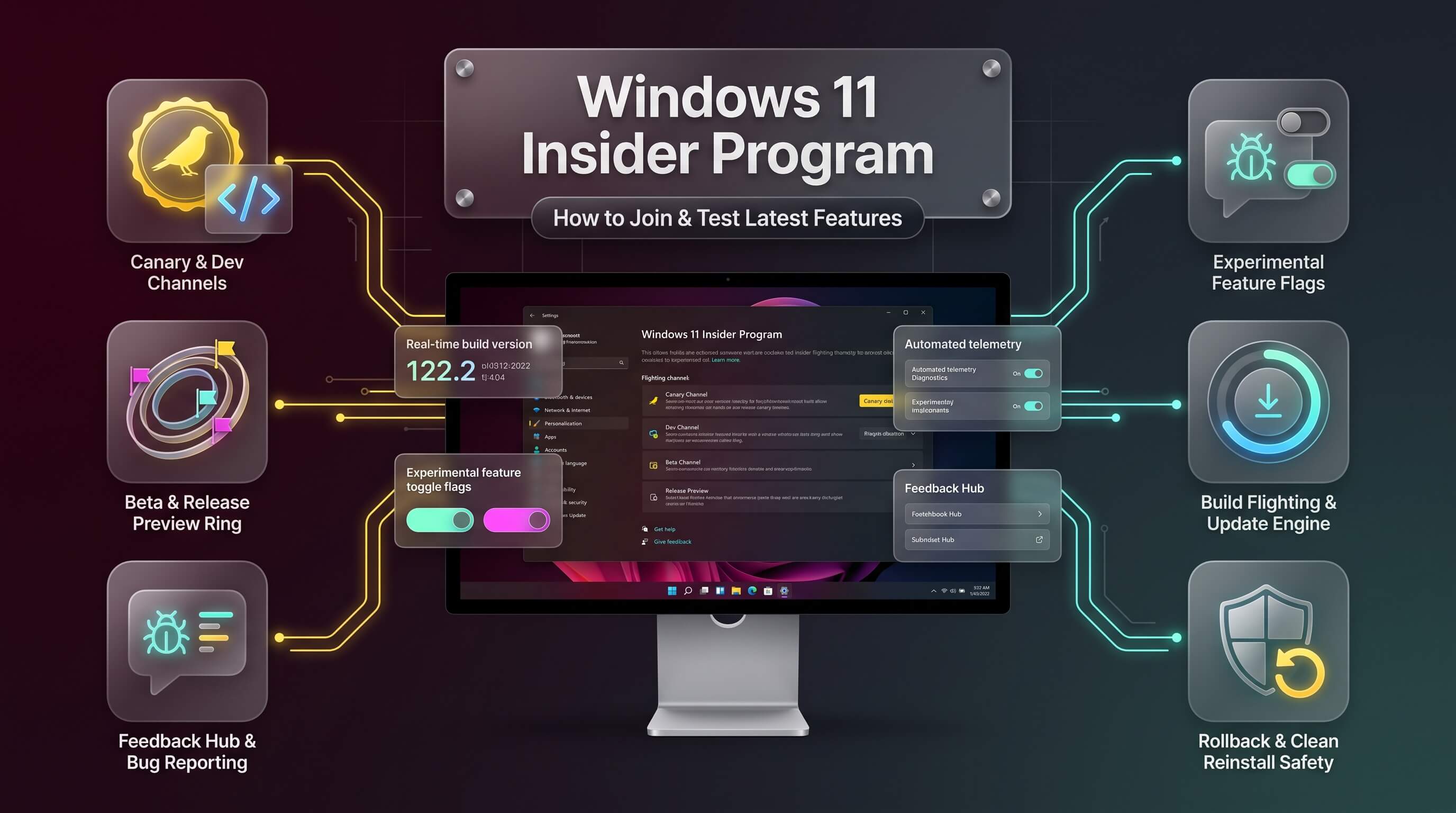
A complete, up-to-date walkthrough of enrollment, channels, and what changed in Microsoft’s 2026 restructuring of preview builds.
Every new feature that eventually lands on a mainstream Windows 11 PC has to pass through a testing ground first, and that testing ground is the Windows 11 Insider program. It’s the mechanism Microsoft uses to hand unfinished software to millions of volunteers, gather feedback, catch bugs before they reach the general public, and quietly shape features based on real-world usage rather than internal guesswork alone. Anyone curious about tomorrow’s Windows, whether that’s a redesigned Start menu, a new Copilot capability, or a deep system change, can get early access simply by opting in.
What makes 2026 a particularly interesting time to join is that Microsoft just overhauled the entire structure of the program. The familiar four-channel lineup that Insiders relied on for years, Canary, Dev, Beta, and Release Preview, is being replaced by a leaner system built around Experimental and Beta channels. This guide walks through exactly how enrollment works today, what each channel now means, the realistic risks involved, and how to get the most out of participating without turning your primary PC into a liability.
What Is the Windows 11 Insider Program?
The windows 11 insider program is Microsoft’s official preview testing platform, open to anyone with a Microsoft account and a device meeting the necessary requirements. Rather than waiting for features to be announced and shipped through ordinary Windows Update, Insiders receive builds weeks or even months ahead of general release, giving them a genuine look at where the operating system is heading.
Participation is entirely free and voluntary. In exchange for early access, Microsoft asks Insiders to submit feedback through a dedicated app called Feedback Hub, which routes bug reports, feature requests, and general impressions directly to the engineering teams responsible for that part of Windows. This feedback loop is not symbolic; entire features have been delayed, redesigned, or scrapped based on how Insiders reacted during testing.
The program traces back to 2014, originally launched alongside Windows 10 with just two channels, Fast and Slow. Over the following decade it grew steadily more complex, adding Release Preview in 2016 and eventually splitting into the four-channel structure most recent Insiders became familiar with. That complexity is exactly what Microsoft set out to fix with the spring 2026 restructuring, described in detail below.
Windows 11 Insider Preview: What You’re Actually Testing
A windows 11 insider preview build is a work-in-progress version of the operating system, built from the same internal source code Microsoft engineers use daily, but packaged for external testing before it’s considered stable. These builds can include anything from small visual tweaks to substantial architectural changes, and not every feature that appears in a preview build ends up shipping to the public in its original form.
It helps to think of preview builds less as “early access to finished features” and more as “a live look at Windows while it’s still being built.” Some features are half-implemented, hidden behind flags, or only partially functional. Others might work perfectly but get pulled at the last minute if Microsoft decides the timing or design needs more work. That unpredictability is the trade-off for being first.
Preview builds also serve a quieter purpose beyond flashy new features: they stress-test compatibility across an enormous range of hardware and software configurations that Microsoft’s internal labs simply can’t replicate at scale. A bug that never surfaces on a test bench might show up immediately once millions of Insiders with different drivers, peripherals, and third-party software start using a build daily.
The 2026 Overhaul: From Four Channels to Experimental and Beta
Understanding today’s windows 11 insider structure requires knowing what changed. On April 10, 2026, Microsoft announced it was retiring the long-standing Canary and Dev channels and replacing them with a single new channel called Experimental. Beta and Release Preview remain in place, but Beta’s behavior changed meaningfully alongside the transition.
Under the old system, Canary represented the earliest, rawest platform code, Dev sat one step below it with more visible feature work, Beta offered a closer-to-release experience, and Release Preview delivered nearly finished updates just ahead of public rollout. In practice, that tidy staircase rarely behaved as expected. Features sometimes appeared in one channel and skipped another entirely, or rolled out gradually to only a subset of testers, leaving people confused about why an announced feature wasn’t showing up on their own machine despite running the “right” channel.
The new structure folds Canary and Dev into windows 11 insider dev testers now call Experimental, which itself offers a choice of tracks: Windows 11 25H2, Windows 11 26H1, and a Future Platforms track for the most speculative, forward-looking builds. This lets testers pick their own risk tolerance within a single channel rather than jumping between separate ones. Meanwhile, Beta has been recalibrated to track more closely with what’s actually shipping to retail in the following weeks, and Microsoft committed to ending gradual feature rollouts within Beta specifically, meaning an announced feature should now actually appear once the corresponding build is installed.
| Old Channel (Pre-2026) | 2026 Equivalent | What Changed |
|---|---|---|
| Canary | Experimental (Future Platforms track) | Merged into Experimental as the most speculative track |
| Dev | Experimental (25H2 / 26H1 tracks) | Merged into Experimental with selectable version tracks |
| Beta | Beta (refreshed) | No more gradual rollouts; tracks near-term retail builds more closely |
| Release Preview | Release Preview (unchanged) | Remains the final, most stable staging ground before public release |
Microsoft rolled this transition out in phases rather than all at once, starting with Dev Channel devices moving into the new Experimental experience, followed by Canary’s two build series, and finally Beta Channel migrating to its refreshed form. Anyone already enrolled during the transition window may have noticed their channel automatically relabeled without needing to take any action, though an option to manually enable the new Experimental interface early was also made available through Feature Flags in Settings.
Windows 11 Insider Canary and Dev: What Happened to Them
For Insiders who spent years associating windows 11 insider canary with the absolute bleeding edge of platform development, the retirement of that name doesn’t mean the underlying concept disappeared. The riskiest, least validated code that used to live in Canary now lives inside Experimental’s Future Platforms track, which Microsoft describes as the entry point for testers who genuinely want to see work still years away from a stable release.
Dev Channel’s identity, historically the place where nearer-term but still actively developed features became visible, is preserved within Experimental’s 25H2 and 26H1 tracks. The practical difference is that testers no longer have to guess which separate channel a feature might land in; instead, they choose a track within Experimental that matches how far out they want their preview builds to reach.
Enterprise IT administrators voiced some early concern about this consolidation, since many organizations specifically relied on Dev Channel builds to preview upcoming enterprise-focused features ahead of broader rollout. Microsoft acknowledged the gap and indicated that additional enterprise-specific rings could be introduced for the Windows Insider for Business program as the transition matures, though details on that front were still developing as of mid-2026.
Windows 11 Insider Beta: The Stabilization Track
The windows 11 insider beta channel occupies a distinct role in the post-overhaul structure. Rather than functioning as one stop along a straight line from rough to polished, Beta is now positioned specifically to validate builds close to what will actually reach retail devices in the coming weeks, making it the most practical choice for anyone who wants a preview of near-term changes without the volatility of Experimental.
The end of gradual feature rollouts within Beta is arguably the most user-friendly change to come out of the 2026 restructuring. Previously, two people running the identical Beta build could see completely different sets of active features, since Microsoft staged rollouts to subsets of the population to control risk. That made it genuinely difficult to know whether a missing feature was a bug, a regional restriction, or simply a rollout that hadn’t reached your device yet. Under the new approach, announced features tied to a Beta build should appear consistently once that build is installed.
For most non-developer enthusiasts who want a reasonably dependable early look at upcoming Windows changes, Beta remains the sensible middle ground, offering meaningfully earlier access than Release Preview while avoiding the instability that defines Experimental’s more speculative tracks.
How to Join the Windows 11 Insider Program
Signing up for the windows 11 insider program takes only a few minutes, and the process hasn’t changed dramatically despite the channel restructuring. Here’s the full walkthrough.
- Confirm the device is running a licensed, activated copy of Windows 11, and that it meets the standard Windows 11 system requirements.
- Back up important files before proceeding. Preview builds are inherently less stable than public releases, and while catastrophic data loss is rare, it’s not impossible.
- Open Settings by pressing Windows key + I, then navigate to “Windows Update,” and select “Windows Insider Program.” Note that this option only appears for accounts with administrator privileges on the device.
- Click “Get started” and link a Microsoft account. A work or school account can also be used through the Windows Insider Program for Business track if joining through an organization.
- Read and accept the Windows Insider Program Agreement and the Microsoft Insider Privacy Statement.
- Choose a channel: Experimental, Beta, or Release Preview. If the device doesn’t meet certain hardware thresholds, some channels may not appear as selectable options.
- If prompted to enable optional diagnostic data, open Diagnostics & feedback settings and toggle “Send optional diagnostic data” on, since incomplete telemetry can prevent some preview builds from being offered correctly.
- Restart the PC when prompted to finalize enrollment.
- After restarting, return to Settings > Windows Update and click “Check for updates” to begin receiving the first available preview build for the selected channel.
The entire windows 11 insider download and installation process runs through the normal Windows Update mechanism rather than requiring a separate installer, which keeps the experience consistent with how most people already receive monthly updates. For anyone who prefers starting completely fresh instead of upgrading an existing installation, Microsoft also publishes downloadable Insider Preview ISO files for clean installs, available through the Windows Insider Program Documentation Hub on Microsoft Learn.
Choosing the Right Channel for Your Needs
Picking a channel comes down to a simple question: how much instability are you willing to tolerate in exchange for how early you want access? The table below breaks down the current options as of the 2026 restructuring.
| Channel | Stability | Best For | Notes |
|---|---|---|---|
| Experimental (Future Platforms) | Lowest | Developers, enthusiasts testing bleeding-edge platform work | Formerly Canary; requires a clean install to exit |
| Experimental (25H2 / 26H1) | Low | Testers who want visible new features well ahead of release | Formerly Dev; includes a Feature Flags toggle page |
| Beta | Moderate | Most non-developer enthusiasts wanting a dependable early look | No more gradual feature rollouts; closely tracks upcoming retail builds |
| Release Preview | Highest | Cautious users, small businesses testing near-final updates | Nearly identical to what reaches general availability shortly after |
Switching between channels is possible after enrollment, though moving to a less mature channel, such as jumping from Beta into Experimental, sometimes requires a clean installation rather than a simple in-place switch, particularly when moving into the Future Platforms track. Microsoft has stated it’s working on making channel switching smoother through in-place upgrades over time, but as of the 2026 rollout, some transitions still carry that clean-install requirement.
Windows 11 Insider Build: How Releases Actually Work
Each windows 11 insider build carries a version number that identifies exactly which internal snapshot of Windows it represents, and learning to read these numbers helps make sense of release notes and community discussions. A build like 26200.8973, for instance, tells you both the underlying platform generation and the specific incremental revision within it.
Builds ship on a rolling basis rather than a fixed calendar, with Experimental generally receiving new builds most frequently, sometimes multiple times a week, while Beta and Release Preview follow a steadier, more measured cadence tied to upcoming public release milestones. Not every build introduces new features; many exist purely to fix bugs reported by Insiders in the previous build, which is precisely the feedback loop the program exists to create.
Release notes for each build used to live primarily on the Windows Insider Blog, but Microsoft has been migrating detailed change logs to a dedicated Windows Insider Program Documentation Hub on Microsoft Learn, offering better navigation across channels and builds, dark and light mode support, and more precise deep linking to specific fixes or features. The blog itself continues to announce new builds and highlight standout changes, functioning more like a headline summary than the full technical record.
Windows 11 Insider Features: What to Expect
The range of windows 11 insider features spans everything from small quality-of-life refinements to substantial system-level changes. Recent testing cycles have included updates to Windows Search powered by Copilot, a dark-themed redesign of the File Explorer Properties tab, a decluttered right-click context menu, and a modernized version of the classic Windows Run dialog that had gone largely untouched for years.
AI-related features have made up a significant share of recent preview activity, though not always in the direction people expect. Alongside genuinely new Copilot capabilities like Ask Copilot search and Copilot Vision, several 2026 builds have actually reduced how aggressively AI prompts appear throughout the system, scaling back automatic suggestions in apps like Notepad, Paint, and the Snipping Tool after sustained user feedback that the prompts felt intrusive rather than helpful.
Taskbar customization has also been a recurring theme, with preview builds testing the ability to reposition the taskbar to different edges of the screen, a feature many users specifically requested after it was removed during the transition from Windows 10. Performance-focused changes, including faster File Explorer launch times, reduced memory usage, and smoother navigation, have appeared alongside the more visible feature work, reflecting Microsoft’s stated 2026 priority of addressing everyday usability complaints rather than only shipping flashy additions.
Not every feature tested in preview builds survives to general release. Some get refined based on feedback, others are quietly shelved, and a few get delayed by entire release cycles while Microsoft addresses concerns raised by Insiders. That inherent uncertainty is part of what makes the program valuable both to Microsoft and to testers who enjoy watching software evolve in real time.
Staying Current with Windows 11 Insider Updates
Once enrolled, receiving a windows 11 insider update works through the same Windows Update interface used for regular monthly patches. Opening Settings, navigating to Windows Update, and clicking “Check for updates” prompts the system to look for the next available build within the selected channel.
Update frequency varies meaningfully by channel. Experimental users can expect new builds arriving fairly often, sometimes with only days between releases during active development pushes, while Beta and Release Preview follow a more predictable rhythm generally aligned with upcoming public release dates. Enabling notifications for the Windows Insider Blog or subscribing to its RSS feed is a simple way to know when a build has shipped before it even appears in Windows Update.
The Feedback Hub app deserves regular attention beyond just reporting bugs. It includes “quests,” which are Microsoft-curated suggestions pointing Insiders toward specific features or scenarios worth testing during a given build cycle, along with visibility into what other testers are reporting about the same release. Engaging with quests is one of the more direct ways an individual Insider’s feedback ends up shaping a feature before it reaches the public.
Risks and Best Practices Before You Enroll
Preview software is, by definition, unfinished, and treating it with appropriate caution avoids most of the frustration new Insiders run into. The single most important piece of advice repeated across Microsoft’s own documentation and the broader enthusiast community is straightforward: avoid installing Insider builds on a primary, daily-driver PC.
- Use a secondary physical device or a virtual machine through Hyper-V or a third-party tool whenever possible, keeping your main working environment isolated from potential instability.
- Back up important files before enrolling and before installing any major new build, since rare but real cases of data loss or failed updates do occur.
- Expect some features to arrive incomplete or behind experimental flags that require manual activation, particularly within the Experimental channel.
- Understand that leaving certain tracks, especially Future Platforms, may require a full clean installation rather than a simple channel downgrade.
- Keep diagnostic data settings enabled as instructed during setup, since incomplete telemetry can prevent some builds from being offered correctly through Windows Update.
It’s also worth setting realistic expectations about driver and software compatibility. Preview builds sometimes ship ahead of updated drivers from hardware manufacturers, which can cause temporary issues with graphics performance, peripherals, or specialized software, particularly on Experimental’s more advanced tracks. These issues typically resolve within a build cycle or two as vendors catch up, but they’re worth anticipating rather than being surprised by.
Leaving the Program or Switching Channels
Opting out of the Windows Insider Program is straightforward for most channels but comes with an important caveat depending on how deep into the preview cycle a device has gone. Devices enrolled in Release Preview or Beta can typically roll back to a stable public release through Settings without a full reinstall, provided the rollback is attempted within the standard recovery window after an update.
Devices running Experimental builds, particularly those on the Future Platforms track, often require a clean installation of a public Windows 11 release to fully exit preview status. This is a deliberate design choice on Microsoft’s part, since the most experimental code sometimes makes system-level changes that aren’t cleanly reversible through an in-place downgrade. Anyone planning to test Experimental builds should factor this into their decision, ideally by using a secondary device or virtual machine specifically so a clean reinstall isn’t a disruptive event.
Switching between the less extreme channels, such as moving from Beta to Release Preview, generally works smoothly through the same Windows Insider Program settings page used for initial enrollment, simply by selecting a different channel and allowing the next applicable update to install.
Frequently Asked Questions
Is the Windows 11 Insider Program free to join?
Yes, joining the windows 11 insider program costs nothing. All that’s required is a licensed copy of Windows 11, a Microsoft account, and a willingness to accept the inherent instability that comes with running preview software.
What happened to the Canary and Dev channels?
Microsoft retired the windows 11 insider canary and Dev channels in April 2026, merging them into a single new channel called Experimental. Experimental offers selectable tracks, including 25H2, 26H1, and Future Platforms, letting testers choose their own risk level within one unified channel rather than switching between separate ones.
Which channel should a beginner choose?
Beta or Release Preview are generally the safer starting points for anyone new to windows 11 insider preview builds. Release Preview offers the most stability with the least lead time before public release, while Beta provides earlier access to upcoming features with moderate risk and, as of 2026, no more inconsistent gradual feature rollouts.
Can Insider builds damage my PC or cause data loss?
Outright hardware damage is extremely rare, but preview builds are inherently less stable than public releases and can occasionally cause crashes, failed updates, or software compatibility issues. Backing up important files beforehand and avoiding installation on a primary daily-use device remains the safest approach recommended throughout the program’s documentation.
How do I leave the Windows Insider Program?
Devices on Beta or Release Preview can generally roll back to a public release through Windows Update settings without reinstalling anything. Devices running Experimental builds, especially the Future Platforms track, often require a full clean installation of a stable Windows 11 release to exit the program completely.