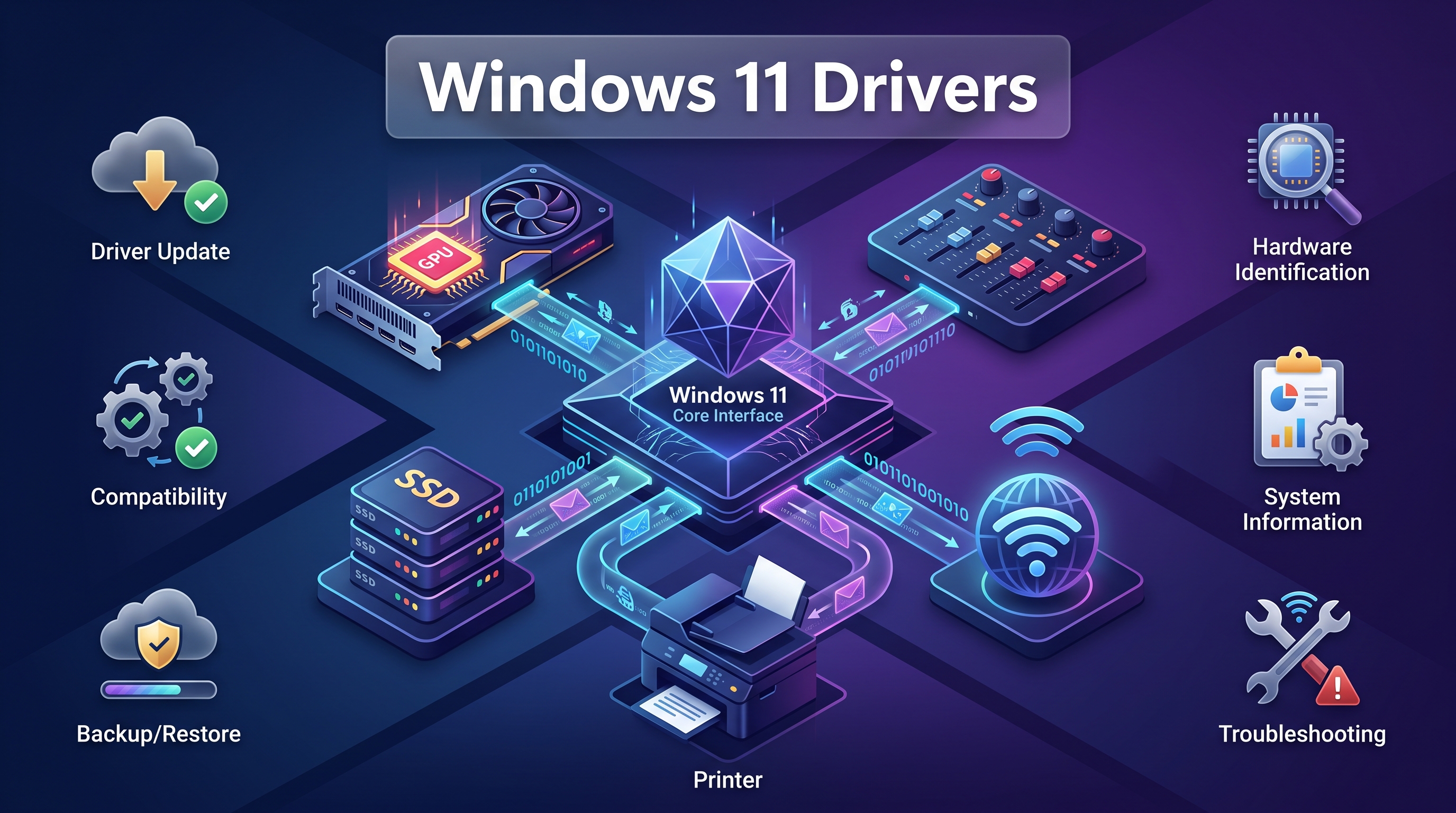
A driver is the small but essential piece of software that lets Windows talk to your hardware. Without the right one, your screen might refresh at the wrong rate, your speakers might stay silent, or your printer might vanish from the device list entirely. Windows 11 drivers sit quietly in the background of every session, translating instructions between your operating system and the physical components inside (or plugged into) your PC. When they are current and correctly matched to your hardware, you rarely think about them. When they are outdated, missing, or corrupted, everyday tasks suddenly become frustrating.This guide walks through everything a Windows 11 user needs to know about drivers: how to check them, how to run a proper windows 11 driver update, how to install a driver from scratch, and how to resolve the most common windows 11 driver issues without guesswork. It also covers the specific drivers people search for most often, including the windows 11 audio driver, windows 11 bluetooth driver, windows 11 wifi driver, windows 11 graphics driver, windows 11 network driver, and windows 11 printer driver, along with dedicated notes on windows 11 realtek driver, windows 11 intel driver, and windows 11 nvidia driver packages.
Quick answer: To run a windows 11 driver update, open Settings > Windows Update > Advanced options > Optional updates > Driver updates, select the items listed, and choose Download & install. For graphics, audio, or network hardware, pairing this with the manufacturer’s own tool (NVIDIA App, Intel Driver & Support Assistant, or AMD Software) usually delivers newer, better-tested drivers than Windows Update alone.
What Are Windows 11 Drivers and Why They Matter
Every physical component in a computer, from the graphics chip to the fingerprint sensor, needs a translator between its hardware-level instructions and the operating system. That translator is the driver. Windows 11 ships with a large built-in driver library, so most components work the moment you plug them in or boot the machine for the first time. However, these built-in drivers are often generic. They get the hardware functioning, but they rarely unlock its full performance or every advanced feature the manufacturer designed.
Manufacturer-supplied drivers close that gap. A dedicated windows 11 graphics driver from NVIDIA, AMD, or Intel typically adds game-specific optimizations, better power management, and fixes for compatibility problems that surface after a Windows feature update. Likewise, a proper windows 11 audio driver from Realtek or a laptop OEM restores features such as spatial sound profiles, microphone noise suppression, or multi-device audio switching that a generic driver simply does not include.
Keeping drivers current also matters for security. Microsoft and hardware vendors regularly patch vulnerabilities that live at the driver level, particularly in network adapters, graphics stacks, and Bluetooth radios, because these components interact directly with external data and devices. An outdated windows 11 network driver or wifi driver is not just a performance risk; it can also be an entry point for exploitation if a known flaw goes unpatched for too long.
Finally, Windows itself has moved to a faster release cadence. As of mid-2026, Microsoft maintains Windows 11 versions 24H2 and 25H2 as the current mainstream releases, with 26H2 expected to arrive as a small enablement-package update in the fall. Windows 11 24H2 Home and Pro editions are scheduled to stop receiving updates on October 13, 2026, while Enterprise and Education editions remain supported roughly a year longer. Staying on a supported Windows 11 version matters for driver compatibility too, since some newer drivers are built and tested only against current OS builds.
How to Check Your Drivers Using the Windows 11 Driver Manager
Windows does not have an app literally named “Driver Manager,” but Device Manager fills that role and is what most people mean when they search for a windows 11 driver manager. It lists every recognized piece of hardware, shows the driver version installed for each one, and flags problems with a visible warning icon. To open it, right-click the Start button and select Device Manager, or press Windows key + X and choose it from the menu that appears.
Once open, Device Manager groups hardware into expandable categories: Display adapters, Sound video and game controllers, Network adapters, Bluetooth, Printers, and several others. Expanding a category and right-clicking a device gives you options to update the driver, roll it back to a previous version, disable the device, or uninstall it completely. A yellow triangle with an exclamation mark next to any entry is the clearest sign that Windows has detected a driver problem, whether that is a missing driver, a conflict, or a device that failed to initialize properly.
| Device Manager Category | Controls | Typical Warning Sign |
|---|---|---|
| Display adapters | Windows 11 graphics driver for integrated or discrete GPU | Screen flicker, low resolution, game crashes |
| Sound, video and game controllers | Windows 11 audio driver, including Realtek audio codecs | No sound, distorted playback, missing microphone |
| Network adapters | Windows 11 network driver and windows 11 wifi driver | Dropped connections, slow speeds, adapter missing |
| Bluetooth | Windows 11 bluetooth driver for radios and paired devices | Pairing failures, audio stutter, dropped connections |
| Printers | Windows 11 printer driver for local and network printers | Print jobs stuck in queue, scanning unavailable |
Beyond Device Manager, Windows 11 also lets you review driver history through Settings. Go to Settings, then Windows Update, then Update history, and you can see which driver packages Windows itself has installed over time. This is a useful reference point if a problem appeared right after an update and you want to confirm whether a driver change is the likely cause.
How to Update Drivers in Windows 11
There is no single correct way to perform a windows 11 driver update; the right method depends on the device involved and how urgently you need the fix. Below are the four approaches worth knowing, ordered from the most automated to the most hands-on.
Windows Update (recommended first step). Open Settings, select Windows Update, then Advanced options, then Optional updates. Under Driver updates, Windows lists any manufacturer-submitted drivers that have passed Microsoft’s certification process but are not installed automatically. Select the ones you want, click Download & install, and restart the PC once the process finishes, even if Windows does not prompt you to. This channel is safe because every driver listed there has gone through Microsoft’s hardware compatibility testing before it appears.
Device Manager. For a single problematic device, right-click it in Device Manager and choose Update driver, then Search automatically for drivers. Windows will check locally and, if connected to the internet, online as well. If you already downloaded a driver package from the manufacturer, choose Browse my computer for drivers instead and point Windows to the extracted folder.
Manufacturer or OEM website. For a windows 11 driver download that is newer than anything Windows Update or Device Manager can find, go directly to the source: NVIDIA, AMD, or Intel for graphics and chipset drivers, Realtek for audio and network components, or your laptop and motherboard manufacturer’s support page for model-specific packages. OEM-branded drivers matter especially for laptops, since manufacturers often customize the base chipset driver with power management or thermal tuning specific to that model.
Dedicated vendor utilities. NVIDIA, AMD, and Intel all provide their own applications that monitor installed drivers and notify you the moment a new one is available, often before Windows Update lists the equivalent package. These are covered in detail in the tools section below.
| Method | Best For | Speed to New Driver | Risk Level |
|---|---|---|---|
| Windows Update | General maintenance, most hardware | Moderate (weeks behind vendor) | Very low |
| Device Manager | Fixing one specific device | Depends on source used | Low |
| Manufacturer website | Latest graphics, chipset, or OEM drivers | Fastest | Low, if sourced correctly |
| Vendor utility app | GPU, chipset, and Wi-Fi driver upkeep | Fast | Low |
One detail worth remembering: optional driver updates in Windows 11 are never installed automatically. Microsoft made this deliberate choice because a driver that suits one device configuration can occasionally cause problems on another. That is why the Optional updates section exists as a separate, manually triggered list rather than being bundled into monthly cumulative updates.
How to Install a New Driver in Windows 11
Installing a fresh driver differs slightly from updating an existing one, particularly after a clean Windows install, a hardware swap, or when Windows fails to recognize a component at all.
- Identify the exact hardware. Open Device Manager and look for the device under “Other devices” or with a warning icon. Right-click it, choose Properties, then the Details tab, and select Hardware Ids from the dropdown. This string uniquely identifies the chipset and can be searched directly on a manufacturer’s site if the device name alone is not clear.
- Download the correct package. Match the architecture (almost always 64-bit for modern PCs) and the exact Windows 11 version. A windows 11 driver download built for an older Windows 11 release usually still installs, but a package built specifically for your current build tends to be more stable.
- Run the installer as administrator. Most driver packages, particularly for graphics and audio, come as a self-extracting .exe file. Right-click and choose “Run as administrator” to avoid permission-related install failures.
- Use Device Manager for raw .inf packages. If you only have an .inf file rather than a full installer, right-click the target device, choose Update driver, then Browse my computer for drivers, then Let me pick from a list of available drivers, and finally Have Disk to point Windows to the extracted folder.
- Restart even if not prompted. Many driver installations complete their setup during the next boot. Skipping the restart is one of the most common reasons a fresh driver appears “installed” yet does not actually take effect.
Occasionally Windows blocks a driver because it is unsigned or the publisher certificate cannot be verified. This is a built-in protection called Driver Signature Enforcement, and it exists to stop malicious or poorly tested code from loading at the kernel level. If you have a legitimate reason to install an unsigned driver, such as older specialty hardware with no updated signed package, you can temporarily disable enforcement through the Advanced Startup menu, though this should be treated as a last resort rather than a routine step.
Best Windows 11 Driver Update Tools
Manual checking works fine for a single component, but keeping an entire system current gets tedious fast. A dedicated windows 11 driver update tool automates detection and, in many cases, installation as well. Below are the options worth knowing in 2026, starting with the official vendor applications and followed by the strongest third-party utilities.
NVIDIA App
NVIDIA retired the long-running GeForce Experience application in favor of the unified NVIDIA App, which now handles every function GeForce Experience used to cover along with much of the classic NVIDIA Control Panel. This single tool is the current path for anyone running a windows 11 nvidia driver setup, whether the goal is a Game Ready Driver for a newly released title or a Studio Driver tuned for creative applications. It requires no mandatory account login for core functions, downloads and installs GPU drivers directly, and folds in display scaling, DLSS override controls, and ShadowPlay recording. NVIDIA continues shipping frequent updates to the app itself, and it remains completely free for anyone with a GeForce or compatible NVIDIA GPU.
Intel Driver & Support Assistant
Intel Driver & Support Assistant, commonly shortened to Intel DSA, is the official replacement for the older Intel Driver Update Utility and remains free of charge. It scans the system, detects Intel hardware components such as integrated graphics, wireless adapters, and chipsets, and presents a curated list of available updates. This is the most reliable free source for a windows 11 intel driver, since it pulls directly from Intel’s own release pipeline rather than a third-party mirror. Installation typically takes just a few minutes, and the tool runs quietly in the system tray afterward, periodically checking for new releases without requiring manual searches.
AMD Software: Adrenalin Edition
AMD’s Adrenalin Edition performs a similar role for Radeon graphics cards and APUs, combining driver updates with in-depth performance tuning, game optimization profiles, and streaming tools. It is free for anyone with compatible AMD hardware and checks automatically for new driver builds, which is particularly useful around major game launches when AMD frequently ships day-one optimized packages. For users without a discrete Radeon GPU but with an AMD chipset or integrated graphics, AMD also offers lighter chipset-only driver packages through the same support portal.
IObit Driver Booster
Driver Booster remains one of the most popular general-purpose driver update tools for Windows 11, largely because of its one-click scanning and enormous driver database covering graphics cards, audio chipsets, network adapters, and printers alike. The free edition scans and installs updates but limits download speed and lacks scheduled automatic scans, while the paid Pro tier unlocks full-speed downloads, automatic backups before each install, and offline driver support. It works well for users who prefer a single dashboard rather than juggling separate vendor apps, though it is worth reviewing each proposed update before applying it, since not every “newer” driver is automatically the better choice for a given system.
Driver Easy
Driver Easy takes a more cautious, side-by-side approach, showing the currently installed driver version next to the available update so users can decide whether an upgrade is actually necessary. The free tier lets you scan and identify outdated drivers but requires manual download and installation, while the paid version, priced at roughly thirty dollars per year for three PCs, adds one-click installation and a searchable driver database for locating specific packages by hardware ID. It is a solid pick for anyone managing a handful of machines who wants more control than a fully automated tool provides.
Snappy Driver Installer Origin
Snappy Driver Installer Origin is the standout choice for offline scenarios, such as setting up a PC with no active internet connection or restoring drivers after a clean Windows 11 installation. It is free, open-source, and entirely portable, meaning it can run from a USB drive without any installation step. The tool works with large offline driver packs that you download once and reuse across multiple machines, which makes it a favorite among IT technicians and anyone who regularly reimages computers. The trade-off is a less polished interface compared to commercial alternatives, and it demands a bit more comfort navigating driver categories manually.
| Tool | Price | Best For | Offline Support |
|---|---|---|---|
| NVIDIA App | Free | GeForce and NVIDIA GPU owners | No |
| Intel Driver & Support Assistant | Free | Intel graphics, Wi-Fi, and chipset drivers | No |
| AMD Software: Adrenalin Edition | Free | Radeon GPUs and AMD chipsets | No |
| IObit Driver Booster | Free / Pro (paid) | One-click, all-in-one scanning | Pro tier only |
| Driver Easy | Free scan / ~$29.95 yr (3 PCs) | Reviewing updates before installing | No |
| Snappy Driver Installer Origin | Free, open-source | Offline installs, technicians, clean setups | Yes |
How to Fix Common Windows 11 Driver Issues
Even a well-maintained system runs into driver problems occasionally, usually right after a Windows feature update, a fresh install, or a hardware change. The good news is that most windows 11 driver issues respond to a fairly predictable troubleshooting sequence.
Start with the yellow warning icon. Open Device Manager, look for any device marked with a triangle, right-click it, and select Properties. The Device status box on the General tab usually gives a plain-language error code and short explanation, which narrows down whether the issue is a missing driver, a resource conflict, or a hardware failure.
Roll back a recently updated driver. If a problem appeared immediately after installing a new driver, right-click the device, choose Properties, go to the Driver tab, and select Roll Back Driver. This restores the previous version and is often faster than trying to fix the new one. The option is grayed out if Windows did not keep a backup copy, in which case you would need to reinstall the last known-good version manually.
Uninstall and let Windows reinstall. For a stubborn or corrupted driver, right-click the device in Device Manager, choose Uninstall device, and tick “Attempt to remove the driver for this device” if offered. Restart the PC afterward; Windows will typically detect the hardware again and reinstall a clean, functioning driver automatically.
Run the built-in troubleshooter. Settings, then System, then Troubleshoot, then Other troubleshooters includes tools for hardware and devices, network adapters, and printers that can catch and repair common driver-related misconfigurations without any manual digging.
Use System Restore for widespread problems. If several devices misbehave at once after an update, a system restore point created before the change can revert the driver state system-wide, which is often faster than troubleshooting each device individually.
Repair Windows system files. Occasionally a driver issue is actually a symptom of corrupted system files rather than the driver itself. Running sfc /scannow followed by DISM /Online /Cleanup-Image /RestoreHealth from an elevated Command Prompt can resolve underlying corruption that repeated driver reinstalls alone will not fix.
| Symptom | Likely Driver | First Fix to Try |
|---|---|---|
| No sound or crackling audio | Windows 11 audio driver / realtek driver | Update via Optional updates, then reinstall Realtek codec |
| Wi-Fi drops or won’t connect | Windows 11 wifi driver / network driver | Uninstall adapter, restart, let Windows reinstall |
| Screen tearing or black screen | Windows 11 graphics driver | Clean install via NVIDIA App or Adrenalin |
| Devices won’t pair or keep disconnecting | Windows 11 bluetooth driver | Roll back, then reinstall latest radio driver |
| Print jobs stuck or printer missing | Windows 11 printer driver | Remove device, restart spooler, reinstall from OEM site |
Updating Specific Windows 11 Drivers
Each hardware category comes with its own quirks. The sections below cover the drivers people run into problems with most often.
Windows 11 Audio Driver and Realtek Driver
Most desktops and laptops use an onboard Realtek codec for sound, which is why a windows 11 realtek driver is one of the most frequently searched driver categories. Realtek itself publishes generic codec packages, but Realtek explicitly recommends grabbing the version customized by your motherboard or laptop manufacturer whenever one is available, since OEM versions often include tuning specific to that device’s speaker or microphone hardware. If audio suddenly stops working after a Windows update, the fastest fix is usually to open Device Manager, uninstall the Realtek entry under Sound, video and game controllers, restart the PC, and let Windows reinstall a working baseline driver before applying the manufacturer’s customized version on top.
Windows 11 Bluetooth Driver
Bluetooth problems in Windows 11 are frequently tied to the wireless card’s combined Wi-Fi and Bluetooth driver rather than a separate Bluetooth-only component, since most modern laptops use a single chip for both radios. If pairing fails or audio stutters through Bluetooth headphones, check both the Bluetooth and Network adapters sections in Device Manager. Recent cumulative updates through mid-2026 have specifically targeted Bluetooth stability, so confirming you are on the latest monthly Windows update before troubleshooting further can resolve issues that were already fixed upstream.
Windows 11 WiFi Driver and Network Driver
A windows 11 wifi driver issue often shows up as slow speeds, frequent disconnects, or an adapter that disappears after sleep or hibernation. Intel-based wireless cards should be updated through Intel Driver & Support Assistant, while Realtek and MediaTek-based adapters, common in budget and mid-range laptops, usually need drivers pulled directly from the laptop manufacturer’s support page rather than the chipset maker’s generic site. For wired connections, the windows 11 network driver for Ethernet adapters rarely needs manual attention, but if a wired connection drops randomly, updating the adapter driver and disabling power-saving features on that adapter through Device Manager’s Power Management tab often resolves it.
Windows 11 Graphics Driver: Intel and NVIDIA
Graphics drivers see the most frequent updates of any category because they directly affect gaming performance, creative application stability, and compatibility with new titles at launch. A windows 11 intel driver for integrated graphics is best sourced through Intel Driver & Support Assistant, which correctly matches the driver to your specific processor generation. A windows 11 nvidia driver, meanwhile, comes through the NVIDIA App, which separates Game Ready Drivers, optimized for the newest releases and updated frequently, from Studio Drivers, which prioritize stability for content creation and professional software. Choosing the wrong track is a common cause of unexpected instability, so gamers should generally stick to Game Ready builds while creative professionals benefit more from Studio releases.
Windows 11 Printer Driver
Printer troubleshooting in Windows 11 has changed somewhat because Microsoft has been phasing out older printer driver models in favor of the Mopria universal print driver, which many printers now use automatically when added through Settings, Bluetooth & devices, Printers & scanners. If Windows Update does not offer a driver for your printer, the manufacturer’s own support page remains the most reliable source. When a multifunction printer’s scanning or faxing stops working after an update while printing still functions, that is often a known driver compatibility gap rather than a hardware fault, and temporarily removing and reconnecting the USB or network printer frequently restores full functionality while a permanent fix is rolled out.
Best Practices for Long-Term Driver Health
Treating driver maintenance as a routine rather than a reactive fire drill saves considerable frustration down the line. A few habits make the biggest difference.
- Create a system restore point before installing any major driver, especially graphics or chipset packages, so a bad update can be reversed in minutes rather than hours.
- Check Optional updates in Windows Update roughly once a month rather than assuming Windows installs everything automatically, since driver packages are deliberately excluded from automatic installation.
- Prefer OEM-customized drivers over generic chipset-maker versions on laptops, particularly for audio and touchpad components, since manufacturers often tune these for the specific hardware inside that model.
- Avoid installing every available driver update indiscriminately through third-party tools; a newer version is not automatically better, and a driver that is currently working well should not be replaced without a specific reason such as a security patch, a bug fix, or new hardware support.
- Keep a record of your GPU, network adapter, and audio chipset model numbers so you can search manufacturer sites quickly the next time an issue comes up, rather than starting from Device Manager each time.
Frequently Asked Questions
How do I know if my Windows 11 drivers are outdated?
Open Device Manager and look for a yellow warning triangle next to any device, which is the clearest built-in sign of a problem. Beyond that, symptoms such as stuttering audio, dropped Wi-Fi connections, screen artifacts, or a printer that silently disappears from the device list usually point to an outdated or corrupted windows 11 driver behind the scenes, even when Device Manager shows no visible warning.
Is it safe to update all drivers automatically with a third-party tool?
Reputable tools such as the ones covered above are generally safe, but automatic bulk updates carry more risk than targeted, one-device-at-a-time updates. A driver that resolves one issue can occasionally introduce a new one on specific hardware combinations, so it is wise to update drivers individually when troubleshooting a known windows 11 driver issue rather than accepting every suggested update at once.
Do I need a windows 11 driver update tool, or is Windows Update enough?
For most everyday use, Windows Update plus Device Manager handles the majority of driver needs without any extra software. Gamers, content creators, and anyone using discrete NVIDIA or AMD graphics benefit from the official vendor apps, since those deliver new drivers noticeably faster than Windows Update. Third-party tools add convenience for managing many devices at once but are optional rather than essential for most users.
How do I fix a Windows 11 driver that keeps crashing after an update?
Roll back the driver first through Device Manager’s Driver tab, since this reverses the specific change that likely caused the crash. If the option is unavailable, uninstall the device entirely, restart the PC to let Windows reinstall a clean baseline driver, and then reapply the manufacturer’s latest stable release rather than any beta or preview build.
Where can I find an official windows 11 driver download for my hardware?
Always start with the component or device manufacturer’s own support page rather than a third-party download mirror, since official sources guarantee the file matches your exact model and has not been altered. For graphics, that means NVIDIA, AMD, or Intel directly; for laptops, the manufacturer’s dedicated support and drivers section usually has customized packages that outperform generic chipset-level versions.