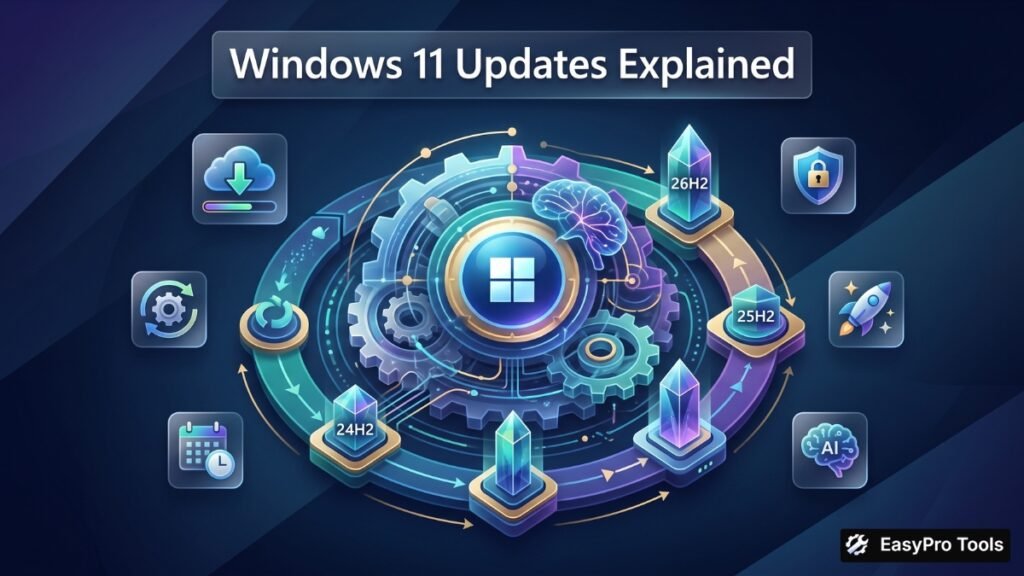
Keeping track of Windows 11 update versions has become genuinely confusing over the past two years, and it is not just you. Microsoft has quietly changed how it names, packages, and delivers new releases, so a windows 11 update that once meant a multi-gigabyte overhaul now often arrives as a tiny file that flips a switch on features already sitting dormant on your machine. Understanding this shift matters, because it changes how you should think about upgrading, how long your current version stays supported, and what actually shows up on your desktop when the update finishes installing.
This guide walks through every version currently relevant to everyday users and IT professionals alike, including windows 11 24h2, windows 11 25h2, and the newly confirmed windows 11 26h2, alongside the separate ARM-focused windows 11 26h1 release. Along the way, we will cover the tools Microsoft provides for upgrading, the most common windows 11 update issues people run into, and practical fixes for a windows 11 update stuck partway through installation.
Overview
How Windows 11’s Update Cycle Actually Works Now
Microsoft used to ship major Windows feature updates twice a year, each one a substantial overhaul that changed the build number significantly and often required lengthy installation. That approach ended with Windows 11. Starting with version 23H2, Microsoft shifted to what is called a shared servicing branch, meaning that consecutive annual releases share the same underlying platform code rather than representing a genuinely new operating system build.
In practice, this means new features are developed continuously and shipped inside regular monthly cumulative updates, but they arrive in a dormant, switched-off state. When Microsoft is ready to make a set of these features publicly available, it releases what is called an enablement package, sometimes abbreviated as an eKB. This package is remarkably small, often just a few hundred kilobytes, and its only job is to flip the dormant feature flags to “on” and update the version number. A single restart completes the process, a dramatic contrast to the older feature updates that could take thirty minutes to an hour and required multiple reboots.
This explains why so many users report that a major annual windows 11 update installs faster than expected and does not seem to change much about their daily experience. Much of what a new version introduces has often already been trickling in through prior monthly updates; the annual release simply formalizes the version number and resets the support clock.
Legacy Releases
Windows 11 23H2: The Update That Changed the Rules
Windows 11 23h2 deserves attention specifically because it was the version that introduced this shared servicing branch model. Released in the latter half of 2023, 23H2 shared its core platform with 22H2 before it, previewing the approach Microsoft would later apply consistently to 24H2, 25H2, and beyond.
For users still running 23H2 today, it is worth noting that this version has already reached, or is very close to reaching, the end of its supported servicing window. Microsoft typically services each Windows 11 Pro and Home release for twenty-four months from its release date, while Enterprise and Education editions receive thirty-six months. Anyone still running 23H2 should treat upgrading as a priority rather than an optional convenience, since a device outside its support window stops receiving the security patches that protect it from newly discovered vulnerabilities.
Platform Baseline
Windows 11 24H2: The Real Foundation
Windows 11 24h2 arrived on October 1, 2024, and represents the last release that could genuinely be called a full-scale feature update in the traditional sense. It introduced a meaningfully updated platform, including performance improvements to file operations, expanded Copilot integration, updates to the Recall feature for Copilot+ PCs, and refinements across File Explorer, Settings, and the Windows Sandbox environment.
Because 24H2 established the platform baseline that 25H2 and 26H2 both build on top of, its release also came with some rocky moments. Early in its rollout, certain SSD models experienced stability issues tied to specific update builds, prompting hardware manufacturers to issue firmware fixes in coordination with Microsoft. This is a useful reminder that even a well-tested feature update can interact unpredictably with specific hardware configurations, which is one reason cautious users often wait a few weeks after a windows 11 24h2 update before installing it on a mission-critical machine.
If you are performing a windows 11 24h2 download today, either through Windows Update or a manual ISO installation, you are effectively installing the same platform code that underlies the current 25H2 and upcoming 26H2 releases. This matters for compatibility planning, since applications and drivers certified for 24H2 will function identically on 25H2 without additional testing.
Current Version
Windows 11 25H2: Stability Over Spectacle
Windows 11 25h2 began rolling out on September 30, 2025, and its defining characteristic is what it deliberately does not change. Microsoft was direct about this at launch, confirming that 25H2 would not introduce features exclusive to that version, since it shares the same servicing branch and source code as 24H2. For devices already running 24H2 with recent monthly updates installed, the windows 11 25h2 update installs through the lightweight enablement package described earlier, typically completing with a single restart.
That does not mean 25H2 arrived empty-handed. Refinements bundled into the release include updated Start menu behavior with improved pinned app and recommendation sections, new administrative controls that let IT departments remove preinstalled Microsoft Store apps like Clipchamp and Media Player from Enterprise and Education editions, and support for Wi-Fi 7 on enterprise-grade access points. Microsoft also used the opportunity to remove legacy components no longer considered necessary, including PowerShell 2.0 and the long-deprecated Windows Management Instrumentation command-line tool, known as WMIC.
For users performing a full windows 11 25h2 download rather than an enablement upgrade, such as those coming from Windows 10 or an older, unsupported Windows 11 version, the process resembles a traditional feature update, downloading roughly six gigabytes of installation files and taking considerably longer than the near-instant enablement path. One additional detail worth knowing: 25H2 can be uninstalled cleanly back to 24H2 without a full reinstallation, since disabling the enablement package simply reverses the feature flags it switched on.
| Version | Release Date | Delivery Method | Support Window (Home/Pro) |
|---|---|---|---|
| 23H2 | Late 2023 | Full feature update | 24 months (largely expired) |
| 24H2 | October 1, 2024 | Full feature update | 24 months from release |
| 25H2 | September 30, 2025 | Enablement package (from 24H2) | 24 months from release |
| 26H1 | February 10, 2026 | New-device platform release (ARM64 only) | Tied to device lifecycle |
| 26H2 | Expected fall 2026 (Sept–Oct) | Enablement package (from 24H2/25H2) | 24 months from release |
ARM Specific
Windows 11 26H1: A Separate Path for ARM Devices
Windows 11 26h1 is easy to confuse with the mainstream annual releases, but it serves a distinctly different purpose. Released on February 10, 2026, 26H1 is a platform-specific version scoped specifically to support new ARM64 devices entering the market in early 2026, including machines built around Qualcomm’s newer Snapdragon X2 silicon.
Unlike 24H2, 25H2, or the upcoming 26H2, version 26H1 is not offered as an in-place update path for existing devices already running Windows 11. It exists to ship on new hardware straight out of the factory rather than to upgrade machines already in use. If you are shopping for a new ARM-based Windows laptop in 2026, you may see 26H1 listed as the pre-installed version, and that is expected behavior rather than a sign of something unusual. Devices on this branch are expected to eventually move to a future version, tentatively referred to as 27H2, sometime in 2027, keeping their update path separate from the mainstream x86 and existing ARM64 device lineage running through 26H2.
Upcoming Release
Windows 11 26H2: What’s Actually Coming
Windows 11 26h2 is the next annual feature update, officially confirmed by Microsoft for a fall 2026 rollout, with most reporting pointing toward late September or October as the likely release window. Following the pattern set by 25H2, it will ship as a lightweight enablement package for any device already running 24H2 or 25H2, meaning a single restart should be enough to complete the update for most existing PCs.
Despite the modest delivery mechanism, 26H2 is shaping up to include more visible, everyday changes than 25H2 did. The most talked-about addition is renewed flexibility for the taskbar, allowing users to reposition it to any edge of the screen rather than being locked to the bottom, a capability that existed in Windows 10 and earlier but was removed when Windows 11’s redesigned shell launched in 2021. A more compact taskbar layout with smaller icon sizing is expected alongside this change, giving users more control over how much screen space the taskbar occupies.
Beyond the taskbar, 26H2 is expected to bring a refreshed Start menu, a more locally focused search experience that reduces reliance on web results for everyday file and app searches, deeper Copilot integration across the shell, and new administrative options including Point-in-Time Restore and Cloud Rebuild for managed business devices. Privacy-conscious users will also gain the option to hide their account name and profile picture from the Start menu entirely, a small but frequently requested change.
Importantly, Microsoft has confirmed no new hardware requirements accompany 26H2. Any device currently capable of running 24H2 or 25H2 will be able to install 26H2 without needing new hardware, and the update package itself remains small for devices already on the current platform branch. Devices still running 23H2 or earlier will require the full feature update package, roughly six and a half gigabytes, rather than the lightweight enablement route available to more recent versions.
Upgrade Tools
Windows 11 Update Assistant and Upgrade Assistant: What They Actually Do
Confusion between the windows 11 update assistant and the windows 11 upgrade assistant is extremely common, partly because Microsoft itself has used slightly inconsistent naming across support documentation and download pages. In practice, both terms typically refer to the same family of tool: the Windows 11 Installation Assistant.
This official, Microsoft-signed application is designed for one specific job: performing a supported, guided in-place upgrade to a newer Windows 11 version without requiring you to build bootable installation media or wait for the staged rollout to reach your device through ordinary Windows Update. It runs a compatibility check first, confirming your device meets minimum requirements before download begins, and it preserves your files, applications, and most settings throughout the process.
Using the tool follows a predictable sequence. Download the Installation Assistant directly from Microsoft’s official Download Center, run it with administrator privileges, accept the license terms, and let the built-in compatibility check complete. If your device passes, selecting “Accept and Install” begins the download and installation process automatically, typically completing within thirty to sixty minutes depending on your internet connection and hardware speed. The system will restart on its own to finish the installation, and it is important to keep the machine powered on and connected throughout.
Microsoft periodically publishes version-specific builds of this tool tied to the current release, so a 25H2-specific Installation Assistant exists separately from earlier builds, ensuring the tool always targets the most current supported version rather than an outdated one. For users specifically looking for a windows 11 update tool that bypasses the gradual Windows Update rollout schedule, this remains the safest and most officially supported route, in contrast to third-party utilities that claim to force feature updates through registry edits or unofficial scripts.
| Method | Best For | Typical Time |
|---|---|---|
| Windows Update (Settings) | Most home users waiting for the staged rollout | Minutes on enablement packages; longer on full updates |
| Windows 11 Installation Assistant | Users who want to upgrade immediately without waiting | 30–60 minutes |
| Media Creation Tool / ISO | Clean installs, bootable USB creation, multiple machines | 45–90 minutes, plus prep time |
| Windows Server Update Services / Configuration Manager | IT departments managing many devices centrally | Varies by deployment schedule |
Troubleshooting
Fixing Common Windows 11 Update Issues
Even with Microsoft’s shift toward smaller, less disruptive update packages, windows 11 update problems have not disappeared entirely, and knowing how to diagnose them saves considerable frustration.
A windows 11 update failed message most often traces back to one of a handful of causes: insufficient free disk space, a corrupted update component, a pending restart that never completed, or a temporary disruption in connectivity during download. Start with the built-in Windows Update Troubleshooter, found under Settings, System, Troubleshoot, Other troubleshooters. It automatically detects and repairs many of the most common causes of failed installations, including corrupted update cache files, without requiring any manual command-line work.
A windows 11 update stuck at a specific percentage, particularly for extended periods, usually is not actually frozen; large updates can genuinely take longer than the progress bar suggests, especially on mechanical hard drives or slower internet connections. As a general guideline, if the percentage has not moved at all for more than an hour, and your device shows no disk activity, a restart is reasonable. Avoid forcing a shutdown during the “Working on updates” restart screen specifically, since interrupting that particular phase carries a higher risk of leaving the installation in a corrupted state.
When a windows 11 update not showing issue occurs, meaning Windows Update reports your device is up to date despite a newer version being available, this is frequently intentional rather than a bug. Microsoft rolls out feature updates in phases, gradually expanding availability to more devices over several weeks based on telemetry indicating driver and hardware compatibility. If you want to skip ahead of this staged rollout, toggling “Get the latest updates as soon as they’re available” within Windows Update settings often accelerates eligibility, and the Installation Assistant provides an even more direct route for users unwilling to wait.
Persistent windows 11 update issues that survive a troubleshooter pass sometimes require slightly more hands-on steps: clearing the SoftwareDistribution folder that stores temporary update files, temporarily disconnecting non-essential USB peripherals that may be interfering with the installation process, or checking Device Manager for driver conflicts flagged with a warning icon. For business environments managing many machines, checking whether a specific update has a known, publicly acknowledged issue through Microsoft’s release health dashboard before troubleshooting individual devices can save significant time, since widescale bugs are usually resolved through a follow-up patch rather than device-specific repair.
Checking Your Windows 11 Update History
Reviewing your windows 11 update history is a useful diagnostic habit, particularly after experiencing any instability following a recent update. Navigate to Settings, System, Windows Update, and select “Update history” to see a chronological list of every update installed on the device, including the specific KB number, installation date, and whether it succeeded or failed.
This history becomes especially valuable when troubleshooting a problem that appeared suddenly. Cross-referencing the date your issue began against the update history often reveals a specific patch as the likely culprit, which you can then research directly by its KB number to check whether other users have reported the same symptom. If a specific update is confirmed problematic, Windows allows uninstalling individual updates from this same history screen, provided the update was not superseded by a later cumulative patch.
Staying Current With the Windows 11 Latest Update
Keeping track of the windows 11 latest update no longer requires obsessively checking release notes the way it once did, since Microsoft’s shared servicing branch approach means most meaningful improvements arrive gradually through ordinary monthly cumulative updates rather than being held back for a single annual event. Enabling automatic updates and periodically checking Settings ensures your device receives security patches promptly, which matters considerably more for your safety than chasing the newest feature update the moment it becomes available.
That said, staying informed about major version milestones like 24H2, 25H2, and 26H2 remains useful for a practical reason: each annual release resets your support clock, giving you a fresh twenty-four-month window of security updates on Home and Pro editions. Devices that fall behind by more than one or two annual versions risk losing support entirely, at which point Microsoft stops issuing the security patches that keep the system protected against newly discovered vulnerabilities, regardless of how well the machine otherwise performs.
Frequently Asked Questions
What is the difference between windows 11 24h2 and windows 11 25h2?
Both versions share the same underlying platform code, so 25H2 does not introduce features exclusive to that version at launch. The main practical difference is that 25H2 resets the support lifecycle, giving devices an additional twenty-four months of security updates, and it installs through a lightweight enablement package rather than a full feature update if the device is already running 24H2.
When will windows 11 26h2 be released, and do I need new hardware?
Microsoft has confirmed a fall 2026 rollout for windows 11 26h2, with most reporting pointing to late September or October as the likely window. No new hardware requirements accompany this release, so any device currently running 24H2 or 25H2 will be eligible without needing upgraded components.
My windows 11 update is stuck — what should I do?
First, confirm the progress bar has genuinely stopped rather than just moving slowly, since large updates can take considerable time on slower hardware or connections. If there has been no movement or disk activity for over an hour, restarting the device and running the built-in Windows Update Troubleshooter typically resolves the issue without needing more advanced repair steps.
Should I use the windows 11 update assistant or wait for Windows Update?
Waiting for the staged Windows Update rollout is the safer default for most home users, since Microsoft gradually expands availability based on device compatibility signals. The windows 11 upgrade assistant is a reasonable choice if you want to install a new version immediately rather than waiting, and it remains an official, Microsoft-signed tool that preserves your files and apps during the upgrade.
Is windows 11 26h1 the same as windows 11 26h2?
No, these are entirely separate releases despite the similar naming. Windows 11 26h1 is a platform-specific release scoped for new ARM64 devices shipping in early 2026 and is not offered as an upgrade path for existing PCs, while 26H2 is the mainstream annual feature update available to devices already running 24H2 or 25H2.