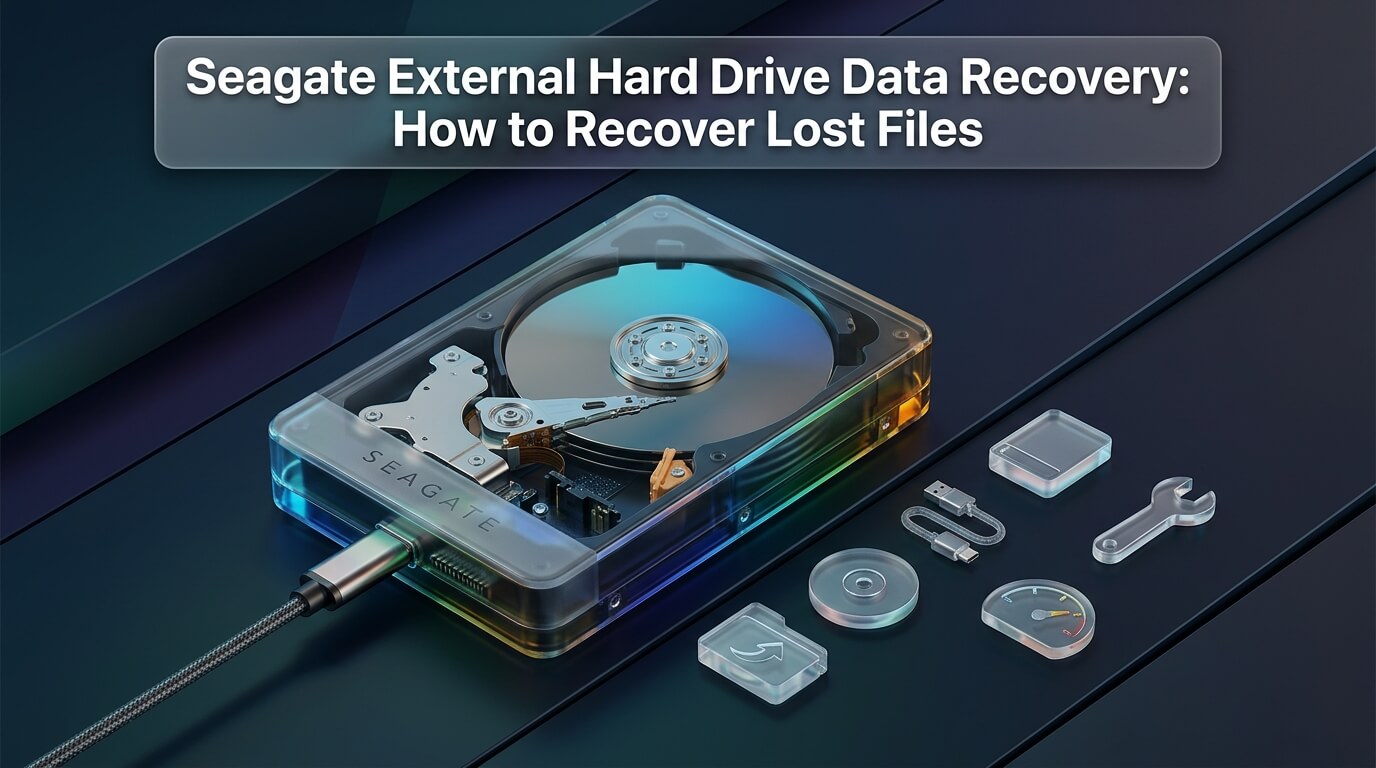
Seagate external hard drives are among the most popular portable storage devices in the world. Millions of photographers, students, and business professionals rely on drives like the Seagate Backup Plus, Expansion, and One Touch series. These drives store family photo albums, business tax archives, and creative project files. However, portable storage devices face daily physical hazards and software errors. When a drive suddenly refuses to mount, executing proper seagate external hard drive data recovery gives you the best opportunity to rescue your irreplaceable documents.
External hard drive failure can be logical or physical. A logical failure occurs when the file allocation table or partition directory becomes corrupt. In contrast, physical failure involves damaged read heads, broken USB connection ports, or seized motors. Attempting data recovery from seagate external hard drive devices requires diagnosing the root cause before running repair utilities. Applying the wrong software tool to a mechanically damaged drive can destroy your records permanently.
This technical guide explains how to restore files across the entire family of Seagate portable and desktop storage units. We examine internal hardware components, including USB-to-SATA bridge adapters and SMR platter architectures. We review official warranty options, showing how to leverage an in-warranty seagate data recovery service or professional seagate data recovery services. We review specialized seagate data recovery software for home file extraction. If you are working on an Apple workstation, we cover dedicated workflows for seagate data recovery mac environments. Whether your drive is unreadable, formatted, or clicking, this guide provides tested solutions.
- Check for Seagate Rescue Plan Coverage: Many Seagate external drives come with two or three years of bundled Seagate Rescue Data Recovery Services. If covered, Seagate will restore your drive in an ISO cleanroom for free.
- Do Not Format When Windows Prompts: If Windows says “You need to format the disk in drive X: before you can use it,” never click Format. The drive simply has damaged partition metadata, and your files are still intact.
- The USB Bridge Board Can Fail Independently: Portable drives contain a bridge card that converts SATA to USB. Sometimes the underlying drive is completely healthy, and only the USB port or bridge circuit has failed.
- Stop Use If the Drive Clicks or Beeps: Rhythmic clicking or electrical beeping indicates internal mechanical trauma. Disconnect power immediately to prevent read heads from scraping magnetic platters.
- Always Image Before Scanning: If a drive has bad sectors, create a sector-by-sector disk image using GNU ddrescue before running deep file carving software.
Understanding Seagate External Drive Architecture
To restore files safely, you must understand how Seagate designs its external portable storage line. A portable drive is not just a bare storage disk. It combines several electronic and mechanical layers.
The Internal SATA Drive and USB Bridge Card
Inside standard desktop external drives like the Seagate Expansion Desktop or Backup Plus Hub, you will find a full-size 3.5-inch SATA hard drive connected to a separate USB-to-SATA bridge board. This bridge card houses a micro-controller chip (such as an ASMedia or JMicron controller) and a USB micro-B or Type-C socket.
In many failure scenarios, the magnetic hard drive inside is in perfect working order. The drive fails to mount solely because the flimsy USB socket cracked or the bridge controller suffered an electrical surge. In desktop models, careful disassembly (known as shucking) allows technicians to test the internal drive via direct SATA connection.
However, many recent 2.5-inch portable drives (such as modern Seagate Expansion and Basic models) integrate the USB bridge directly onto the drive’s main printed circuit board (PCB). On native USB drives, you cannot simply bypass the USB port without specialized soldering equipment.
Shingled Magnetic Recording (SMR) and Media Caching
Most modern Seagate portable drives use Shingled Magnetic Recording (SMR) technology, commonly known as the Seagate Rosewood drive architecture. In SMR drives, magnetic tracks overlap like shingles on a roof to maximize storage density. Because tracks overlap, writing new data requires rewriting adjacent tracks.
To maintain acceptable write speeds, Seagate equips these drives with a high-speed media cache and complex internal firmware translators. When an SMR drive suffers sudden power loss or bad sectors, the internal firmware translator can become corrupted. When this occurs, the drive reports an unallocated 0 MB capacity or stays busy indefinitely. Resolving translator bugs requires professional firmware repair equipment.
Filesystem Formats: NTFS, exFAT, and APFS
Seagate ships its drives pre-formatted with either NTFS (for Windows) or exFAT (for dual compatibility between Windows and macOS). Some Mac-specific editions come pre-formatted with Apple HFS+ or APFS. Understanding your drive’s filesystem helps you select the correct recovery methodology.
Seagate Backup Plus Data Recovery Workflows
The Seagate Backup Plus family represents one of the most widely sold external drive lines over the past decade. It spans compact 2.5-inch portable models and high-capacity 3.5-inch desktop Hub models. Executing specialized seagate backup plus data recovery requires understanding the specific hardware revisions within this series.
Portable Backup Plus Slim and Ultra Touch Models
The 2.5-inch Backup Plus Slim drives typically house Seagate Mobile HDD or BarraCuda internal drives. These drives feature thin profiles and lightweight aluminum covers. Due to their compact size, they are susceptible to head slap if bumped while actively transferring files.
In addition, Ultra Touch editions feature hardware encryption managed via Seagate Toolkit software. If your Backup Plus Ultra Touch is password-locked, file carving tools cannot read data sectors until you authenticate through the Seagate security daemon or provide the master cryptographic key.
Backup Plus Hub Desktop Editions
Desktop Backup Plus Hub drives require an external 12V power adapter and feature two front-facing USB 3.0 pass-through ports. If a Backup Plus Hub fails to power on, do not assume the internal hard drive has died. The 12V power transformer or the front USB distribution hub frequently fails first.
Testing the drive with a verified compatible 12V 3A center-positive power adapter often restores normal drive operation immediately. If the drive powers on but clicks rhythmically, the internal 3.5-inch BarraCuda platter mechanism requires cleanroom attention.
Diagnostic Matrix: Identifying Your Seagate Failure Mode
Before launching recovery software, you must accurately diagnose your drive’s symptoms. Connecting a physically damaged drive to software scanners can cause permanent data loss.
Symptom 1: The Drive Prompts “You Need to Format the Disk”
This is the most common logical failure. When you connect your Seagate drive, Windows displays a popup warning stating that the drive must be formatted before use. In Disk Management, the partition appears as “RAW” rather than NTFS or exFAT.
This occurs when the boot sector or Master File Table (MFT) suffers logical corruption, often from disconnecting the USB cable without selecting Safely Remove Hardware. Your actual data files remain completely intact on the storage sectors. Dedicated recovery software can reconstruct the directory tree easily.
Symptom 2: Drive Light Blinks, but Drive Does Not Appear in Windows File Manager
If the LED activity light pulses steadily, but the drive does not show up in Windows File Manager or macOS Finder, open Windows Disk Management or Mac Disk Utility. If the drive appears with its correct capacity, the operating system is struggling to read corrupted partition boundaries. You can image the drive and run software recovery.
However, if the drive does not appear in Disk Management at all, or reports 0 MB capacity, the issue is physical. The USB bridge board, controller firmware, or PCB has failed.
Symptom 3: Faint Beeping or Buzzing Sound
If your Seagate external drive emits a faint electronic beeping or buzzing sound every two seconds, the spindle motor is jammed. This occurs when read-write heads get knocked off their parking ramp and clamp directly onto the magnetic platters. This condition is called head stiction. Do not leave the drive plugged in. The motor will overheat, burning out the spindle driver chip.
Symptom 4: The Rhythmic Click of Death
If the drive spins up, emits three to five rhythmic clicks, and then spins down completely, the read-write heads have suffered severe physical trauma. The drive cannot read its internal servo alignment tracks. Software cannot fix this issue. Power the drive down immediately.
USB micro-B cables are notoriously fragile. Internal copper strands can fracture while the exterior plastic looks undamaged. Always test your Seagate drive with a known-working replacement cable connected directly to a rear motherboard USB port, bypassing unpowered USB hubs.
The Seagate Rescue Data Recovery Plan: How to Claim Free Service
One of the greatest benefits of owning a modern Seagate external hard drive is the included warranty coverage. Unlike other manufacturers, Seagate includes factory cleanroom recovery protection with many of its popular retail drives.
What Is Seagate Rescue Coverage?
The Seagate Rescue plan is a factory data recovery warranty. If your drive experiences mechanical failure, accidental water damage, or electrical surges during the warranty period, Seagate covers professional cleanroom data recovery. These plans are bundled with models such as the Seagate One Touch, Backup Plus, Expansion, and IronWolf NAS drives.
Cleanroom recovery normally costs between $600 and $2,000 at third-party laboratories. With a valid Rescue plan, the service costs you nothing.
How to Check Your Warranty and File a Claim
Follow these steps to determine if your failing drive is covered under an active plan:
Step 1: Locate the 8-character Serial Number (S/N) printed on the bottom label of your Seagate enclosure.
Step 2: Visit Seagate’s official warranty validation portal at seagate.com/support/warranty-and-replacements/. Enter your Serial Number and Country.
Step 3: The portal will display your hardware warranty expiration date alongside your Seagate Rescue Data Recovery Plan status. If the status indicates active coverage, click Create a Data Recovery Case.
Step 4: Seagate provides a prepaid shipping label. Package your damaged drive in heavy-duty bubble wrap, place it inside a sturdy box, and ship it to Seagate’s dedicated cleanroom lab.
Step 5: Seagate engineers repair the drive in an ISO cleanroom, extract your files, and return your data on a brand-new encrypted external hard drive or via secure cloud download.
DIY Recovery for Seagate Drives: Step-by-Step Workflows
If your drive is out of warranty, or if the issue is logical corruption rather than mechanical failure, you can perform DIY recovery using proven software techniques.
Essential Safety Rule: Clone First, Scan Second
If your Seagate external drive has developed bad sectors, running intensive deep scans stresses the weak magnetic heads. The safest procedure is to create a sector-by-sector disk image using GNU ddrescue or an imaging utility. Once the clone is saved onto a secondary healthy disk, you run your recovery tools against the image file.
Workflow 1: Recovering RAW or Formatted Seagate Drives on Windows
This workflow applies when your Seagate drive is detected in Windows Disk Management but cannot be opened in Windows File Manager.
Step 1: Download and install a reputable file recovery tool, such as EaseUS Data Recovery Wizard or Disk Drill, on your computer’s internal C: drive. Never install recovery software onto the damaged Seagate drive.
Step 2: Connect your Seagate drive. Launch the software and locate your external drive in the storage devices list.
Step 3: Click Search for Lost Data or Scan. The software begins reading raw sector clusters, parsing damaged MFT records, and identifying files by their binary signatures.
Step 4: When the scan finishes, use the built-in file filter to browse by format, such as Photos, Videos, or Documents. Use the preview window to verify that image files and documents display cleanly.
Step 5: Select the files you wish to restore and click Recover. Choose a folder on your computer’s internal drive or a separate secondary external disk to save the recovered records.
Workflow 2: Seagate External Drive Recovery on macOS
Mac users frequently encounter issues where a Seagate drive formatted in exFAT or NTFS suddenly unmounts and displays an “Unreadable Disk” notification. Executing seagate data recovery mac requires granting appropriate disk access permissions.
Step 1: Connect the Seagate drive to your Mac. Open Disk Utility (found in Applications > Utilities). Check if the drive appears in the left sidebar.
Step 2: If the volume is greyed out, select it and click the First Aid button in the top toolbar. First Aid checks the catalog file and extents overflow tree. If First Aid repairs the header, the drive mounts normally.
Step 3: If First Aid fails or reports an error, launch a Mac-compatible recovery tool like Stellar Data Recovery for Mac or Disk Drill.
Step 4: On modern macOS versions (macOS Sonoma and Sequoia), you must grant the software Full Disk Access in System Settings > Privacy & Security. This allows the application to scan raw external disk blocks.
Step 5: Scan the Seagate volume, preview your Mac files, and export them to your internal Mac drive or an alternative backup drive.
Best Seagate Data Recovery Tools and Services
Selecting the right recovery program or laboratory service depends on your drive’s physical condition and warranty status. Here is an objective review of the top eight tools and services for Seagate drives.
1. Seagate Rescue Data Recovery Services
Seagate Rescue Data Recovery Services is the official laboratory recovery program managed directly by Seagate Technology. Their certified cleanroom engineering labs possess proprietary factory diagnostic equipment that third-party repair shops cannot access.
Because their engineers have direct access to factory microcode repositories and internal head replacement tooling, their success rate on Seagate drives exceeds 90%. If your drive is covered under an active plan, this is indisputably your best recovery option.
2. Seagate Premium Recovery Suite
Seagate offers its own proprietary software suite called the Seagate Premium Recovery Suite. Designed specifically for logical data loss, this utility runs on Windows and macOS. It specializes in recovering accidentally deleted files, formatted external volumes, and corrupted digital media.
The software features an intuitive graphical wizard that simplifies file restoration for everyday users. It supports NTFS, FAT32, exFAT, and Mac filesystems. It provides deep sector scanning and a file preview utility before purchase.
3. Disk Drill Data Recovery
Developed by CleverFiles, Disk Drill is widely regarded as one of the most versatile recovery programs available for external hard drives. It features advanced scanning algorithms that reconstruct lost partitions and repair fragmented files.
Disk Drill excels on both Windows and macOS. It includes a built-in byte-to-byte disk backup feature, allowing you to create a complete DMG or ISO image of a struggling Seagate drive before starting file extraction. Its deep scan engine recognizes hundreds of modern file formats.
4. EaseUS Data Recovery Wizard
EaseUS Data Recovery Wizard is a staple in the data recovery industry, known for its exceptional scanning speed and beginner-friendly interface. It handles formatted Seagate external drives, raw partitions, and accidental deletion with remarkable consistency.
EaseUS provides real-time file categorization, sorting recovered records into clean directory trees. It allows users to pause and resume scans, saving session progress so you do not have to rescan large multi-terabyte drives repeatedly.
5. Stellar Data Recovery for Mac
Stellar Data Recovery for Mac is a specialized recovery program built specifically for Apple desktop and MacBook environments. It provides native support for Apple APFS, HFS+, and FAT/exFAT external storage devices.
If you used your Seagate external drive as an Apple Time Machine backup disk or formatted it with macOS Extended, Stellar is particularly effective. It decodes complex Mac container structures and recovers corrupted Time Machine sparsebundles with high precision.
6. R-Studio Data Recovery
R-Studio is an enterprise-grade file recovery suite engineered for technicians and advanced users. It contains sophisticated tools for parsing damaged partition tables, unreadable boot records, and heavily degraded external hard drives.
R-Studio gives users complete control over sector read parameters, timeout thresholds, and raw hex sector inspection. When dealing with a Seagate drive that has intermittent bad sectors, R-Studio can adjust its scanning behavior to prevent the drive from freezing.
7. GNU ddrescue
GNU ddrescue is an open-source terminal utility designed for copying data from failing physical storage devices. When a Seagate drive develops read instability, standard Windows copying tools crash or abort.
Ddrescue operates with an intelligent multi-phase algorithm. It copies all healthy sectors first at maximum speed, logging damaged areas in a mapfile. In later phases, it scrapes difficult sectors without getting trapped in infinite read loops. It provides an essential safety net before running commercial recovery software.
8. Ontrack Cleanroom Data Recovery
If your Seagate external hard drive has suffered mechanical damage, was dropped on concrete, or is out of factory warranty, Ontrack is the premier global cleanroom recovery facility. Ontrack operates certified Class 100 cleanroom environments worldwide.
Their mechanical engineers have decades of experience executing delicate head transplants on seized Seagate Rosewood drives and spindle motor replacements. They provide free evaluations and operate on a strict “No Data, No Charge” policy.
Comparison of Seagate Data Recovery Tools and Services
The following table outlines key features, platform compatibility, and best use cases for each reviewed solution.
| Tool / Service | Platform | Pricing / Coverage | Primary Function | Best Scenario |
|---|---|---|---|---|
| Seagate Rescue Services | Cleanroom Lab | Free (With active warranty) | Factory cleanroom recovery | In-warranty drives with physical mechanical failure |
| Seagate Premium Suite | Windows / Mac | Commercial ($99.99) | Official DIY file recovery | Accidental file deletion and formatted Seagate media |
| Disk Drill Data Recovery | Windows / Mac | Freemium ($89.00 Pro) | Partition recovery & disk imaging | RAW partitions, lost photos, and Mac APFS drives |
| EaseUS Recovery Wizard | Windows / Mac | Commercial ($69.95/mo) | Fast logical sector scanning | Quick file restoration on healthy spinning drives |
| Stellar Recovery for Mac | macOS | Commercial ($89.99) | Apple filesystem reconstruction | Seagate drives formatted for Mac Time Machine |
| R-Studio Data Recovery | Windows / Mac / Linux | Commercial ($79.99) | Low-level filesystem parsing | Heavily corrupted external partitions and bad sectors |
| GNU ddrescue | Linux / macOS (CLI) | Free / Open Source (GPL) | Fault-tolerant disk cloning | Safely cloning failing drives before scanning |
| Ontrack Cleanroom | Professional Lab | Custom Quote ($500+) | ISO Class 5 physical surgery | Clicking, buzzing, or dropped out-of-warranty drives |
Critical Mistakes to Avoid During Seagate Recovery
When an external storage drive behaves erratically, users often take intuitive actions that actually destroy their data. Avoid these critical mistakes:
- Running CHKDSK on an Unstable Drive: Running
chkdsk /fon a corrupted external drive is hazardous. If the drive has bad sectors, CHKDSK will overwrite unreadable directory records with zeros, permanently deleting your files. - Clicking “Format Disk” to Make It Work: When Windows prompts you to format a RAW drive, clicking Format creates a brand-new file allocation table. This overwrites root directory indexes, making subsequent file recovery much harder.
- Shucking Portable 2.5-Inch Drives Unnecessarily: Opening the plastic casing of a modern 2.5-inch Seagate drive will void your warranty and your free Seagate Rescue coverage. In addition, modern portable drives integrate the USB port directly onto the PCB, so shucking does not expose a standard SATA port.
- Leaving a Clicking Drive Plugged In: If your drive emits clicking sounds, the read heads are physically misaligned. Leaving the drive powered on allows the heads to scrape concentric rings into the platters, destroying the magnetic recording film.
Best Practices to Protect Your Seagate Storage
Implementing basic preventive measures guarantees that unexpected drive failure never results in catastrophic data loss.
- Always Use Safe Eject: Never unplug a USB cable while the drive is active. In Windows, click “Safely Remove Hardware.” In macOS, drag the drive icon to the Trash. This flushes write caches cleanly.
- Register Your Drive for Rescue Coverage: Immediately after purchasing a new Seagate drive, register its serial number on Seagate’s website. This activates your free Rescue Data Recovery Plan.
- Practice the 3-2-1 Backup Strategy: Never treat an external hard drive as your sole storage location. Keep three copies of your data across two different media formats, with one copy off-site or in the cloud.
- Monitor S.M.A.R.T. Health Attributes: Install free utilities like CrystalDiskInfo (Windows) or DriveDx (Mac). Check for Reallocated Sectors or Pending Sectors monthly to catch drive degradation before total failure.
- Avoid Unpowered USB Hubs: External hard drives require steady 5V electrical power. Connecting your drive through cheap, unpowered USB splitters can cause voltage drops that corrupt partition headers.
Frequently Asked Questions About Seagate Drive Recovery
How much does professional Seagate data recovery cost?
If your drive is covered under an active Seagate Rescue Data Recovery Plan, the cleanroom recovery service is 100% free. If your drive is out of warranty and suffers mechanical failure, third-party cleanroom recovery typically costs between $600 and $1,800 depending on the damage severity.
Can I recover files from a Seagate external hard drive that will not turn on?
Yes, if the drive does not power on, the issue is often a failed USB cable, a damaged USB bridge board, or a blown diode on the drive’s circuit board. A professional data recovery technician can test the circuit board, replace damaged electronic components, or adapt the drive to direct SATA to retrieve your files.
Why is my Seagate external hard drive showing as RAW?
A drive displays as RAW when its filesystem structure (such as NTFS or exFAT) is corrupted or unrecognizable by the operating system. This is usually caused by sudden USB disconnection, power surges, or bad sectors in the boot sector. Your actual files are usually still present, and data recovery software can retrieve them.
How long does Seagate Rescue Data Recovery take?
The standard turnaround time for Seagate Rescue Data Recovery is approximately two to three weeks, which includes shipping to the laboratory, cleanroom diagnostic evaluation, data extraction, and return shipping of your recovered files on a replacement encrypted external drive.
Final Recommendations and Action Plan
Facing data loss on a Seagate external hard drive can be overwhelming, but following a calm, methodical process gives you the best chance of saving your files. Start by diagnosing whether the failure is logical or physical.
If the drive spins smoothly without clicking or beeping, check your warranty status on Seagate’s portal to see if you have active Rescue Plan coverage. If out of warranty, create a sector-level clone using GNU ddrescue, and scan the cloned image using proven utilities like Disk Drill, EaseUS, or Stellar. If the drive makes any clicking, buzzing, or grinding sounds, disconnect it from power immediately and submit a cleanroom recovery claim. By treating storage hardware with proper care, you can safely rescue your valuable digital records.