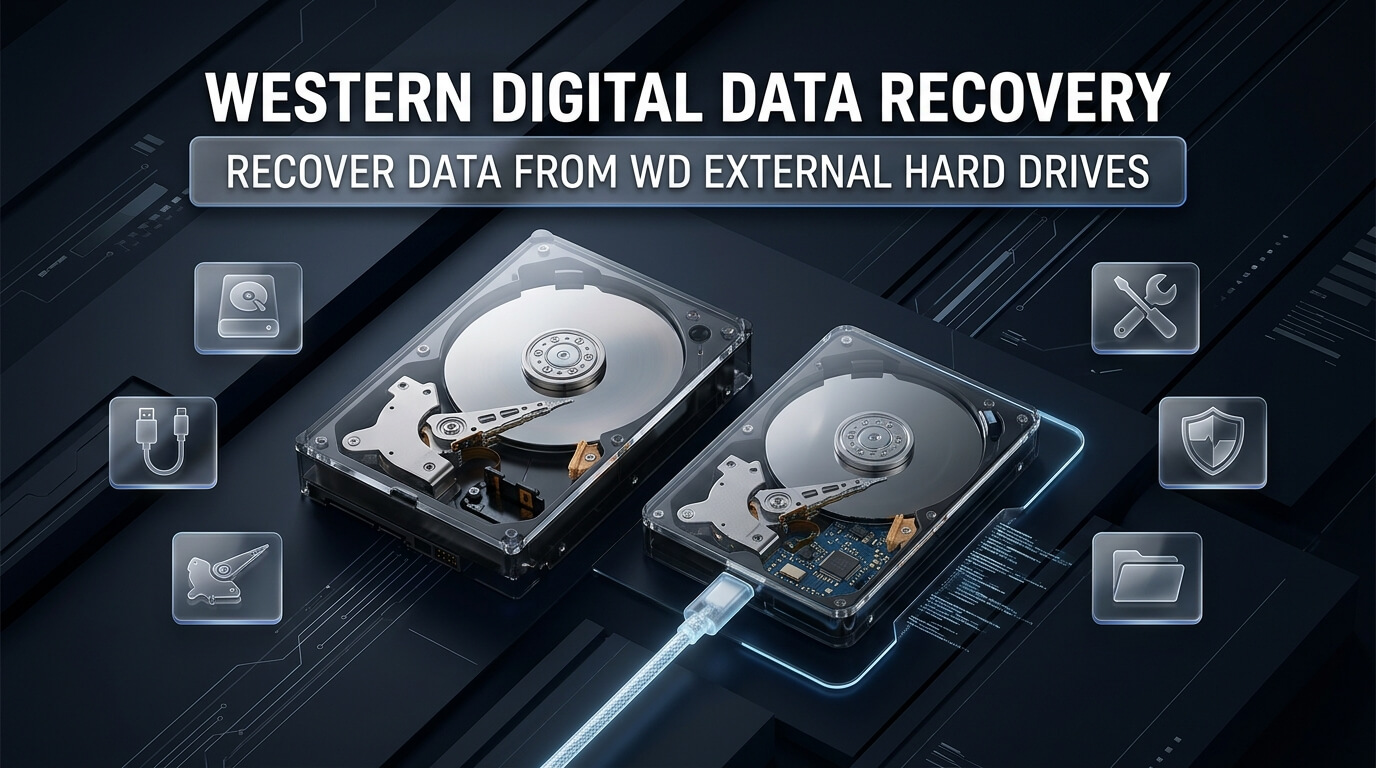
Western Digital is one of the most recognizable and trusted storage manufacturers on the planet. Millions of computer users rely on portable and desktop drives like the WD My Passport, WD Elements, and WD My Book. These drives safeguard financial spreadsheets, personal photo albums, and enterprise system archives. However, like all mechanical devices, Western Digital storage devices are vulnerable to logical errors, firmware bugs, and physical trauma. When an unexpected crash occurs, performing structured western digital data recovery gives you the best opportunity to rescue your irreplaceable files.
Recovering data from Western Digital storage units requires specialized knowledge because Western Digital builds unique engineering features into its drives. Unlike generic external hard drives, modern WD portable drives feature native USB printed circuit boards with integrated hardware encryption. If your computer freezes when you plug in your drive, applying standard repair utilities can aggravate the problem. Understanding the technical principles of data recovery western digital allows you to distinguish between simple filesystem corruption and serious mechanical or firmware failure.
This technical guide explains how to restore files across the entire Western Digital external hard drive catalog. We examine internal hardware layouts, the famous WD slow-responding firmware bug, and hardware encryption architecture. We review dedicated wd passport data recovery software for home file extraction. We also detail professional cleanroom protocols for an out-of-warranty western digital data recovery service. Whether you need emergency wd external hard drive data recovery or routine partition repair, this guide provides tested solutions.
- Native USB PCBs Eliminate SATA Ports: Modern 2.5-inch WD My Passport drives solder the USB 3.0 connector directly onto the main drive circuit board. You cannot simply remove the drive from its casing to connect it via standard SATA.
- Hardware Encryption Operates Silently: WD My Passport and My Book drives encrypt data at the hardware layer by default, even if you never configured a password in WD Security software.
- Beware the “Slow Responding” Firmware Glitch: When Western Digital drives encounter bad sectors, internal firmware error logs (Relo-List) can overflow. This causes the drive to hang and freeze Windows File Manager completely.
- Never Run CHKDSK on a Freezing WD Drive: Running Windows CHKDSK on a drive suffering from bad sectors or firmware instability will corrupt the Master File Table, causing permanent data loss.
- Always Clone Before Deep Scanning: Create a sector-by-sector disk image using GNU ddrescue or a hardware imager before attempting deep software file carving.
The Unique Architecture of Western Digital External Drives
To successfully perform western digital external hard drive data recovery, you must understand how Western Digital constructs its storage hardware. WD incorporates unique hardware and firmware mechanisms that distinguish its products from other brands.
Native USB Circuit Boards
In older external hard drives, manufacturers placed an ordinary SATA hard drive inside a plastic shell alongside an adapter card that converted SATA to USB. If the USB port broke, you could remove the internal drive (shucking) and connect it directly to a computer motherboard.
Modern 2.5-inch WD portable drives (including the My Passport and Elements series) do not use separate bridge boards. Instead, Western Digital solders the USB 3.0 or Type-C controller directly onto the drive’s main printed circuit board (PCB). There are no SATA data or power pins available. If the micro-USB socket breaks or the bridge controller burns out, professional technicians must micro-solder discrete SATA wiring directly to electronic capacitors on the PCB to communicate with the drive.
Self-Encrypting Drive (SED) Hardware Encryption
Western Digital My Passport and My Book drives feature hardware-level Self-Encrypting Drive (SED) technology. An onboard encryption co-processor (often integrated within the main controller chip or USB bridge) encrypts all data written to the magnetic platters using 256-bit AES encryption.
Crucially, this encryption is active even if you never installed WD Security and never created a password. In this default state, the drive uses a factory default key. If the drive’s PCB suffers electrical failure, you cannot read the platters simply by swapping in a donor board. The donor board will not have the matching cryptographic key, rendering all recovered data unreadable random noise. Data recovery specialists must transfer the original bridge chip or decrypt the raw image using specialized firmware tools.
The Notorious “Slow Responding” Firmware Bug
A widespread issue affecting Western Digital hard drives is the “slow-responding” firmware defect. When a WD drive encounters weak magnetic sectors, its background defect management system attempts to reallocate those sectors into a specialized internal firmware table known as the Relo-List (Relocation List).
When the Relo-List fills up or encounters bad sectors in the firmware System Area (SA), the drive enters an endless internal error-handling loop. The drive stays busy indefinitely, taking up to thirty seconds to respond to each single read request. To Windows, the drive appears completely frozen, causing Windows File Manager and Disk Management to hang. Bypassing this bug requires professional diagnostic hardware (such as the PC-3000) to clear the Relo-List and disable background defect scanning in the drive RAM.
Converting Native USB PCBs to SATA for Hardware Diagnostics
Because modern 2.5-inch WD My Passport drives lack native SATA ports, professional technicians often face a severe barrier when imaging unstable media. USB connections do not permit hardware-level ATA commands, software resets, or selective head control.
The Solder Wire Modification
To overcome USB limitations, laboratory engineers modify the native USB PCB by tapping into the underlying SATA differential signaling traces. Engineers scrape the protective solder mask from four tiny surface-mount capacitors located between the main MCU and the USB bridge chip. These capacitors carry the SATA transmit (TX+, TX-) and receive (RX+, RX-) differential lines.
Using high-magnification stereo microscopes and fine-gauge enameled copper wire, technicians solder a standard SATA data connector directly to these capacitors. The USB differential lines are severed to prevent signal reflection. Once wired, the drive connects directly to hardware disk imagers like DeepSpar or PC-3000, enabling low-level ATA register control.
SATA Donor PCB Swapping and ROM Transfer
An alternative method is swapping the native USB circuit board with an identical SATA donor PCB. For example, a common USB PCB (such as board number 2060-800041) can be replaced by its direct SATA equivalent (board number 2060-800022).
However, this swap requires desoldering the 8-pin serial flash ROM chip from the patient board and soldering it onto the donor board. The ROM chip contains unique head adaptive calibration data and cryptographic SED keys. Without this original ROM chip, the replacement board will not spin the drive or read data sectors.
Drive Family Breakdown: Passport, My Book, and Elements
Western Digital organizes its external storage line into three primary families. Each family possesses distinct mechanical characteristics and recovery considerations.
WD My Passport Series
Performing data recovery wd passport units is the most frequent task for recovery technicians. The My Passport line consists of ultra-compact 2.5-inch portable drives powered solely via the USB port. Because they are designed for mobility, they frequently suffer physical drops, cable disconnects, and connector wear.
When executing western digital passport data recovery, determine whether the drive is password-protected. If the drive is locked via WD Security, third-party software cannot view directory structures until you provide the password. If you are handling western digital my passport data recovery on an unreadable drive that spins quietly without clicking, software imaging or firmware Relo-List clearing is usually required.
WD My Book Series
The WD My Book family consists of larger 3.5-inch desktop external drives that require an external 12V power supply. Performing western digital my book data recovery is common in home offices and media studios where high capacities (up to 22TB) are needed.
Unlike portable drives, 3.5-inch My Book drives contain standard internal SATA hard drives connected to a separate bridge card. However, this bridge card contains an Oxford or Symwave hardware encryption chip. Even though the internal drive uses standard SATA, you cannot simply remove it and connect it to a PC. The PC will report the drive as unformatted RAW space because the data is encrypted. You must keep the original bridge card intact or use specialized decryption software.
WD Elements and Easystore Series
The WD Elements and Easystore lines are budget-friendly portable and desktop storage devices. Unlike My Passport and My Book models, standard Elements drives do not include hardware encryption co-processors or WD Security software integration. This makes logical file extraction much simpler when partition metadata becomes corrupted.
Diagnostic Matrix: Identifying Your Western Digital Failure Mode
Before launching recovery software, you must diagnose whether your drive is suffering from logical corruption, firmware lockup, or mechanical damage.
Symptom 1: Drive Spins Smoothly, but Windows Freezes or Hangs
You connect your WD drive to your computer. The white LED activity light blinks slowly, and you can feel the platters spinning smoothly with no clicking. However, Windows File Manager freezes, Disk Management will not load, and the computer slows down completely.
This is the classic signature of the Western Digital slow-responding firmware bug or accumulated bad sectors. Windows is attempting to read the partition table, but the drive is stuck in an internal error-handling loop. Running software scans in this state is counterproductive. The drive must be cloned using hardware imagers or specialized timeout commands.
Symptom 2: Drive Prompts “You Need to Format the Disk”
When you plug in your drive, Windows immediately displays a dialogue box warning that the disk must be formatted before use. In Disk Management, the drive volume appears as RAW rather than NTFS or exFAT.
This indicates logical filesystem damage. The partition boot record or Master File Table was corrupted by a sudden USB unplug or power surge. Your actual files are completely safe on the underlying sectors. Never click Format. Dedicated data carving tools can reconstruct the folder structure easily.
Symptom 3: Faint Beeping or Buzzing Noise
If your portable WD My Passport emits a repetitive, high-pitched electronic beeping or buzzing sound when connected, the spindle motor is physically seized or suffering from head stiction. The read-write heads have clamped down onto the mirror-smooth platters, preventing them from spinning. Disconnect the drive immediately. Leaving it plugged in will overheat the motor and destroy the PCB.
Symptom 4: The Rhythmic Click of Death
If the drive spins up, emits three to six rhythmic clicks (click-pause-click-pause), and then shuts down its motor, the read-write heads have suffered physical mechanical failure. The heads cannot read the magnetic servo tracks on the platter. No software can fix this issue. The drive requires cleanroom head surgery.
On desktop WD My Book drives, verify that you are using the correct 12V power supply. Connecting a 5V or 9V adapter from another device will provide enough electricity to illuminate the LED, but not enough voltage to spin up the heavy 3.5-inch platter motor.
DIY Software Recovery Workflows for Western Digital Drives
If your Western Digital external drive spins smoothly, does not click or beep, and is recognized in Disk Management, executing tactical wd data recovery using software is completely feasible. When approaching western digital hard drive data recovery at home, adhering to strict safety protocols protects your magnetic platters from unneeded wear.
Essential Safety Protocol: Raw Disk Imaging
Before scanning a troubled drive with commercial software, always create a bit-by-bit raw clone. If your drive has developing surface defects, repetitive scanning sweeps can cause weak read heads to fail completely. Creating a sector clone onto a healthy target drive guarantees that you preserve your data before starting analysis.
Workflow 1: Recovering RAW or Formatted WD Partitions
Follow these steps to recover lost files from an unmountable or formatted Western Digital volume on Windows:
Step 1: Download and install a proven recovery utility, such as Disk Drill or EaseUS Data Recovery Wizard, on your primary internal hard drive. Never install recovery software onto the affected WD external drive.
Step 2: Connect your Western Digital external drive directly to a motherboard USB port on your PC.
Step 3: Launch the recovery software. In the drive list, highlight your WD external disk. Click Search for Lost Data to begin scanning.
Step 4: The software scans the drive sectors, parsing residual MFT structures and identifying files by binary headers. Use the preview panel to inspect recovered photos, videos, and documents.
Step 5: Select the files you want to restore and click Recover. Choose a target folder on your internal computer drive or a secondary external drive to save the recovered records.
Workflow 2: Recovering Files from Password-Protected WD Passport Drives
If your drive is protected by WD Security, software tools cannot see your data until the drive is decrypted in memory.
Step 1: Connect the drive. If the virtual CD-ROM partition appears in Windows File Manager, run the official WD Drive Security application.
Step 2: Enter your original user password to disarm the encryption engine. If you do not know the password, software utilities cannot crack the 256-bit AES encryption.
Step 3: Once authenticated, the drive partition mounts with its assigned drive letter. If the filesystem is damaged or files were accidentally deleted, launch your recovery software and scan the newly mounted volume.
Best Western Digital Data Recovery Tools and Services
Selecting the right recovery program or laboratory service depends on whether your drive has logical corruption, firmware locks, or physical hardware trauma. Here is an objective review of the top eight tools and services for Western Digital drives.
1. WD Drive Utilities & Western Digital Dashboard
Western Digital provides official management utilities including WD Drive Utilities and the Western Digital Dashboard. While these tools do not carve deleted files, they provide critical diagnostic health checks.
The Western Digital Dashboard monitors S.M.A.R.T. health attributes, checks for firmware updates, and runs non-destructive drive self-tests. It is the best starting point to verify whether an unreadable drive has bad sectors or electrical faults before attempting recovery.
2. Disk Drill Data Recovery
Disk Drill by CleverFiles is an industry-leading data recovery software suite for both Windows and macOS. It features sophisticated partition recovery algorithms specifically tuned for external hard drives.
Disk Drill includes a built-in byte-to-byte disk backup feature, allowing users to create a clean DMG or ISO disk clone of an unstable WD drive before running intensive file scans. Its deep scan engine reconstructs hundreds of file formats from RAW or formatted volumes with exceptional accuracy.
3. Ontrack Western Digital Recovery Services
Ontrack is an authorized cleanroom data recovery partner for Western Digital. If your drive has suffered physical damage, dropped on concrete, or suffers from seized bearings, Ontrack provides certified ISO Class 5 cleanroom surgery.
Crucially, because Ontrack is an authorized WD partner, opening the drive in their cleanroom will not void your Western Digital factory warranty. Their engineers have access to proprietary WD factory microcode tools, allowing them to solve complex firmware and hardware encryption challenges.
4. EaseUS Data Recovery Wizard
EaseUS Data Recovery Wizard is a popular, user-friendly recovery program that excels at restoring lost files from Western Digital external drives. It provides fast scanning algorithms and an intuitive interface designed for everyday users.
EaseUS handles formatted WD partitions, raw filesystem errors, and accidental deletions smoothly. It organizes recovered records into clean directory trees and allows users to preview photos, videos, and office files prior to export.
5. ACE Lab PC-3000 WD Utility
The ACE Lab PC-3000 is the worldwide benchmark hardware-software diagnostic system used by professional digital forensic laboratories. The specialized PC-3000 Western Digital utility communicates directly with the drive’s processor in factory technological mode.
The PC-3000 can solve the infamous slow-responding firmware bug by clearing the Relo-List in the drive RAM. It can bypass locked controller chips, read damaged firmware modules (System Area), and perform selective head-by-head sector imaging, salvaging drives that all consumer software rejects.
6. Stellar Data Recovery
Stellar Data Recovery is a comprehensive file restoration program available for Windows and macOS. It specializes in recovering documents, photos, and multimedia files from corrupted external hard drives.
Stellar provides advanced partition search algorithms that locate lost or deleted partitions on Western Digital drives. It features an advanced preview window and allows users to configure custom file headers for unique proprietary file types.
7. R-Studio Data Recovery
R-Studio is an enterprise-grade file recovery and disk editing suite designed for technicians and advanced forensic analysts. It provides unmatched capabilities when dealing with heavily degraded external storage.
R-Studio gives users complete control over sector read timeouts, retry counts, and custom virtual RAID reconstructions. It allows technicians to inspect raw sector hexadecimal values directly, making it an indispensable tool for complex data recovery jobs.
8. GNU ddrescue
GNU ddrescue is a legendary open-source command-line tool designed for cloning damaged drives with read errors. When a Western Digital drive develops bad sectors, standard Windows copying tools freeze.
Ddrescue copies readable sectors first at high speed, logging bad sectors in a mapfile. In later phases, it returns to damaged regions, scraping readable data without crashing or looping indefinitely. It is the safest, zero-cost cloning utility for unstable WD storage.
Comparison of Western Digital Recovery Tools and Services
The following table outlines the capabilities, platform compatibility, and best use cases for each reviewed solution.
| Tool / Service | Platform | Pricing / License | Primary Capability | Best Scenario |
|---|---|---|---|---|
| WD Dashboard | Windows | Free (Official WD) | S.M.A.R.T. health & firmware testing | Initial hardware diagnostic and health check |
| Disk Drill Recovery | Windows / Mac | Freemium ($89.00 Pro) | Byte-to-byte cloning & deep carving | Formatted or RAW WD My Passport and Elements |
| Ontrack Cleanroom | Professional Lab | Custom Quote ($500–$2,500) | Authorized WD cleanroom surgery | Clicking, dropped, or physically failed WD drives |
| EaseUS Recovery Wizard | Windows / Mac | Commercial ($69.95/mo) | Fast logical directory tree recovery | Accidentally deleted files on healthy WD disks |
| ACE Lab PC-3000 | Hardware / Software | Enterprise Professional | Relo-List clearing & firmware repair | Slow-responding bug and locked SED controllers |
| Stellar Data Recovery | Windows / Mac | Commercial ($89.99) | Partition repair & file extraction | Unreadable volumes and lost partition maps |
| R-Studio Recovery | Windows / Mac / Linux | Commercial ($79.99) | Low-level sector editing & timeout control | Heavily degraded partitions and multi-disk setups |
| GNU ddrescue | Linux / macOS (CLI) | Free / Open Source (GPL) | Fault-tolerant sector cloning | Safely cloning failing WD drives before scanning |
Critical Mistakes to Avoid During Western Digital Recovery
When a Western Digital drive starts freezing or behaving erratically, common intuitive actions can permanently destroy your records. Avoid these critical mistakes:
- Running CHKDSK on a Freezing Drive: When Windows prompts that a drive has errors, users frequently run
chkdsk /f. If the drive is suffering from bad sectors or the slow-responding bug, CHKDSK will truncate files, wipe directory entries, and corrupt the Master File Table. - Attempting to Shuck a 2.5-Inch My Passport: Do not break open the plastic casing of a 2.5-inch My Passport expecting to find a SATA port. The USB port is soldered directly to the drive PCB. Damaging the casing voids your warranty without providing any connection benefit.
- Discarding the Bridge Board on 3.5-Inch My Book Drives: On desktop My Book models, the separate USB bridge card contains the hardware encryption key. If you connect the internal drive directly to a motherboard without the bridge, your data will appear as unreadable random ciphertext.
- Powering On a Clicking Drive Repeatedly: If a WD drive is clicking, the read heads are physically damaged. Repeatedly unplugging and reconnecting the drive allows broken heads to scrape concentric rings into the magnetic platters, permanently destroying data.
Best Practices to Maintain Healthy Western Digital Storage
Preventive maintenance ensures that your Western Digital storage devices remain reliable for years to come.
- Always Use Safely Remove Hardware: Disconnecting a USB drive while write caches are flushing corrupts partition headers and triggers the slow-responding firmware bug. Always eject the drive cleanly.
- Monitor S.M.A.R.T. Attributes Monthly: Run the Western Digital Dashboard or CrystalDiskInfo monthly. Monitor attributes like Reallocated Sectors and Current Pending Sectors to replace deteriorating drives before sudden failure.
- Store Passwords in a Password Manager: If you use WD Security to password-protect your My Passport, store the exact password in a secure password manager like 1Password or Bitwarden.
- Adopt the 3-2-1 Backup Strategy: Never rely on a single external drive as your only backup. Keep three copies of critical data across two different media formats, with at least one copy in off-site cloud storage.
- Avoid Unpowered USB Hubs: External hard drives require stable 5V power. Unpowered USB splitters can cause voltage drops that trigger drive head dropouts and partition corruption.
Frequently Asked Questions About Western Digital Recovery
Can I recover data from a clicking Western Digital external hard drive?
Yes, but not with software. A clicking sound indicates physical failure of the read-write heads or internal preamp chip. You must power off the drive immediately and send it to an authorized cleanroom laboratory like Ontrack for a mechanical head stack replacement.
Can I recover files from a locked WD My Passport if I forgot the password?
No, you cannot recover files from a password-locked WD My Passport using standard brute-force tools. Western Digital uses military-grade 256-bit AES hardware encryption. If the password is forgotten, professional recovery labs must inspect volatile memory dumps or use specialized firmware equipment.
Why does my Western Digital external drive make my computer freeze?
This freezing behavior is almost always caused by the Western Digital slow-responding firmware bug or accumulated bad sectors. When the drive encounters damaged sectors, its internal defect management system loops indefinitely, locking up the Windows storage subsystem.
Can I shuck an external WD hard drive to recover data?
You can safely shuck 3.5-inch desktop WD Elements and Easystore drives because they contain standard SATA hard drives. However, you should not shuck 2.5-inch portable My Passport drives because the USB port is soldered directly to the PCB. On 3.5-inch My Book drives, you must retain the bridge card to decode hardware encryption.
Final Recommendations and Action Plan
Experiencing data loss on a Western Digital external hard drive can be alarming, but following a disciplined diagnostic approach gives you the highest chance of salvaging your valuable files. Begin by evaluating the drive’s physical behavior.
If the drive spins smoothly without clicking or buzzing, test the USB cable and check if the partition is recognized in Disk Management. Create a raw sector clone using GNU ddrescue or Disk Drill before running file extraction software like EaseUS or Stellar. If the drive is clicking, beeping, or freezing your computer completely, disconnect it from power immediately. Contact an authorized cleanroom recovery facility like Ontrack to handle mechanical repairs safely. By treating Western Digital storage hardware with technical care, you can rescue your critical digital memories and work archives.